
The Time Machine
The Time Machine shows what your team is working on, and for how long, at any moment: now, or any minute of any past day. It is not meant to replace your other dashboards, which count tickets; it adds what they cannot show: who is working which ticket right now, how each member’s day was spent, and how closely ConnectWise was kept up to date.
Open it from the Nilear home page at app.nilear.com: The Time Machine card’s Open button, or Open Tab for a tab of its own. It is always shown in a dark theme.
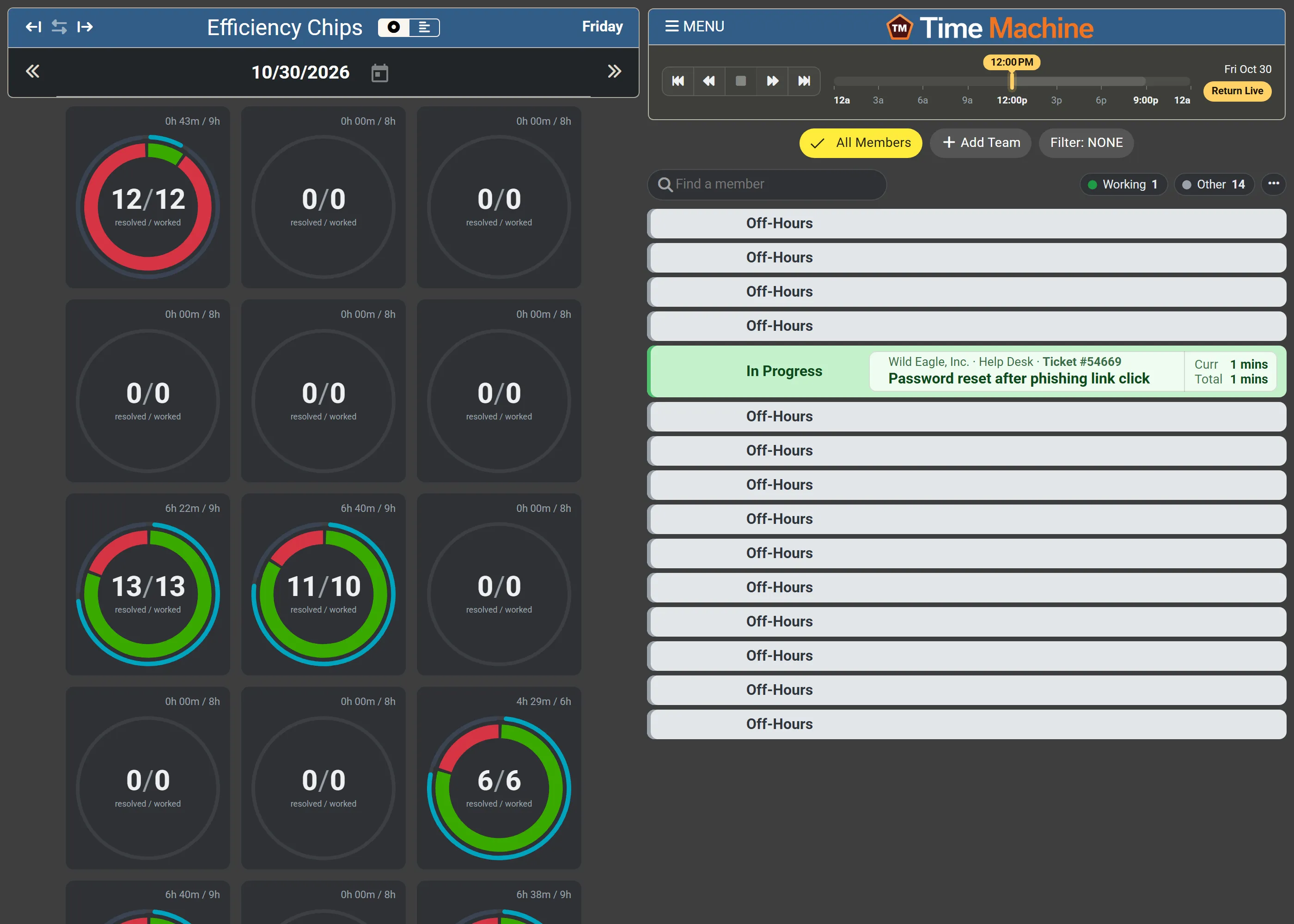
Two views side by side
Section titled “Two views side by side”- Efficiency Chips (left): a chip per member, showing at a glance how much they did that day and how accurately they kept ConnectWise up to date. Switch to Efficiency Strips for a row per member on a shared time axis.
- The Availability board (right): a live view of each member’s state, the tickets they hold In Progress and for how long, and where they are working: in the office, from home, on the road, or remote. It is the same board as MTX’s Availability tab.
Above the board, the timeline chooses the moment shown. Move it back and the board shows the team as it was at that minute; press play to watch the day as a time-lapse.
What it is for
Section titled “What it is for”- Keep everyone up to date on the work being done, across work locations and time zones.
- Look back at what was worked on at any time, by the whole team, and replay it.
- Coach your team: the chips show who is working tickets, who records their time as they go, and who resolves what they work on.
- Put the board and chips on an office TV, with no sign-in, through a Dashboard Link.
Nilear’s getting started video introduces the Time Machine. It was recorded before the latest changes to the chips and the timeline, so some screens look different today.