
Set up MTX for your company
MTX needs to know which ConnectWise work types, statuses and schedule actions to use before it can record your technicians’ work for them. You set these once for the whole company. You need Nilear’s Admin access level.
1. Check your boards’ SLA settings
Section titled “1. Check your boards’ SLA settings”MTX reads a ticket’s state (new, responded, in progress, waiting, resolved) from the SLA escalation of each ConnectWise ticket status. Open Settings, then SLA Review, at app.nilear.com, and fix anything marked in red. See Review your SLA settings.
2. Set your board types
Section titled “2. Set your board types”Open Settings, then Board Types. Give each board the type that describes it (Service, Monitor, Project, Sales or Other). The Processing switch on a board decides whether Nilear processes its tickets for the Time Machine, Availability, MTX and Nilear Live: a technician cannot work a ticket on a board whose processing is off.
3. Complete Settings → My Tickets
Section titled “3. Complete Settings → My Tickets”Open Settings, then My Tickets. The page says: “Complete the Work Type/Role, Expense, Schedule, and Board forms below to enable My Tickets Mobile/Desktop”. A form whose required fields are missing says so in its header.
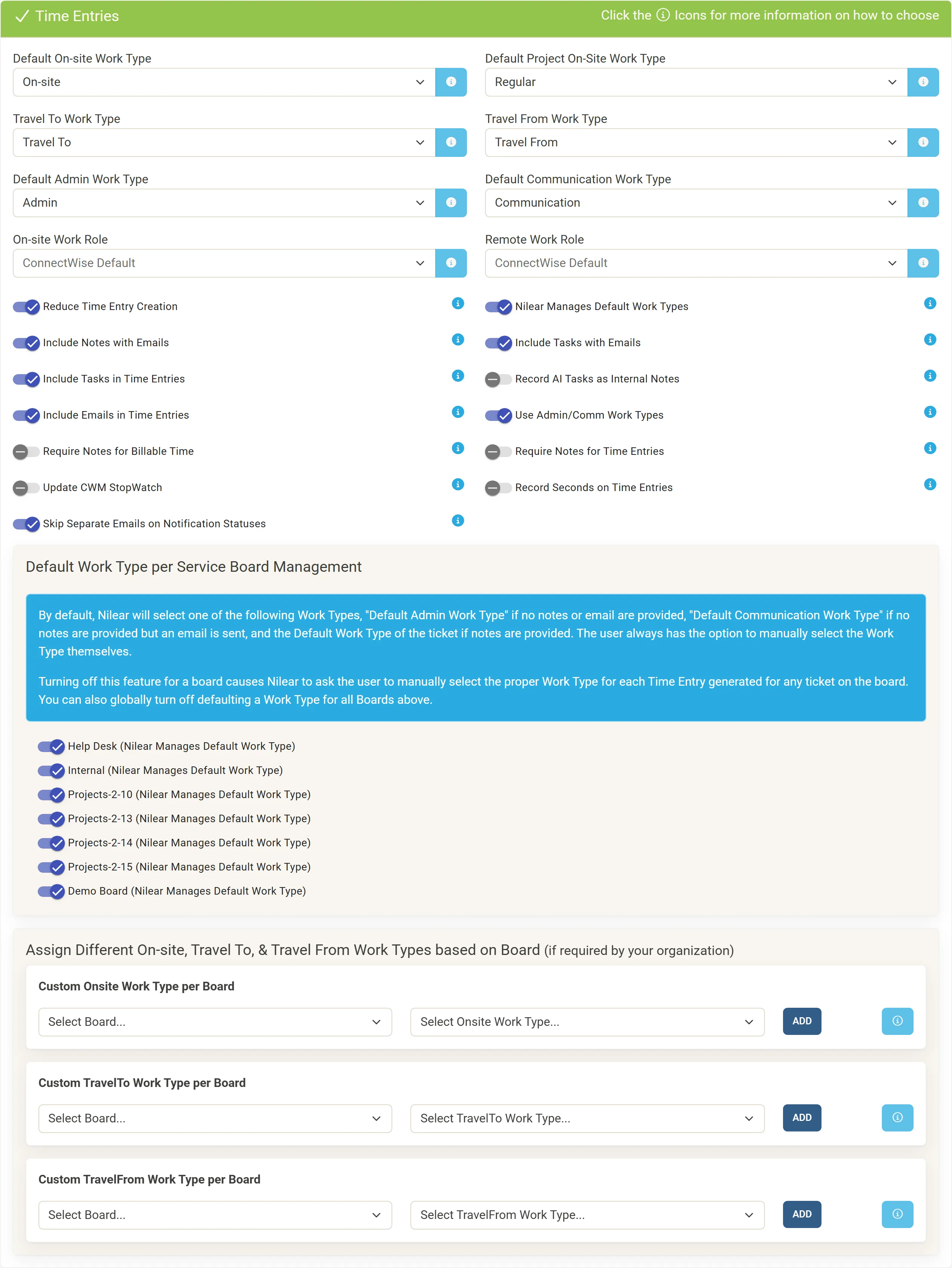
- Time Entries: choose the Default On-site Work Type, the Travel To Work Type, the Travel From Work Type, and, unless you turn off Use Admin/Comm Work Types, the Default Admin Work Type and Default Communication Work Type. The header turns green with a tick once they are set. See Set up time entries.
- Expenses: choose the ConnectWise expense types for mileage, tolls and parking, or leave Disable Option.
- Schedules: choose what MTX does with schedule records when a technician works a ticket, completes it or needs to follow up. See Administrator settings.
- MTX Interface and AI Features: the company’s rules for MTX, such as forcing the One Ticket Method. Each setting has an information icon that explains it.
- Boards: Mapped Statuses: for each board, the statuses MTX uses for new, assigned, in progress, waiting, completed and follow-up tickets. Set at least the Default In Progress Status. See Map your boards’ statuses.
Every change is saved as you make it.
4. Give your technicians MTX
Section titled “4. Give your technicians MTX”Who may use MTX is set on the Members page of Nilear’s account area, at my.nilear.com, in the MTX column of the Access tab. See Access levels for which levels can use MTX.
5. Each technician adds their own ConnectWise API keys
Section titled “5. Each technician adds their own ConnectWise API keys”MTX saves notes, time entries and status changes in ConnectWise as the technician, using their own ConnectWise member API keys. Each technician creates a pair in ConnectWise under My Account, API Keys, and saves it on the Member API Keys page in Nilear. MTX takes a technician there the first time it needs the keys, and brings them back. See Data and security.
6. Decide who sees whose availability
Section titled “6. Decide who sees whose availability”By default every member sees everyone’s availability on the Availability board and the Time Machine. To limit that, see Set availability rights.
Optional next steps
Section titled “Optional next steps”- Set up queue targeting rules, so queued tickets go to the right people.
- Require custom fields by board.
- Choose MTX’s AI features.
- Switch on Ticket Automation and Support Advisor, whose results technicians see in MTX.