
See on-site visits
Two layers show your ConnectWise on-site work on any map, so a dispatcher can fit client visits around it. Open a map, click Layers, and switch on On-sites needed, Scheduled on-sites or both.
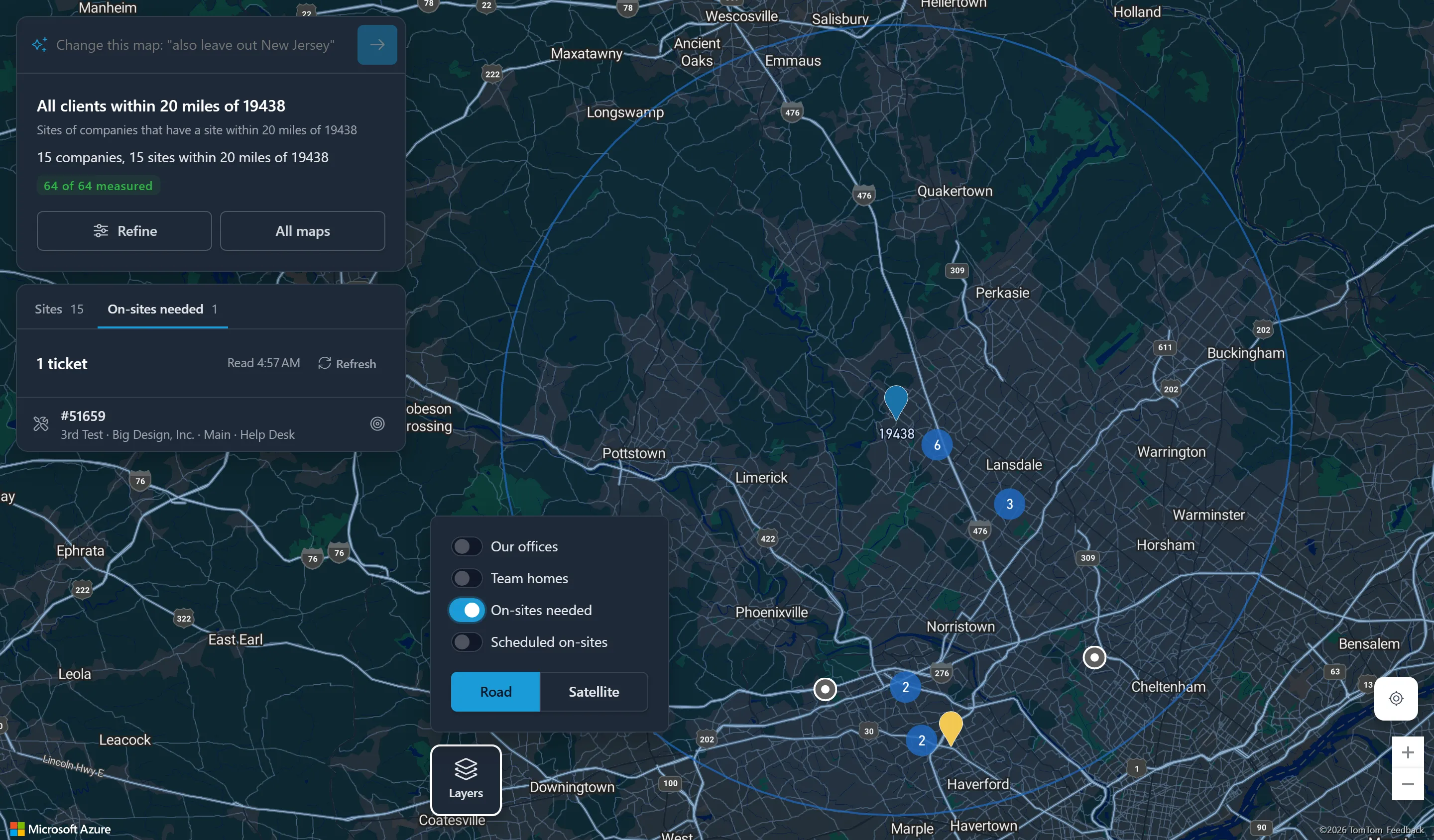
On-sites needed
Section titled “On-sites needed”Every open service ticket, on any board, whose status is one of your on-site-needed statuses. Each row shows the ticket number, summary, company, site and board, and links to the ticket in ConnectWise.
Scheduled on-sites
Section titled “Scheduled on-sites”Every schedule entry, for a ticket or an activity, that is at an on-site location in ConnectWise, is not done, and starts in the range you choose. Each row shows the technician, the date and time, the ticket number or activity type, the summary and the company, and links to it in ConnectWise. Each point has a faint 5-mile circle around it.
Choose the range above the list: Today, Next 7 days, Next 14 days (to start with), Next 30 days, Next 3 months, Next 6 months, or Custom with a From and To day. Ranges run from today up to 6 months ahead; today includes visits that started earlier today and are not done.
To focus on some technicians, click the eye icon on a row to hide that technician’s visits. The list says how many technicians are hidden; Show all brings them back. Hidden technicians come back when you leave the page.
Where the points are placed
Section titled “Where the points are placed”A ticket is placed at its site, or at its company’s main site when it has none; an activity at its company’s main site. A site not located before is located when the layer first needs it. Items that cannot be placed, because the company or site is not in Client Mapper’s index or the address cannot be found, are listed under could not be placed with the reason.
Fresh data
Section titled “Fresh data”The layers are read from ConnectWise when you switch one on, change the range, or click Refresh. Read shows when. A read is shared for five minutes with anyone else in your company who asks for the same layer and range, so ConnectWise is not asked again and again. At most 1,000 items are shown; with more, the list says so: narrow the range.
Find the clients near a visit
Section titled “Find the clients near a visit”Click the target icon (Find clients near) on a row. The map shows the clients with a site near that item’s site:
- Within 5, 10 (to start with), 15, 25 or 50 miles;
- This map’s clients (to start with) or All clients.
The circle is labelled with the visit’s company and site, the sites are listed nearest first, and the on-site layers stay on. Back to the map returns to the map as it was. Save as a new map opens the editor with those criteria and a name such as “Clients within 10 miles of company (site)”, if you may create maps.
When a layer is not available
Section titled “When a layer is not available”If your ConnectWise does not let Nilear read schedules, tickets, activities or service boards, the layer says Not available for this PSA and why; the rest of the map works as usual. Any other failure can be retried with Retry.
You see only the visits and tickets of companies your own ConnectWise access lets you see.