
Get started
These steps take one client from nothing in ConnectActive to its contacts synced with ConnectWise. You need ConnectActive on for you (see Access levels) and the client’s ConnectWise company. Sign in at app.nilear.com and click Open on the ConnectActive card.
-
Add the company. On the Companies tab, click Add Company. In Company Lookup, find and choose the client’s ConnectWise company.
-
Choose how ConnectActive reads the client’s users. The Select Sync Method window lists the sources:
- Microsoft 365 / Entra ID: for a client in Microsoft 365.
- Active Directory(PS): for an on-premises Active Directory, through a script you schedule.
- Microsoft 365 + Active Directory(PS): both, for a hybrid client.
- Google Workspace: for a client on Google.
- Use an Existing Sync Company: when another company you already set up shares this client’s directory (see Sync a multi-company directory).
Click Select on one. ConnectActive creates the company and opens its Settings.
-
Connect the source. Follow the source’s panel under Sync Sources:
- Microsoft 365: Connect Microsoft 365. You, or the client’s administrator, approve ConnectActive in the client’s tenant.
- Active Directory: Connect Active Directory. Download the company’s Zip file, run it once and schedule it daily.
- Google Workspace: Connect Google Workspace.
Until a source is connected, the page says Before ConnectActive can sync contacts, you must configure your integrations.
-
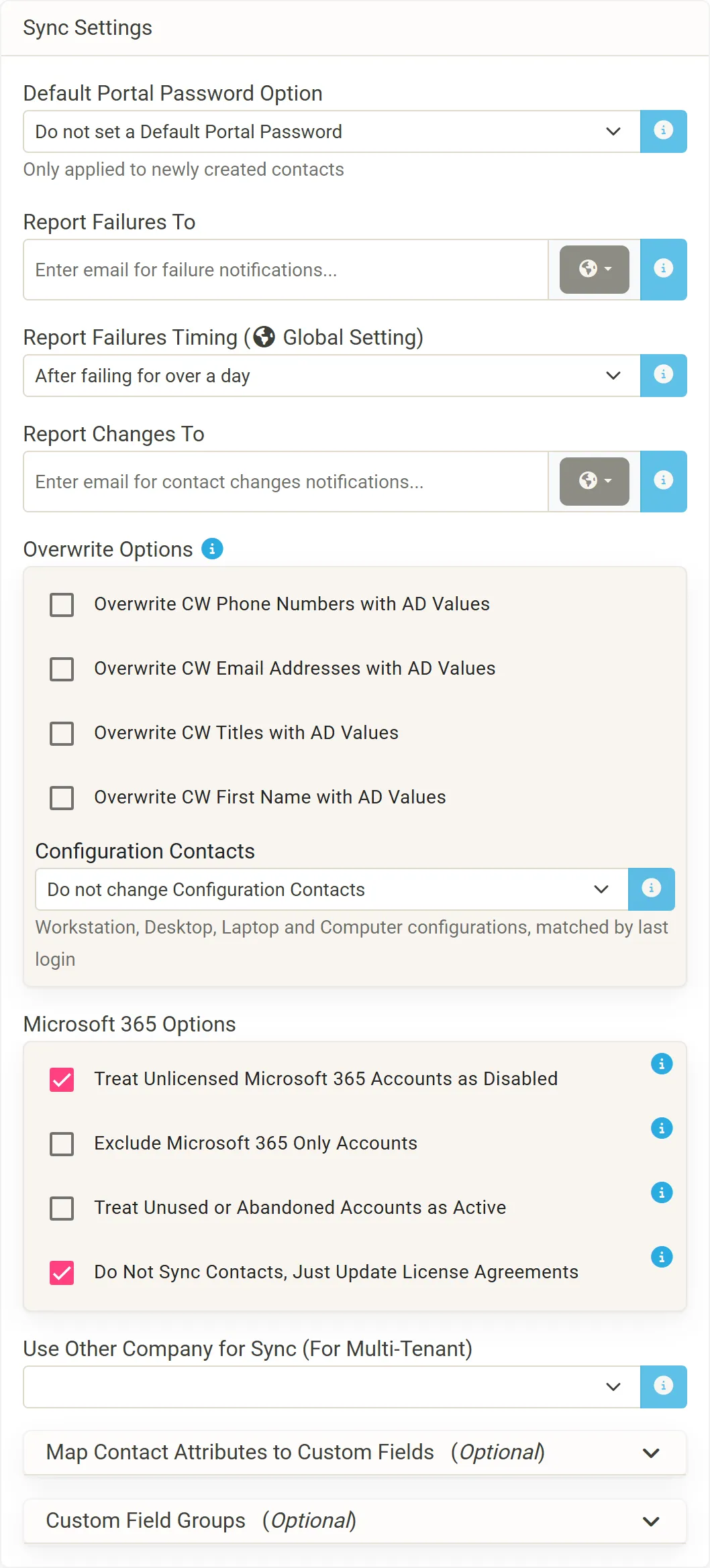
Check the sync settings. In Sync Settings, enter an address under Report Failures To, so someone hears when the client’s sync fails. The other settings can stay as they are for a first sync; each is described in Company settings.
-
Run the first sync. Click Perform Sync. The Matching Form lists every directory user next to the ConnectWise contact ConnectActive matched it to, with the action it proposes: create, match, deactivate, ignore. Change anything that is wrong, such as a shared mailbox to Ignore, then click Proceed to Final Review Page. See Review and commit a sync.
-
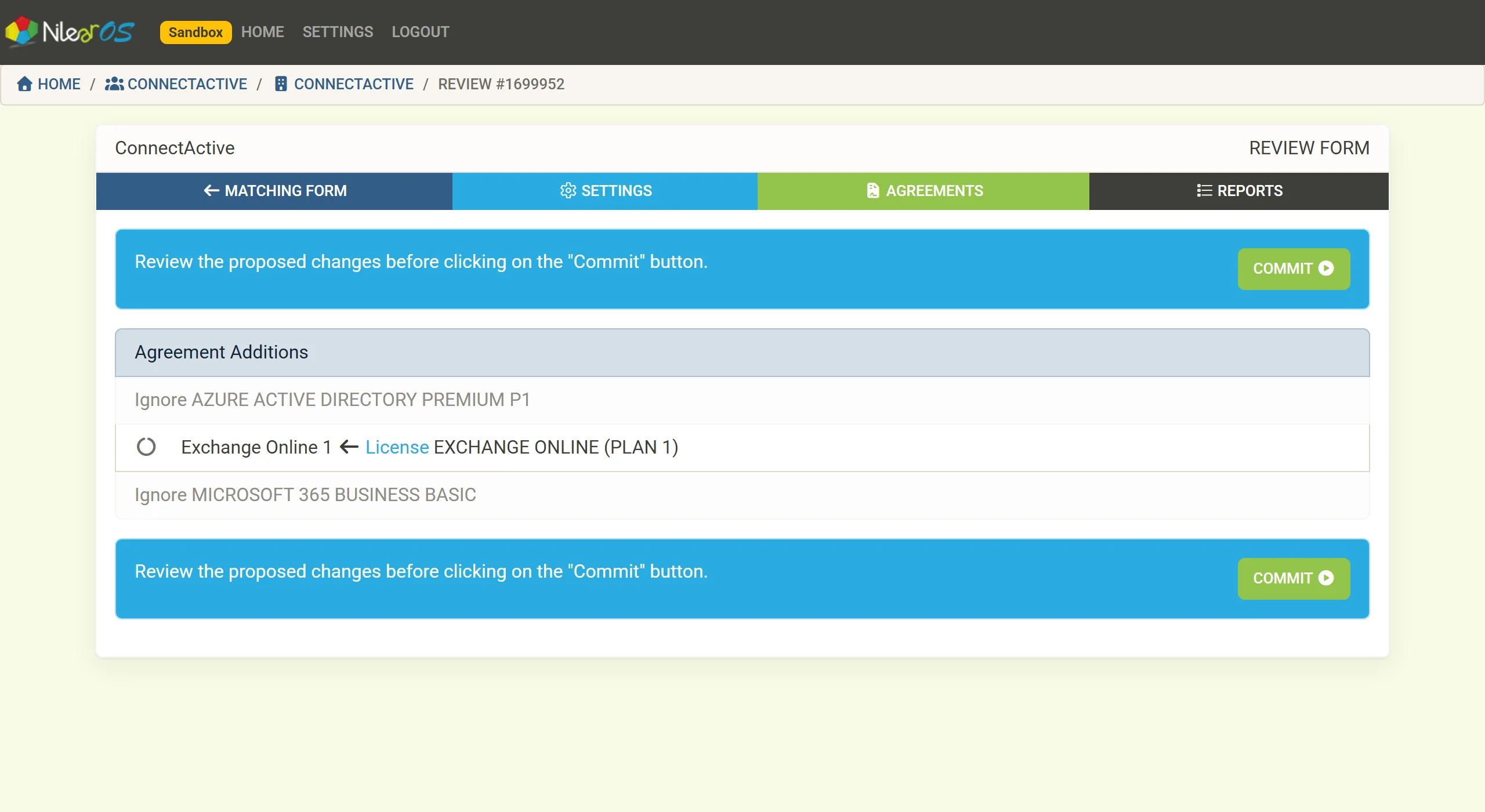
Commit. The Review Form groups every change by kind. Check it and click COMMIT. Nothing is written to ConnectWise until you do.
From now on ConnectActive syncs the company by itself: once a day, and, for Microsoft 365 and Google Workspace sources, usually within minutes of a change in the directory. The company moves to Active Syncs on the Companies tab. See How a sync works.
What you can do next
Section titled “What you can do next”- Bill by users: bill every user, map a group or map Microsoft 365 licenses to an agreement addition.
- Limit the sync to some users with filtering.
- Give contacts the right site with site mapping.
- Ignore service accounts in every company with Auto Ignore.