
Ticket Automation
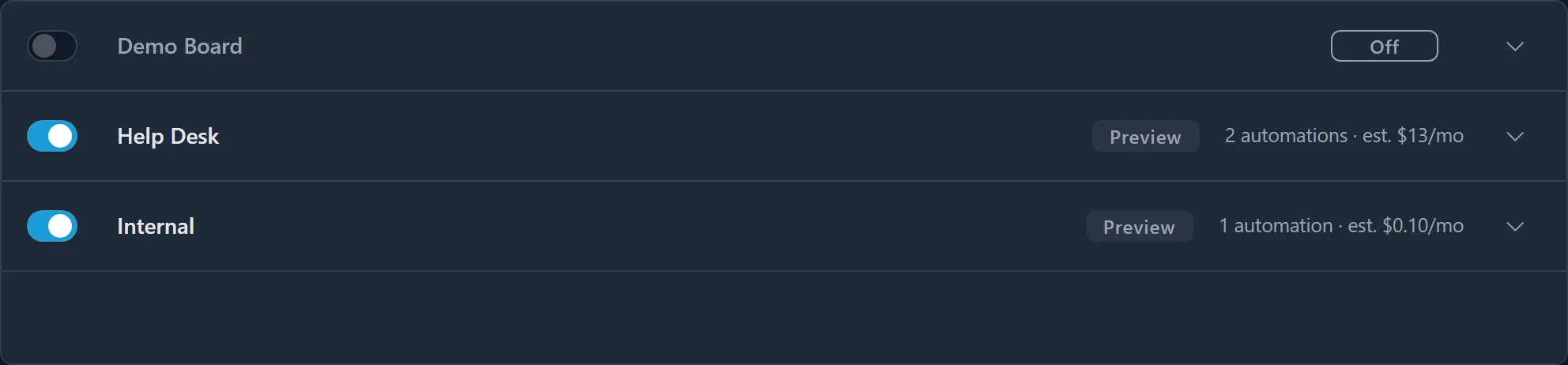
Ticket Automation works on each new ConnectWise ticket on the boards you choose, a few seconds after the ticket is entered and before a technician opens it. On each board you tick the automations you want, and you choose whether they only note what they would change or actually make the changes.
What it can do on a board
Section titled “What it can do on a board”| Automation | What it does |
|---|---|
| Assign Priority | Assigns a priority based on the impact and urgency the ticket describes. A priority someone already chose is only raised, unless your instructions say otherwise. |
| Set TSI | Sets the ticket’s Type, SubType and Item, filling only the levels the ticket is missing, from the board’s own Type, SubType and Item list. |
| Correct Company | Assigns the right company to tickets that arrived under your catch-all company or your own company, changing the company and contact only when it finds exactly one matching contact. |
| Polish Summary | Rewrites a summary line that says nothing (“Help”, “Contact form”, “Urgent”) so the ticket reads clearly at a glance. |
| Split Tickets | Detects a ticket that covers more than one issue and creates a separate ticket for each, moving each issue’s screenshots with it. |
| Create Tasks | Adds a checklist of tasks for the requests in the ticket: always, or only when there are two or more. |
| Support Advisor | Lets technicians ask Support Advisor about the board’s tickets, and AI clients work on them. |
Preview or Live
Section titled “Preview or Live”Each board is set to one of two modes:
- Preview writes an internal note of the changes automation would have made, and changes nothing on the ticket. Every board starts in Preview.
- Live makes the changes and writes an internal note of what it changed.
Either way, the result is one internal note on the ConnectWise ticket, headed Nilear AI suggests these changes in Preview or Nilear AI updated this ticket automatically in Live. A field a technician changed after the ticket arrived is left alone, and the note says so. See Preview and Live.
Where technicians see it
Section titled “Where technicians see it”Besides the internal note, MTX shows an AI Applied or AI Suggested bar on the ticket, and its ticket list can show an AI column. The column’s Ticket Automation part reads Automating while it works on the ticket, then Automated (Live), Suggested (Preview) or Automation failed. The column also shows Support Advisor’s state. See Read Ticket Automation’s note.
Technicians also have three AI tools of their own in MTX, Polish Email, Polish Notes and Company Profile, whose company-wide instructions are set with Ticket Automation’s. See Use the technician tools.
What it needs
Section titled “What it needs”- A ConnectWise PSA. Ticket Automation reads boards from ConnectWise only.
- Your company’s own OpenAI key, added on the OpenAI Key page. Ticket Automation runs on it and is billed to your OpenAI account. Without a working key no board’s automations run.
- An administrator to switch boards on and tick automations. The Ticket Automation pages, at my.nilear.com, are for administrators only.
Where to start
Section titled “Where to start”- Administrators: Get started takes a board from nothing to its first automated ticket, and the walkthrough Take a board from Preview to Live follows one board all the way.
- Technicians: Read Ticket Automation’s note and Read the AI column.
- Owners: Data and security says what Ticket Automation reads, sends, writes and stores, and Read a board’s estimated cost what it costs.