
Get started
These steps take a PSA from External AI switched off to a technician’s AI client reading the ticket they are working. The first four are for an administrator (the Admin level); the rest are for each technician. Sign in at my.nilear.com.
For the administrator
Section titled “For the administrator”-
Switch External AI on. Open Account, then AI Clients (under AI in the sidebar). In the External AI card, click Switch on. The badge changes to On.
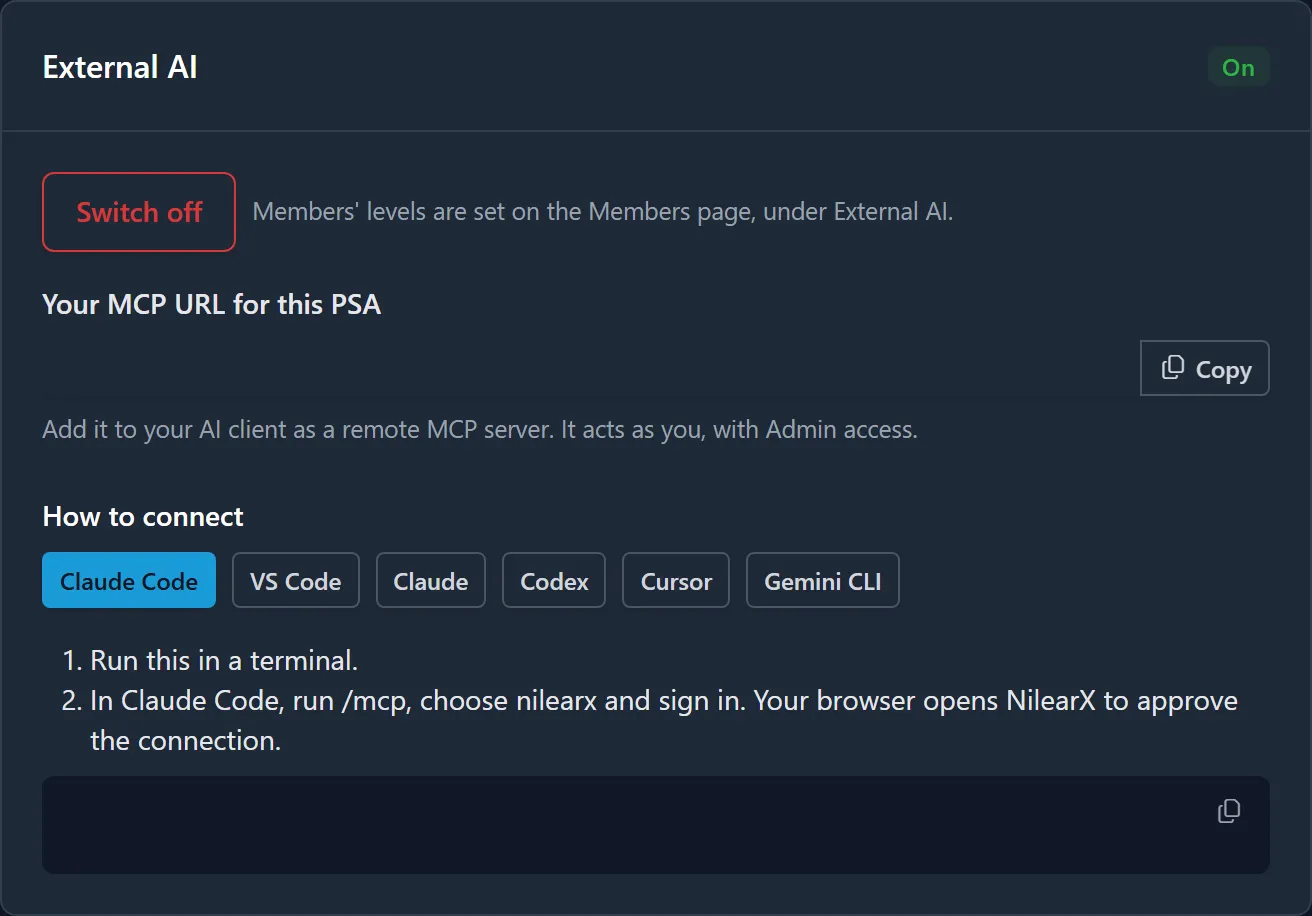
Switching it on changes no one’s level: each member starts at your default level. More
-
Check the members’ levels. On the Members page, the External AI column sets what each member’s AI client may do: Read Only to read and suggest, Read/Write to also change availability, No Access for no client at all. How
-
Make sure MTX is on for those members, under the One Ticket Method. The ticket and availability tools are offered only to members who have MTX, and the ticket tools work only for members whose MTX uses the One Ticket Method (MTX’s Force One Ticket Method setting makes it your company’s rule).
-
Tick Support Advisor on the boards. An AI client works only on tickets whose board is switched on in Ticket Automation with Support Advisor ticked, with Support Advisor on for your company. Indexing is not needed. How
For each technician
Section titled “For each technician”-
Add your personal ConnectWise API keys, if you have not already. MTX uses them to act as you, and an AI client reads tickets only with your own keys. MTX asks for them when they are missing.
-
Copy your MCP URL. On Account > AI Clients, Your MCP URL for this PSA shows your company’s address,
https://mcp.nilear.com/psa/<your PSA's id>/mcp. Click Copy. -
Add it to your AI client. Under How to connect, choose your client and follow its steps, which already hold your address. Each client has its own guide here too: Claude Code, Claude, VS Code, Codex, Cursor, Gemini CLI.
-
Approve the connection. Your browser opens Nilear’s Connect an AI client page. Sign in if asked, check the client and the PSA, and click Approve. More
-
Try it. Ask your client “Who am I in Nilear?”. It answers with your name, your PSA and your External AI level.
-
Work a ticket. Start working a ticket in MTX, then ask your client to read it, for example “Read my working ticket and find similar resolved tickets”. More