
Review your SLA settings
ConnectWise gives every ticket status an SLA escalation: not responded, responded, in progress (resolution plan), waiting or resolved. MTX, the Availability board and the Time Machine read a ticket’s state from it, so a wrong escalation shows a ticket in the wrong state. SLA Review shows every board’s statuses and lets you correct them. You need Nilear’s Admin access level.
- Open Settings, then SLA Review, at app.nilear.com, or click Open SLA Review in MTX Preferences’ Global Settings tab.
- “Get the red out”: an incorrect “In Progress” setting is marked in red, other incorrect settings in orange, and a board with no status whose escalation is In Progress says Board Missing an In Progress SLA.
- Click one of a status’s five buttons (Not Responded, Responded, In Progress, Waiting, Resolved) to change its escalation.
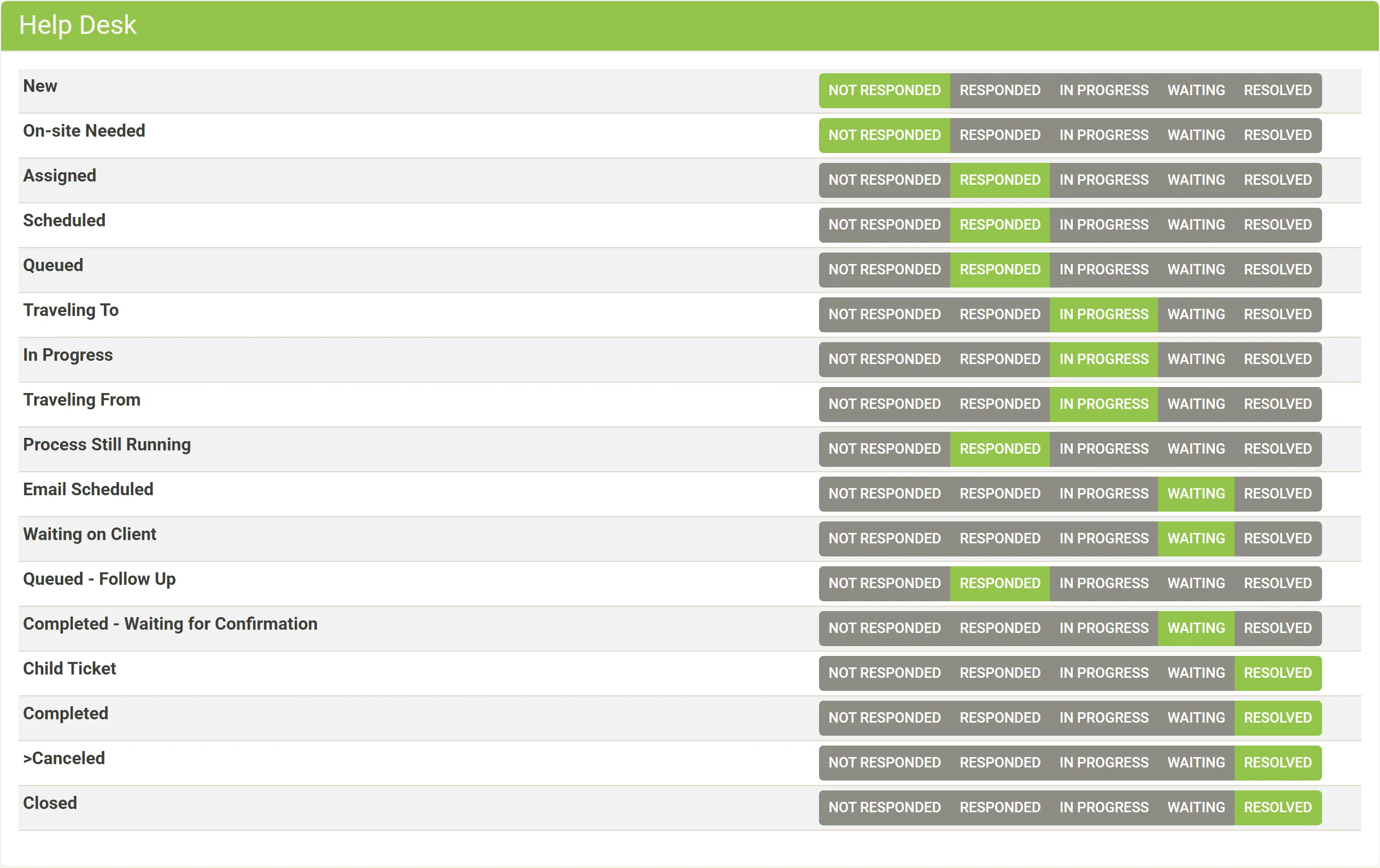
Queued statuses
Section titled “Queued statuses”SLA Review recommends Responded for a status named Queued or **Queued - ** followed by a reason. These statuses put a ticket on MTX’s queue (which names do).
SLA warnings in MTX
Section titled “SLA warnings in MTX”Technicians are warned in MTX about tickets whose SLA deadline is past due or approaching. Each technician sets their own thresholds, popup and boards to leave out in the SLA Warning display; see Member settings. There is no company-wide SLA warning setting.