
Open a ticket's summary
Click a ticket number anywhere in MTX, or press Enter on a highlighted row, to open the ticket’s summary. It shows the ticket without starting work on it.
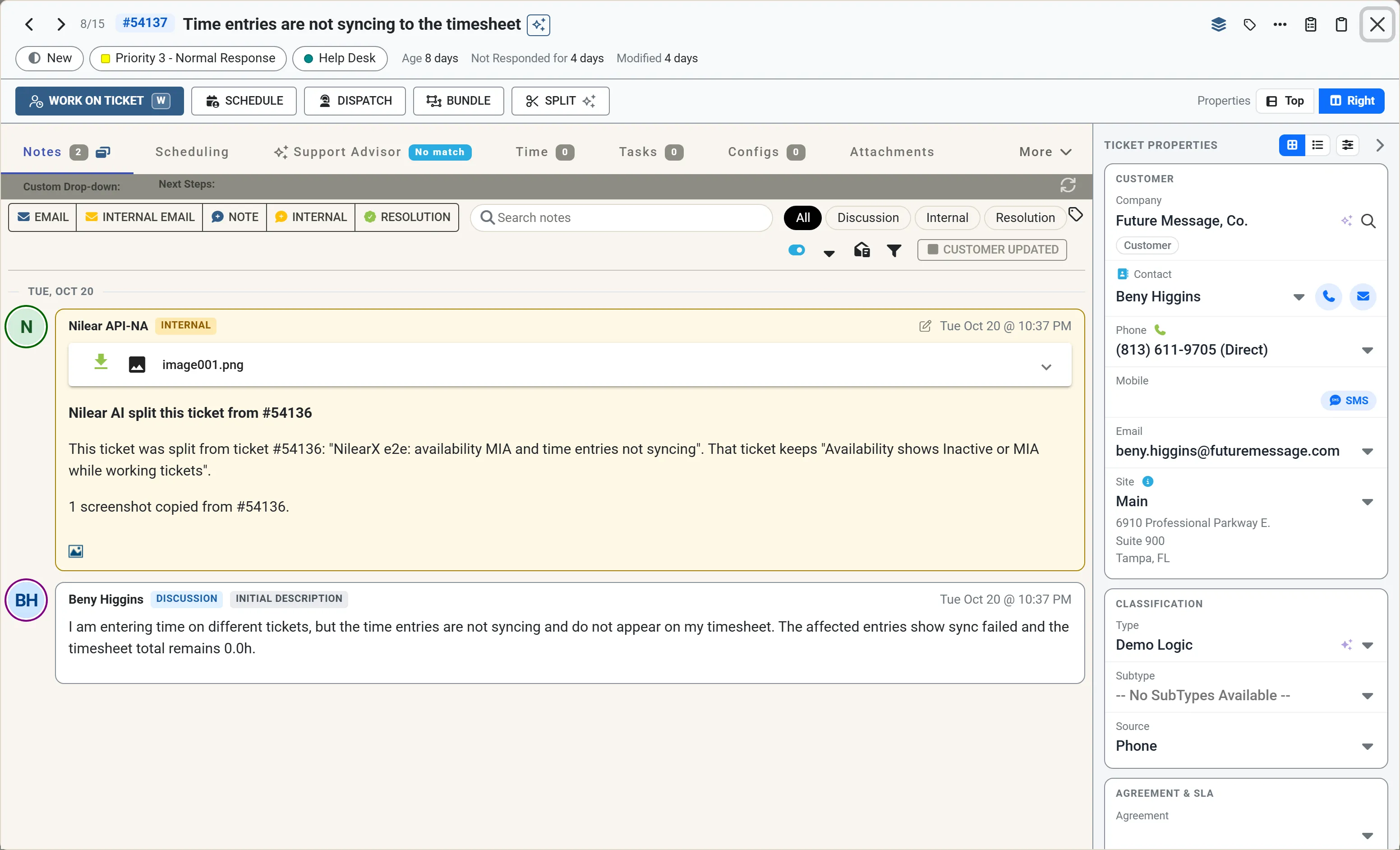
The header
Section titled “The header”- ‹ › and the count, such as 8/15, move to the previous and next ticket of the list you opened it from.
- The ticket number and its summary, which you can edit in place.
- The status, priority and board pills. Click one to change it. A status that needs work first, such as a missing TSI or open tasks, shows that work and opens it when you choose the status.
- Age, the ticket’s SLA state (such as Not Responded for 4 days or Resolved for 7 mins) and Modified.
- At the right: the queue, tag, more and copy controls, and the close button.
The action bar
Section titled “The action bar”| Button | Does |
|---|---|
| Work on Ticket | Starts working the ticket. W does the same. See Start and stop work. |
| Schedule | Opens New Schedule for the ticket. |
| Dispatch | Opens the Dispatch scheduler for the ticket, to schedule it for a member. |
| Bundle | Bundles or merges the ticket with others. Where your company has turned off merging, it only bundles. |
| Split | Splits the ticket into several, with AI. |
When other members are working the ticket, their initials show at the end of the bar.
Properties chooses where the ticket’s properties are: Right, in a panel beside the notes, or Top, above the tabs. Your choice is kept.
The tabs
Section titled “The tabs”| Tab | Shows |
|---|---|
| Notes | The ticket’s notes as a timeline, with day dividers. |
| Scheduling | The ticket’s schedule records, and Schedule to add one. |
| Support Advisor | Advice on the ticket, where Support Advisor covers its board. See Use the Support Advisor tab. |
| Time | The ticket’s time entries, with billable and non-billable totals, and Add Time Entry. |
| Tasks | The ticket’s tasks. See Use tasks and ticket goals. |
| Configs | The configurations attached to the ticket. |
| Attachments | The ticket’s documents and images. |
| More | Other Tickets, Expenditures, Custom Fields, Pods, Finance, Company Notes and Audit Trail. |
More ends with Arrange tabs…, where you choose which tabs sit on the bar and in what order, and which stay under More. Press 1 to 9 to open the bar’s tabs in turn, and M to open More.
The notes
Section titled “The notes”The buttons above the notes add to the ticket straight away:
- Email writes an email to the contact, the ticket’s resources and the CC list; Internal Email writes one to the resources only.
- Note, Internal and Resolution add a discussion, internal or resolution note.
Search notes finds text in the notes, and All, Discussion, Internal and Resolution show one kind only. The button beside the search box, Search other tickets’ notes and time, looks for the same words in the company’s other tickets: see Search notes and time entries. When you open a ticket again, notes written since your last visit are marked New, below a Your last visit divider.
Email notes
Section titled “Email notes”An email note starts with a line naming who sent it (From), who it went to (To) and who was copied (Cc). Hover over a name to see the address. Blind copies are never read or shown, and a field with more than 50 addresses lists the first 50 and the number left out, such as +70 more. The line shows on emails received from 2026-10-31 on, and is hidden while the note shows its time entry.
Each address is checked against the contacts of the ticket’s company:
- A contact shows the contact’s name. Hover over it, or click it, to open the contact’s card.
- Someone who is not a contact is shown in amber, with an Add Contact button. It opens New Contact for the ticket’s company with the name and email filled in. Once you save, every note on the ticket shows the new contact; the ticket’s contact and CC list stay as they were.
- Your own people are never marked: your MTX users, other addresses on your company’s email domain, such as your help desk mailbox, and automated senders such as no-reply. Inactive contacts count as contacts.
When a contact emailed only your help desk, with no one copied, the note has no line: its header already names the sender. CatchAll tickets and tickets without a company show the line without marks.
Duplicate notes
Section titled “Duplicate notes”A note often repeats a time entry’s text, such as an email also saved with its time entry. MTX hides a note by a member when a time entry by the same member on the ticket already shows its text, and keeps the time entry. A note under 20 characters must match exactly. Contacts’ notes and time entries are never hidden, and the note shows again when a filter, a kind or a search hides the time entry.
- Hide Duplicates, beside Customer Updated in the notes toolbar, shows how many are hidden. Turn it off, or untick Duplicate Notes in the notes filter, to show them on this ticket until you reload. Clear Filters hides them again.
- To stop hiding them, turn off Hide duplicate notes in your MTX preferences.
Nothing is changed or deleted, and the Notes tab’s count still counts every note.
Keys: / searches the notes, N adds a note, E writes an email.
To record the time of your work along with its notes, use Work on Ticket and write working notes.
The properties
Section titled “The properties”The Ticket Properties panel shows the customer (company, contact, phone, email, site), the classification (type, subtype, item, source), the agreement and SLA, the people (owner, team, CC list) and the links. Change any of them in place. A field that needs attention, such as a missing type, is marked, and the panel says how many need attention. The contact has Call and Email buttons.
The panel’s header switches between Cards and a compact List, and its last button chooses and orders the properties shown.