Get started
These steps take you from opening Client Mapper for the first time to a saved map. Saving needs the Read/Write Client Mapper level or above.
-
Open Client Mapper. Go to Client Mapper on my.nilear.com and sign in. If you see Client Mapper is not available to you, an Admin of your company gives you a Client Mapper level on the Members page. See Access levels.
-
Index your clients, the first time only. The first time anyone in your company opens it, Client Mapper says Client Mapper needs to index your clients first. Click Start indexing. Client Mapper then reads your companies, contacts and agreements from ConnectWise, showing each phase’s progress and an estimate of the time left. You can close the page: indexing carries on, and anyone in your company who opens Client Mapper sees how far it has got. When it finishes, the maps open without a reload. See The client index.
-
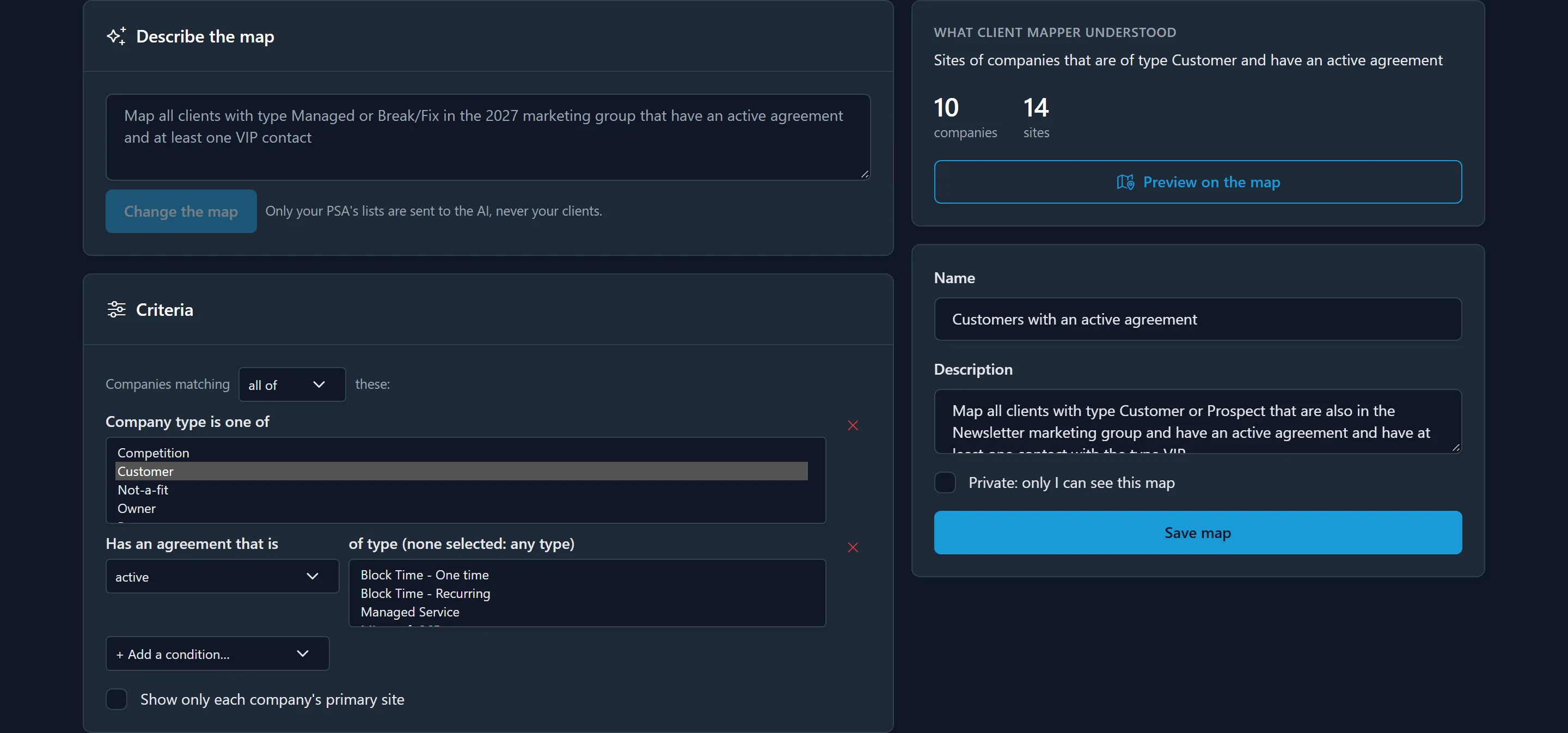
Describe a map. On the Maps page, click New map. In Describe the map, type the clients you want, for example “Managed clients in Pennsylvania with an active agreement”, and click Find these clients.
-
Check what was understood. What Client Mapper understood reads the criteria back in plain words, with the number of companies and sites they match. The Criteria card shows the same criteria to change by hand. If a name in your sentence could mean more than one thing, Client Mapper asks which you meant.
-
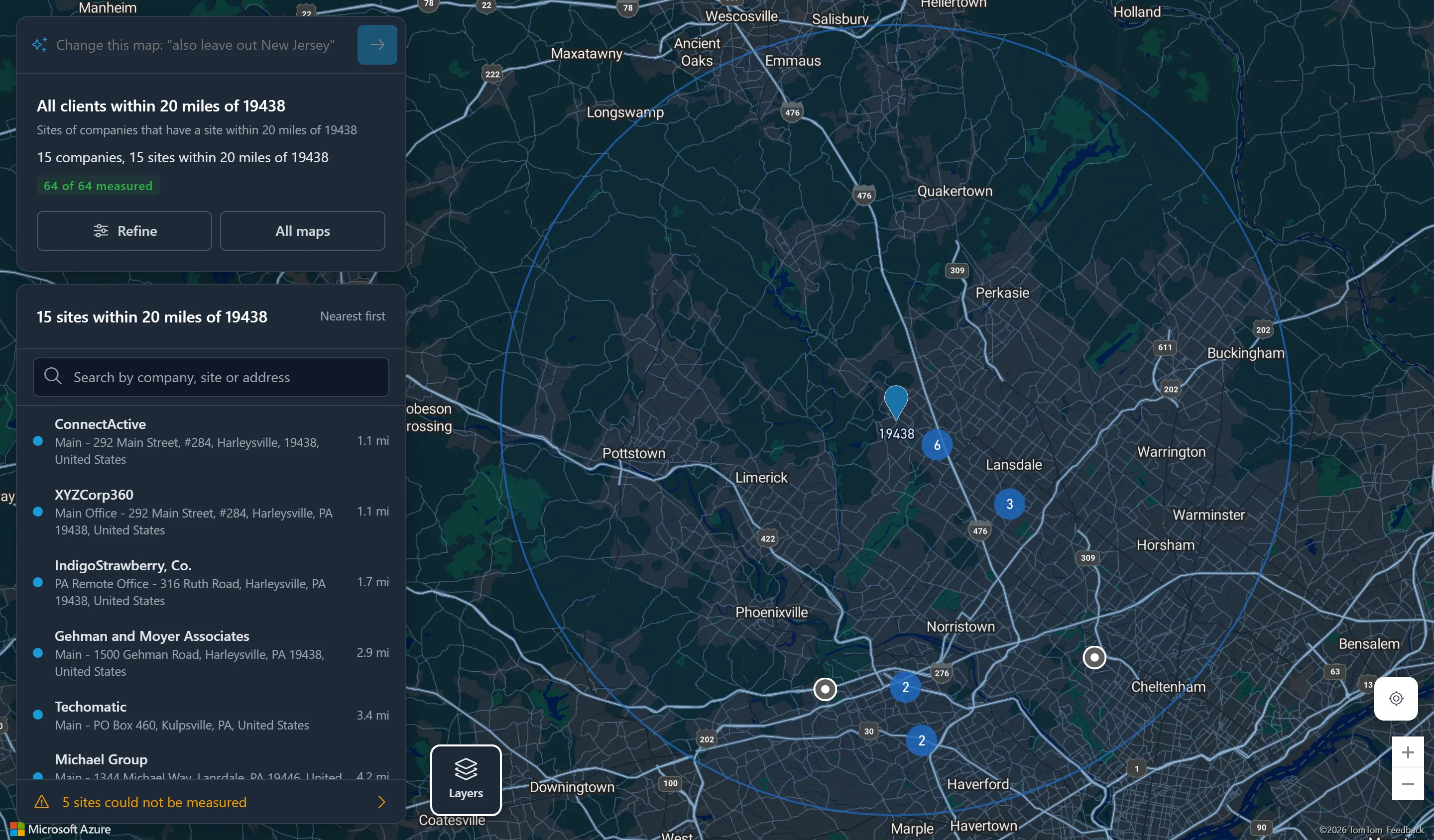
Preview it. Click Preview on the map. The sites are pinned on the map and listed beside it.
-
Save it. Back in the editor, give the map a Name, and tick Private: only I can see this map if it is for you alone. Click Save map. Everyone in your company who may open maps now sees it on the Maps page, unless it is private.