
Refine a map
Refine changes a saved map without leaving the map.
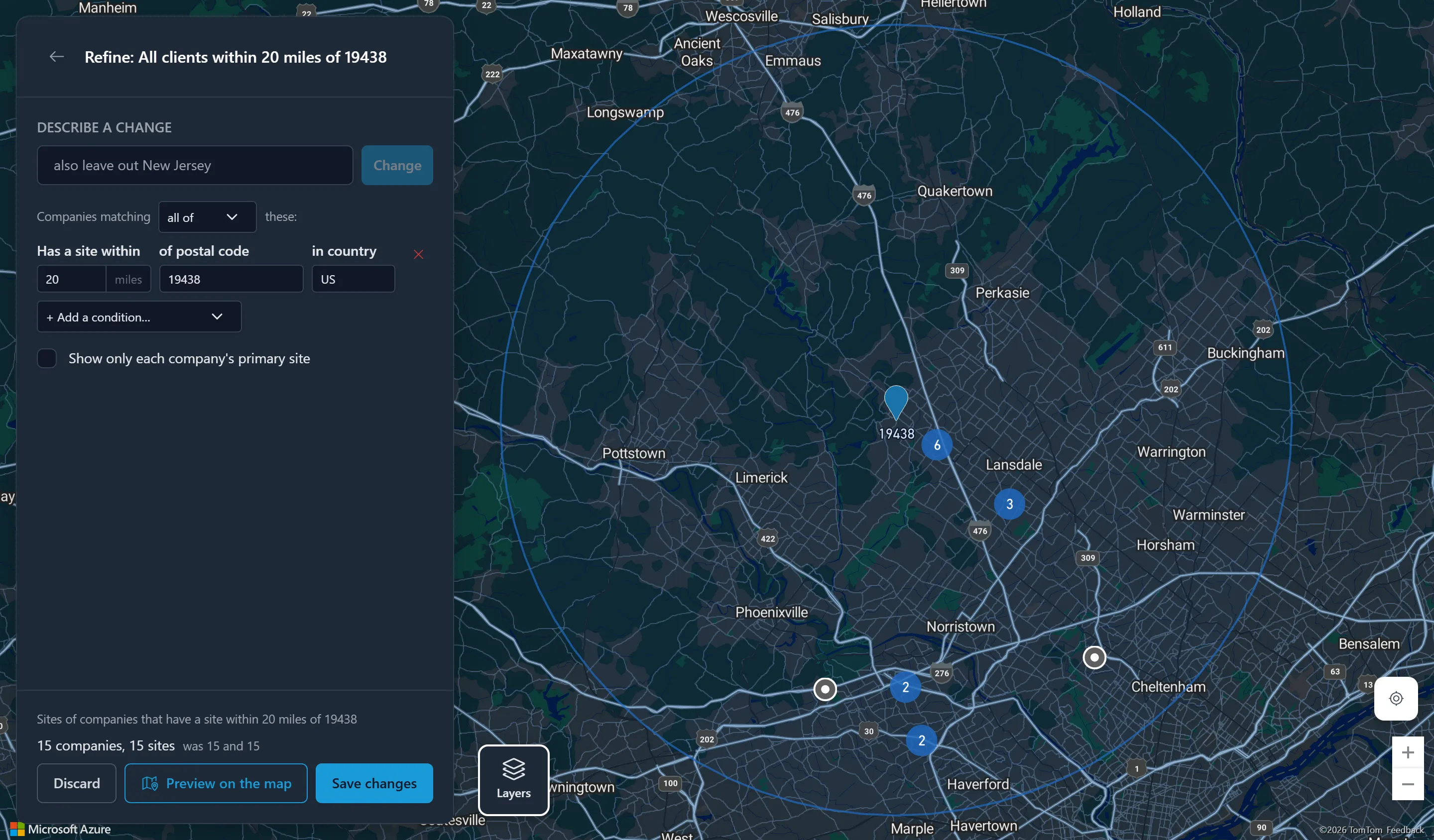
- Open the map and click Refine in its summary card. The Refine: map name panel opens over the map.
- Change the criteria: type a change in Describe a change, such as “only Managed clients”, and click Change, or edit the conditions by hand.
- The panel’s footer reads the changed criteria back and counts them, beside what the saved map matches (“was n and n”).
- Click Preview on the map to see the changed map.
- Click Save changes to keep them, or Discard to go back to the saved map unchanged.
If your access does not let you change the map, you can still refine and preview it: the panel says Your Client Mapper access lets you preview changes to this map, but not save them. See Save, share and delete maps.