
Create a ticket
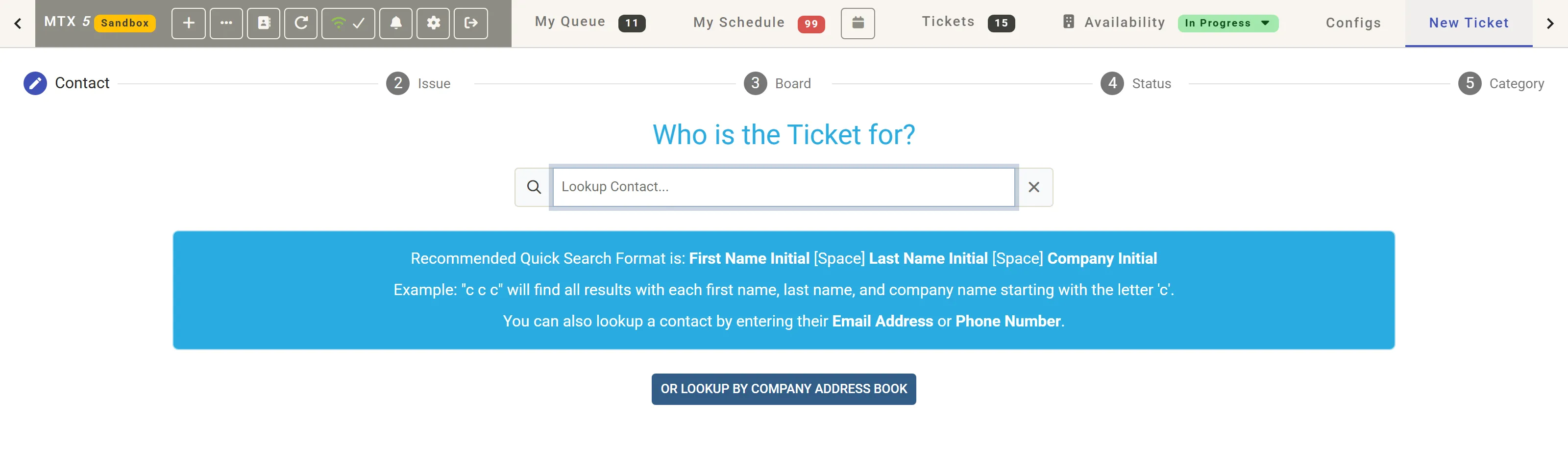
The New Ticket tab creates a ticket in five steps: Contact, Issue, Board, Status and Category. Each step you complete shows its answer along the top; click one to go back to it. Clear All starts again. You can also start from the New Ticket button on the Tickets tab, or + > New Ticket in the toolbar.
1. Contact
Section titled “1. Contact”Who is the Ticket for? Type in Lookup Contact…:
- initials, as first name, last name and company:
c c cfinds every contact whose first name, last name and company name start with “c”; - or an email address, or a phone number.
The matches are listed by company. Click the contact. Or choose No Contact for a company’s ticket with no contact, or New Contact to add one. Or Lookup by Company Address Book finds the company first.
2. Issue
Section titled “2. Issue”What is the Issue? Type the Summary and the Initial Issue Description. Add Note inserts a standard note.
Below, MTX lists the open tickets of the contact and of the company, so you can see whether the issue is already on a ticket. Open one instead if it is.
3. Board
Section titled “3. Board”Where should this ticket be placed? Choose the board, from Quick Picks or the list. Project Ticket and Project Issue put it on a project instead. Agreement List shows the company’s agreements.
4. Status
Section titled “4. Status”MTX fills in the board’s default status for new tickets and skips this step. Where your administrator has turned on Always Ask for Status, it stops here: choose a status, or click Default: status for the board’s default.
5. Category
Section titled “5. Category”Answer the last questions:
- How urgent is this issue? the priority;
- Where did this request originate from? the source;
- the type, subtype and item (TSI), when your company asks for them. You can skip them if you do not know yet;
- any custom fields the board requires.
The ticket is created as soon as the last answer is given: New Ticket Complete! heads its summary, ready for Work on Ticket.
Good to know
Section titled “Good to know”- A new ticket on a board that queues its new tickets joins the queue at once.
- On a ticket whose company or contact is wrong, the sparkle button beside Company in the ticket’s properties asks AI who the ticket belongs to.