
Change MTX's company settings
MTX’s company-wide settings are on one page of Nilear’s web app: Settings, then My Tickets, at app.nilear.com.
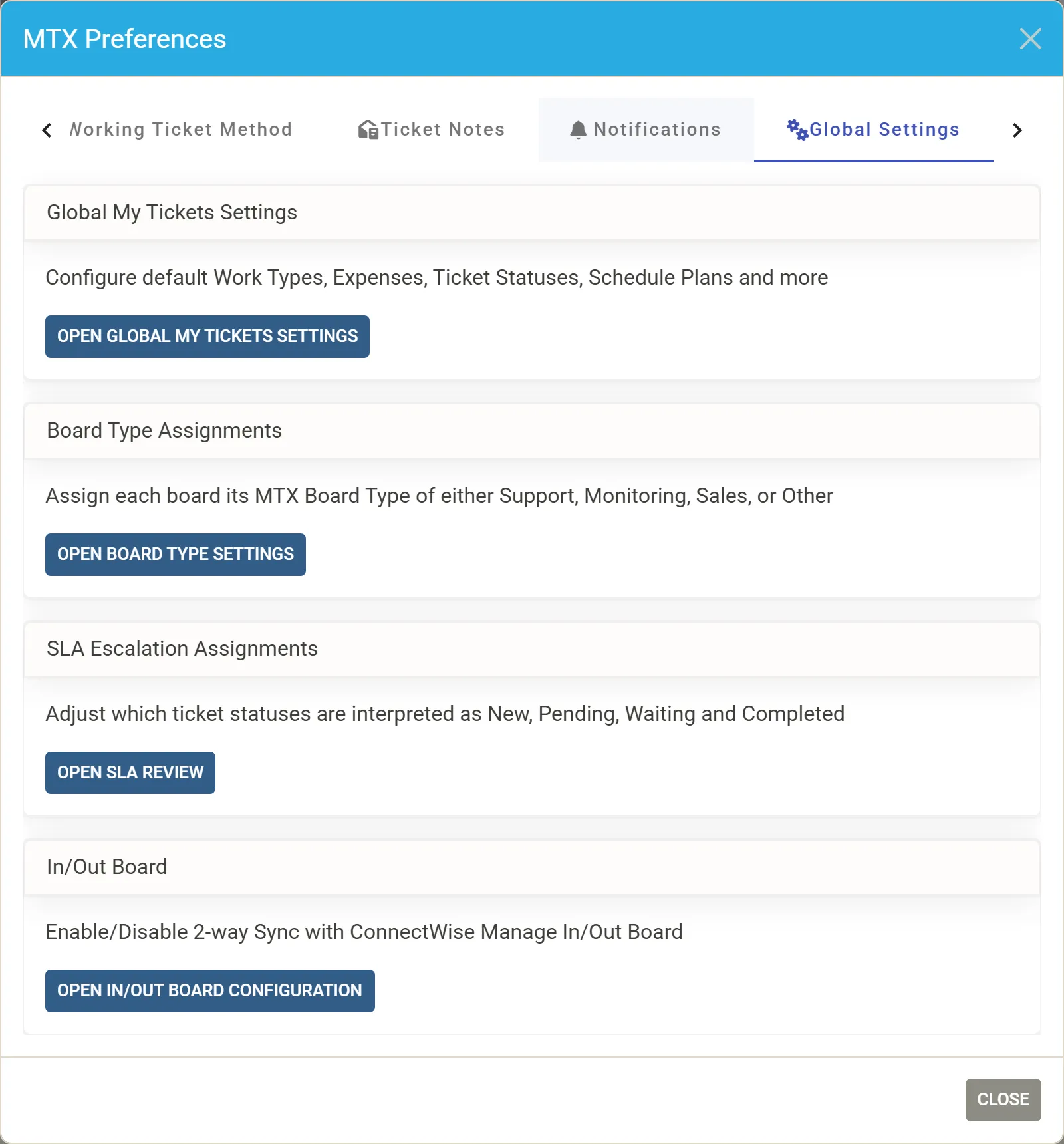
You can also reach it from MTX: click the cog (MTX Preferences) in the MTX tab, open the Global Settings tab and click Open Global My Tickets Settings. The same tab opens Board Type Settings, SLA Review and the In/Out Board Configuration.
Who can change them
Section titled “Who can change them”- The My Tickets card is shown in Settings to every member who uses MTX.
- The Global Settings tab in MTX Preferences is shown to Admins, Managers and members whose View Settings is Yes on the Members page.
- Only members with Nilear’s Admin access level can change a setting. A change by anyone else is refused, and the page shows an “Unable to Change …” message.
How a change is saved
Section titled “How a change is saved”Each switch and list is saved the moment you change it; there is no Save button. Default Budget (mins) is saved a second after you stop typing. Each setting’s information icon opens a short explanation of what it does and what its default is.
When technicians see a change
Section titled “When technicians see a change”A change applies to technicians when MTX next loads your company’s settings. A technician who wants it at once can click Clear Cache and Reload MTX in the MTX tab. Turning PSR off may not take effect until the following day.
Every setting, with its default, is listed in Administrator settings.