
Connect Microsoft 365
A Microsoft 365 / Entra ID source reads the tenant’s users, groups and licenses. ConnectActive needs an administrator of the client’s tenant to approve its read-only access once. Either you do it, signed in as that administrator, or you send an approval link to the client’s administrator.
Who can approve: only a Global Administrator or a Privileged Role Administrator of the client’s tenant. Cloud Application Administrator, Application Administrator and AI Administrator cannot grant these permissions. The panel lists the permissions ConnectActive asks for; they are all read-only (see Permissions).
Approve it yourself
Section titled “Approve it yourself”Open the company’s Settings. Under Sync Sources, the Microsoft 365 source shows Microsoft 365 / Entra ID Integration.
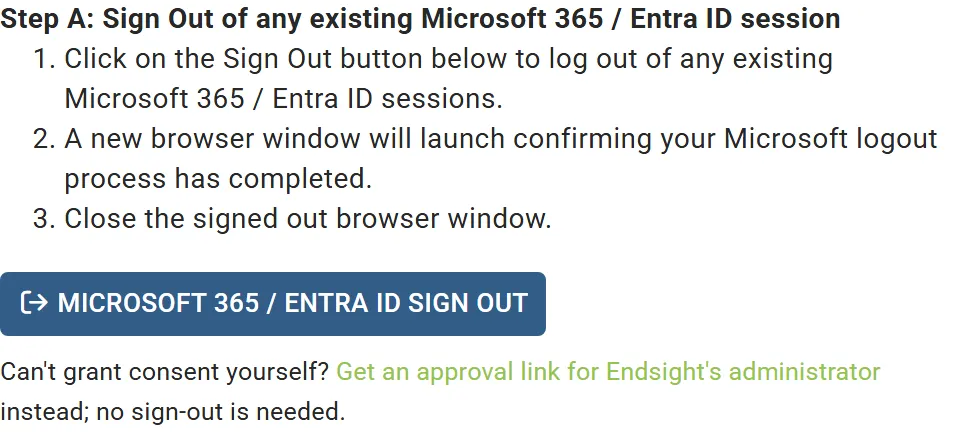
- Step A: Sign Out of any existing Microsoft 365 / Entra ID session. Click Microsoft 365 / Entra ID Sign Out. A browser window confirms you are signed out of Microsoft; close it. This stops Microsoft from signing you in as yourself instead of the client’s administrator.
- Step B: Grant Authorization for Microsoft 365 / Entra ID Access. Enter the client’s domain in Microsoft 365 / Entra ID Domain Name and click Request Authorization.
- Microsoft asks you to sign in. Sign in with the client’s administrator account, review the permissions and accept.
- Microsoft returns you to the panel, which says Congratulations! Microsoft 365 / Entra ID Integration completed successfully. Click Perform Sync Now to run the first sync (Review and commit a sync).
If you declined, or the account could not grant consent, the panel shows Microsoft’s reason. Nothing is stored.
Send an approval link to the client’s administrator
Section titled “Send an approval link to the client’s administrator”Use this when you do not hold one of those roles in the client’s tenant. You do not need to sign out of Microsoft.
- On the panel, click Get an approval link for the client’s administrator (or, in Step B, Get Client Approval Link). Enter the client’s domain if the panel asks for it.
- The panel shows Approval Link for the client’s Administrator: the consent link, the ConnectActive Application (client) ID, and instructions written for the administrator. Click Copy Link, or Copy Instructions to copy the whole text with the link included.
- Send it to the client yourself, by email or in a ticket. Nilear sends nothing.
- The administrator opens the link, signs in, and accepts. They then see a Nilear page confirming whether ConnectActive was authorized; it needs no Nilear sign-in and shows nothing of your account.
- When the client tells you they have approved, click Verify on the panel.
The link and instructions hold no password or secret: only the link and ConnectActive’s public Application ID. After approval, ConnectActive appears in the client’s Entra ID under Enterprise applications, where the client can review or remove it at any time.
Check or redo the authorization
Section titled “Check or redo the authorization”On a connected source:
- Verify tests the connection. If it fails, ConnectActive says Microsoft 365 Test Failed and that you may need to perform the Microsoft 365 integration steps again.
- Re-Authorize Microsoft 365 Tenant runs the steps again, for example after the client removed ConnectActive from their tenant.
A company never syncs the same tenant twice: an approval for a tenant the company already syncs through another source is not recorded.
What happens next
Section titled “What happens next”ConnectActive syncs the tenant once a day and, for most tenants, within minutes of a change to a user, group or license. See How a sync works.