
Read Ticket Automation's note
When Ticket Automation changes, or would change, something on a new ticket, it adds one internal note to the ticket in ConnectWise, a few seconds after the ticket arrives. A ticket nothing would change gets no note. The note is written by your company’s ConnectWise API member, the member whose keys connect Nilear to your ConnectWise.
Which kind of note it is
Section titled “Which kind of note it is”| The note opens with | Means |
|---|---|
| Nilear AI suggests these changes (Preview - nothing on this ticket was changed) | The board is in Preview. Nothing on the ticket was changed: the note lists what Ticket Automation would have done. Apply a suggestion yourself if you agree with it. |
| Nilear AI updated this ticket automatically | The board is in Live. The changes listed were made. |
| Nilear AI split this ticket | A second note on a ticket that Split Tickets split, in Live: which work moved to which new ticket, and what stays. |
| Nilear AI split this ticket from #N | On a new ticket a split created: which ticket it came from, what that ticket keeps, and its screenshots. |
The first line
Section titled “The first line”Under the heading, one line sums the note up: Changes: in Live, Suggestions: in Preview, then each item, separated by semicolons. For example:
Changes: TSI → Hardware / Laptop / Screen; Summary updated; 3 Tasks created; Company → Contoso; Contact → Jane DoeSuggestions: Priority → Priority 2 - High; 2 Tasks
In Live it lists only what was actually written. The items, in order:
| Item in Live | Item in Preview | From |
|---|---|---|
| TSI → new values | TSI → new values | Set TSI |
| Summary updated | New summary | Polish Summary, or Split Tickets’ new summary |
| Priority → new priority | Priority → new priority | Assign Priority |
| 3 Tasks created | 3 Tasks | Create Tasks |
| Company → new company; Contact → new contact | the same | Correct Company |
| 1 new ticket created | 1 new ticket | Split Tickets |
The bullets
Section titled “The bullets”Below the first line, one bullet per automation gives the previous and new value and the reason in a sentence or two. New tickets are named by number in Live, and as “proposed ticket 1” in Preview. The note never quotes your company’s instructions.
When something a technician changed after the ticket arrived would have been changed, Live leaves it and the bullet says it “had been changed since the ticket arrived, so it was left as it was.” It is not listed in the first line.
In MTX
Section titled “In MTX”MTX recognises these notes. On the ticket, a bar above the notes shows AI Applied or AI Suggested with the first line’s items. Click it to open the note. The × hides the bar until the ticket is opened again.

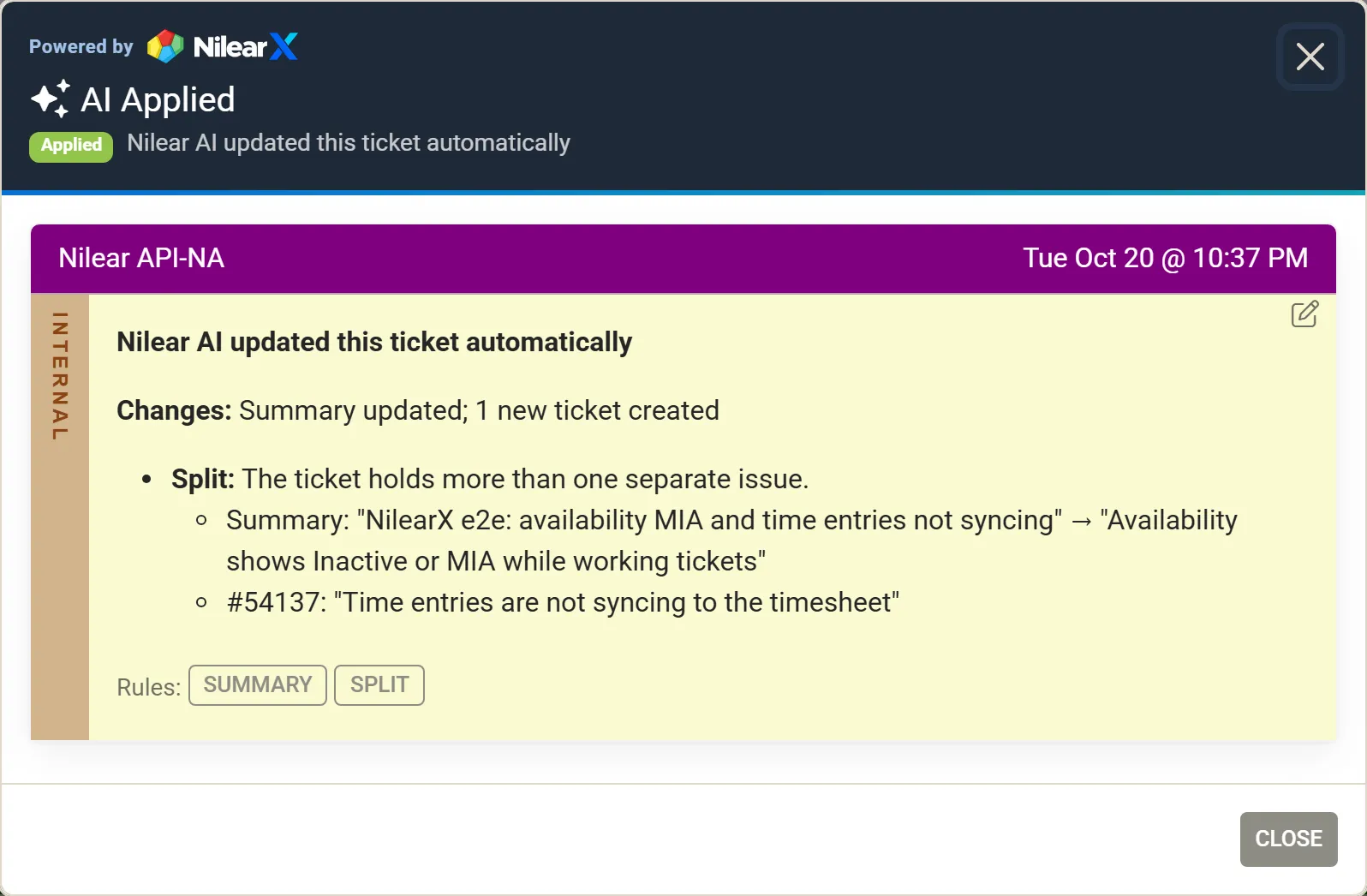
Under the note, a Rules button for each automation it reports opens your company’s instructions for that automation, global and for the board, so you can see what steered it.
MTX’s ticket list can also show each ticket’s state in its AI column (Read the AI column).
If a suggestion or change is wrong
Section titled “If a suggestion or change is wrong”Change the field on the ticket as you would any other. Ticket Automation works on each ticket once, when it arrives, and never comes back to it. Tell your administrator if the same mistake keeps happening: instructions for that automation can correct it (Write instructions).