
Add your OpenAI key
Ticket Automation runs on your company’s own OpenAI key, and is billed to your OpenAI account. So does Support Advisor. Without a working key, no board’s automations run. You need the Admin access level.
Create a key
Section titled “Create a key”On the OpenAI Key page, the card How to create a key for NilearX gives the steps in full. In short:
- At platform.openai.com, sign up or sign in with a company address you will keep, such as a shared IT or admin mailbox.
- In the billing settings, add a payment method, buy prepaid credit, and turn on auto-recharge. Without it, automation and Support Advisor stop the moment the credit runs out.
- Create a project just for Nilear, and in it a secret key owned by a Service account, with Expiration: Never. A key that expires stops automation on the day it expires. If you restrict its permissions, allow model requests (chat completions, responses and embeddings).
- Leave Allow all models selected in the project’s model settings. Nilear moves to newer models as OpenAI releases them, and a project limited to selected models would stop working when it does.
- Set a monthly budget with email alerts. Adding your service desk’s email address as a recipient makes an alert open a ticket. A hard spending limit stops Nilear’s requests once reached, so if you set one, set it well above what you expect to spend.
Copy instructions for an AI assistant copies these steps for ChatGPT, Claude or another assistant to walk you through one at a time. They tell the assistant never to ask for the key itself.
Add it
Section titled “Add it”- In Ticket Automation, open OpenAI Key.
- Paste the key in Add your key and click Verify and save.
- The key is checked with OpenAI before it is saved, which takes a few seconds and a few tokens on your account: that it is accepted, that it can make a billed request, and that it can use every model Nilear uses. A key that fails the check changes nothing. If a model is missing, the page names it: “Allow these models in the key’s OpenAI project: …”.
Once saved, Your key shows the key’s last four characters only, its Status (Working or Failing), when it was added and by whom, and when it was last verified. The page never shows the whole key again.
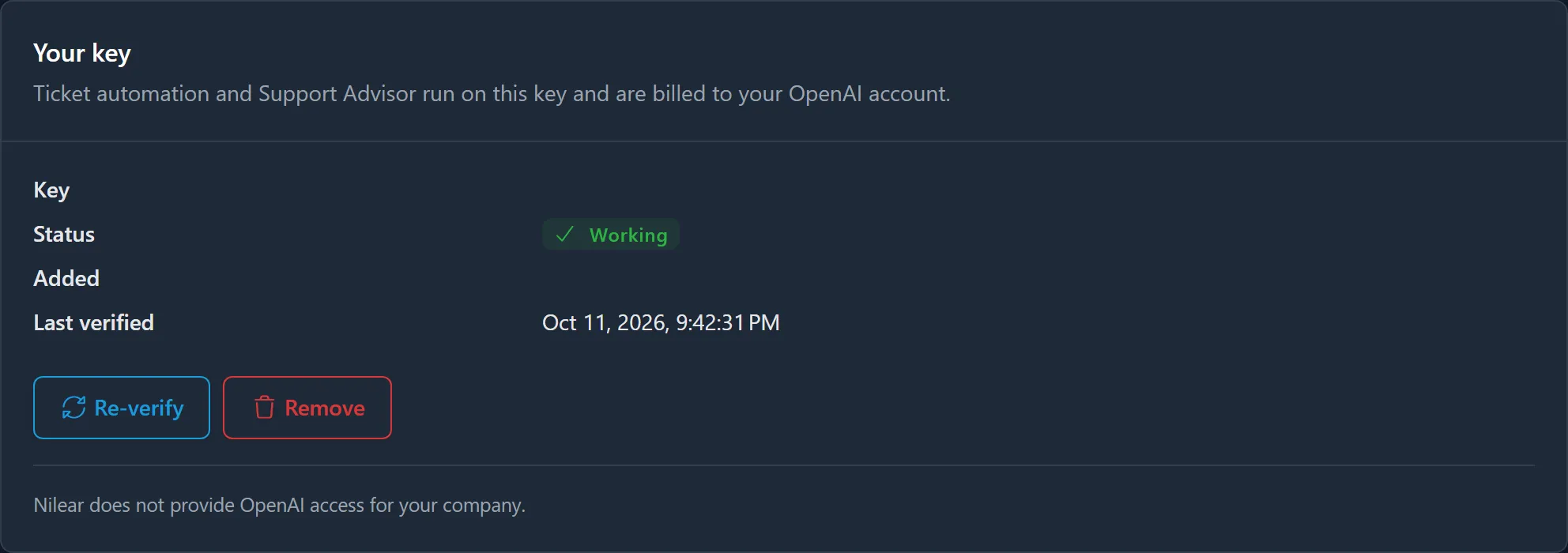
Boards start being automated within a minute of a working key being saved.
When the key fails
Section titled “When the key fails”A key is marked Failing when OpenAI rejects it as invalid, when the account has run out of credit or reached a hard spending limit, or when the key cannot use a model Nilear needs. A rate limit or a timeout does not mark it failing.
- Each active administrator is emailed once when the key starts failing, naming the reason and the key’s last four characters.
- Ticket automation and Support Advisor pause: the OpenAI Key page says Ticket automation and Support Advisor are paused., and the Boards page warns that no board’s automations will run.
- Tickets that were waiting to be automated are closed without any change, and are not automated later when the key works again.
- Nilear re-checks a failing key every hour. Topping up the credit is enough: the next check finds it working and automation restarts. Re-verify checks it at once.
To use another key, paste it in Replace the key and click Verify and save.
Remove it
Section titled “Remove it”Click Remove, then Remove the key. Ticket automation and Support Advisor stop within a minute and stay paused until a key is added. Manual Ticket AI features keep working.
What uses the key
Section titled “What uses the key”Every automation on your boards, Support Advisor, and the Ticket AI buttons your technicians press in MTX, such as Polish and Split. Without a working key, automation and Support Advisor pause, and those buttons keep working on Nilear’s key. See Your OpenAI key.
Usage in the last 30 days, at the bottom of the page, counts every OpenAI call Nilear made for your company, by feature, and whose key paid for it.