
Connect Claude and work a ticket
The situation
Section titled “The situation”A customer, Big Design, Inc., logged a ticket by phone that says only “Printer issues”. It is on the Help Desk board, where Support Advisor is ticked. A colleague has since replaced the toner. The technician who now has the ticket uses Claude, and their administrator has switched External AI on with technicians at Read Only.
1. Connect Claude, once
Section titled “1. Connect Claude, once”The technician opens Account > AI Clients at my.nilear.com, chooses Claude under How to connect and copies the address shown. In Claude they open Settings, then Connectors, choose Add custom connector, name it NilearX, paste the address, and choose Add, then Connect.
Their browser opens Nilear’s Connect an AI client page, headed Allow Claude?. It shows the client as
claude.ai, the PSA’s name, and that Claude may act as them with Read Only access. They click Approve, and the
connection appears under Your AI clients. In a chat they turn the connector on from the + menu.
This happens once: the connection lasts until it is revoked, or until it goes 30 days unused. Connect Claude
2. Start working the ticket in MTX
Section titled “2. Start working the ticket in MTX”The technician opens the ticket in MTX and starts working it. It is now their Working on Ticket, the one ticket their client may read without being told its number.
3. Ask Claude about it
Section titled “3. Ask Claude about it”Read my working ticket, look at its attachments, and check whether we’ve fixed anything like it before. Then post your suggested next steps.
Claude calls Get ticket and reads the ticket: logged by phone from the contact, Bruce McKay, “Printer issues” with no symptoms recorded, and a later note that the toner was replaced and a test page printed. It calls Get ticket attachment for the customer’s email and a photo on the ticket, then Find similar tickets, which returns five resolved Help Desk tickets, all about the printer running out of paper and sticking in a critical state on large copy jobs.
4. Claude posts its suggestion
Section titled “4. Claude posts its suggestion”Claude calls Suggest next steps for the ticket’s number, and answers that it posted to the Support Advisor tab on the ticket. Its analysis: this looks like a toner issue that is already fixed, not the recurring out-of-paper problem, and the printer’s model is on neither the ticket nor its attachments.
5. Use it in MTX
Section titled “5. Use it in MTX”The technician opens the ticket’s Support Advisor tab. The card Suggested by Claude for them holds the analysis, an email to the customer, four tasks, an internal note and a resolution.
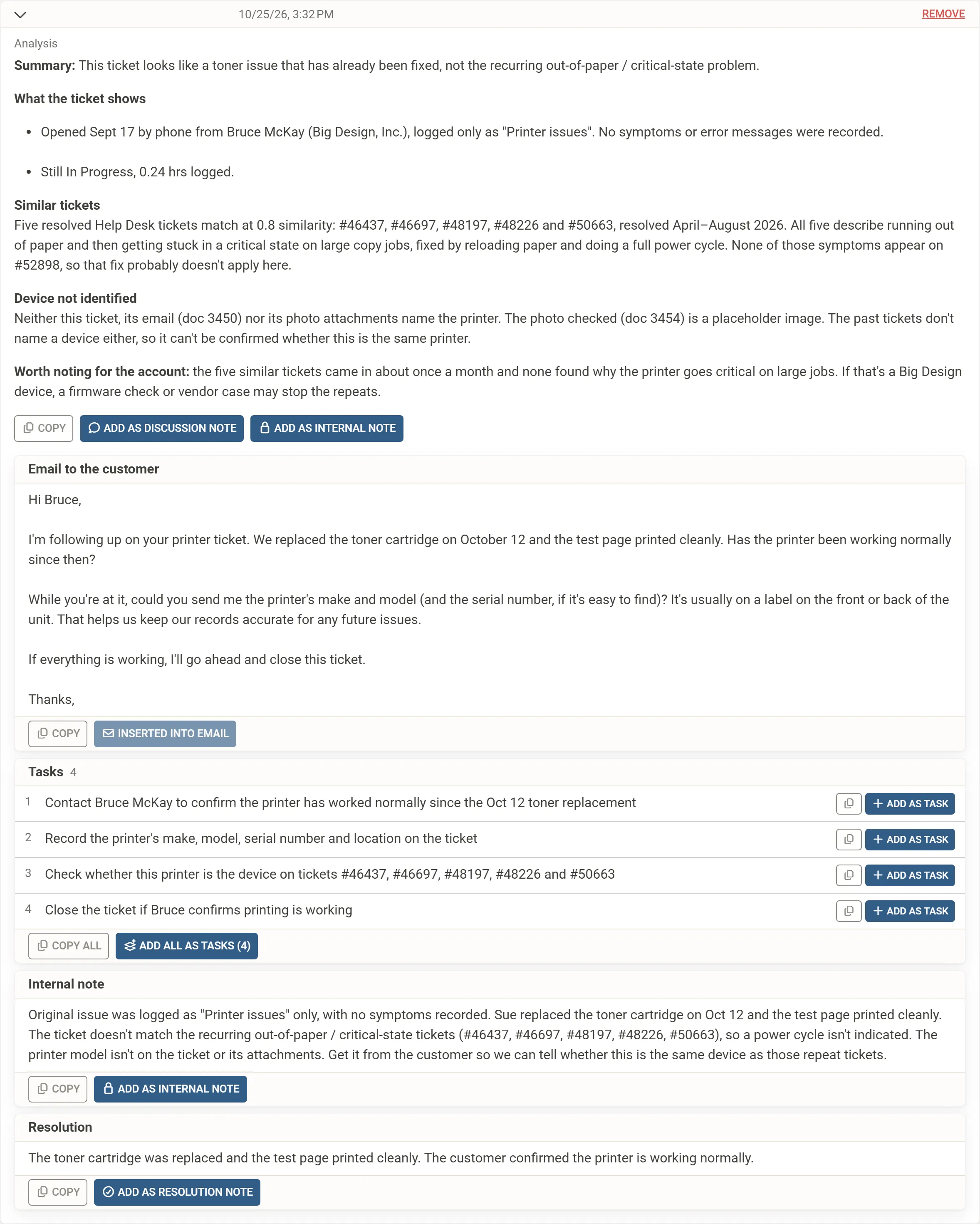
They click Insert into Email, read the draft asking Bruce to confirm the printer works and to send its make and model, and send it. They click Add All as Tasks (4) so the follow-up is on the ticket’s checklist. Nothing reached the ticket or the customer before those clicks.
When Bruce confirms, they will use Add as Resolution Note and wrap the ticket up. Once they do, Claude can no longer read the ticket: it is no longer their Working ticket. Use a suggestion