
Manage a ScoreBook
You need the Manager or Admin access level. In Score My Team, click the edit icon on the ScoreBook’s card to open its edit page.
Rename it
Section titled “Rename it”Change ScoreBook Name. It is saved as you type.
Change its members
Section titled “Change its members”Under Select Members for ScoreBook, click a name under Available Members to add it, or under Selected Members to remove it.
Change its scoring method
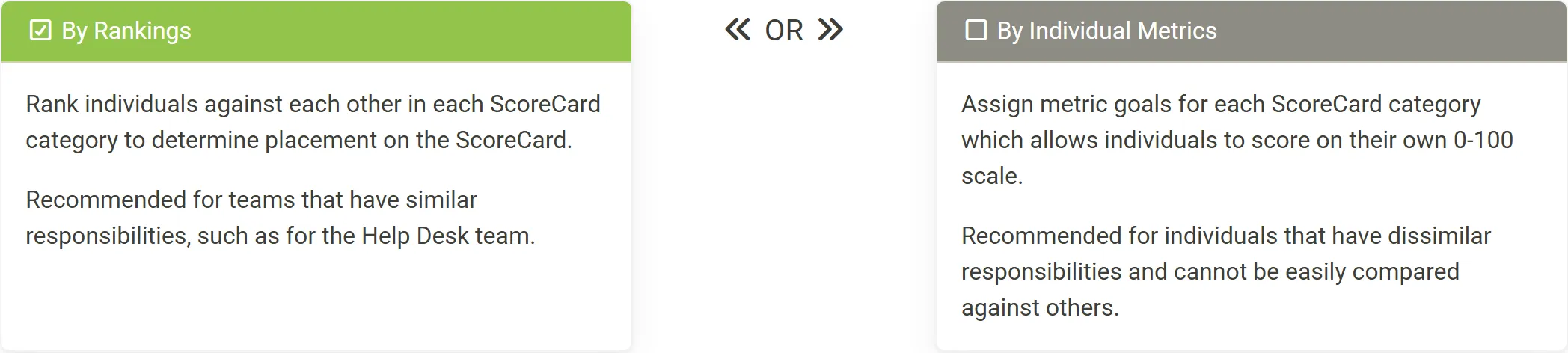
Section titled “Change its scoring method”Under Select Scoring Method, click By Rankings or By Individual Metrics.
Deactivate or reactivate it
Section titled “Deactivate or reactivate it”Untick Active to deactivate the ScoreBook, for a team that no longer exists, for example. A deactivated ScoreBook is no longer listed with the others; it appears under Deactivated ScoreBooks, where View lists it, for managers and Admins whose Any ScoreBook setting is Yes. Tick Active again to reactivate it.
Active is shown only once the ScoreBook has members and a ScoreCard. Until then, the page says why the ScoreBook is not active.
Delete it
Section titled “Delete it”Click the trash icon in the ScoreBook’s header.