
Set up configuration reviews
Configuration reviews are worked in MTX as review tickets. Choosing a board for them switches reviews on. You need to be an administrator in Nilear.
- On the Configuration Station page, click Open Configuration Review Settings.
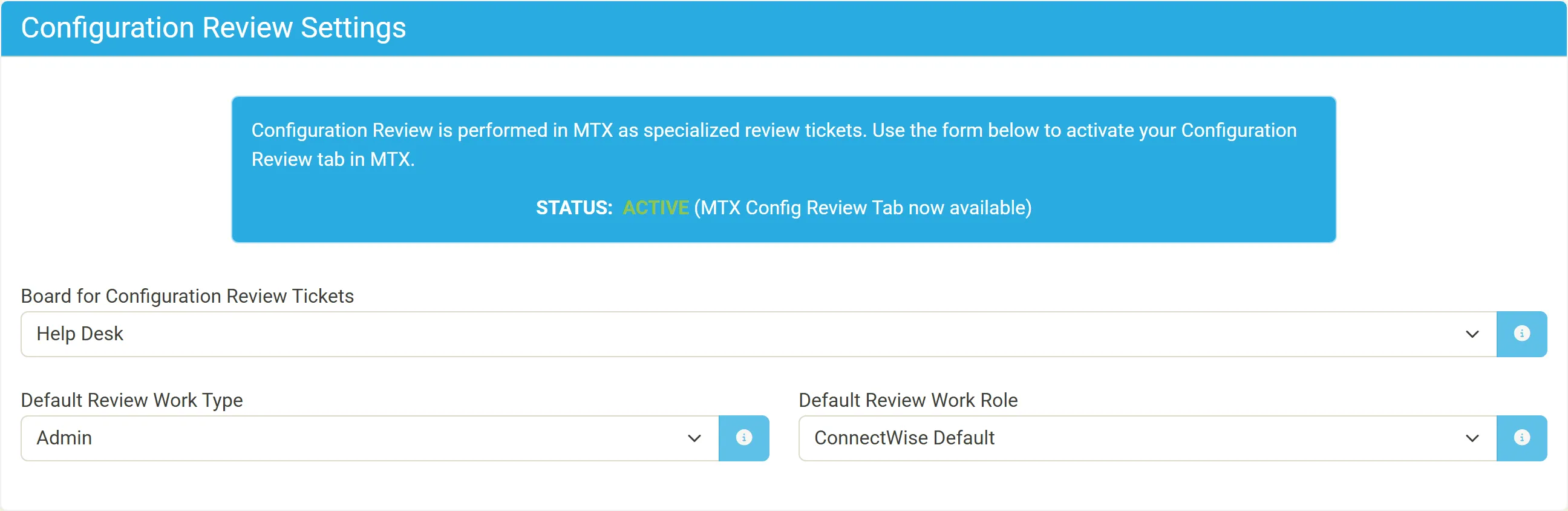
- In Board for Configuration Review Tickets, choose the service board review tickets are created on. You may want a dedicated “Config Review” board in ConnectWise for them.
- Optionally choose a Default Review Work Type and a Default Review Work Role. Each is ConnectWise Default until you choose one.
The status changes from DISABLED (No Board Selected below) to ACTIVE (MTX Config Review Tab now available). Members see the Review tab under MTX’s Configs tab the next time MTX starts.
What choosing a board does in ConnectWise
Section titled “What choosing a board does in ConnectWise”When you choose a board, Nilear adds a ticket source named Config Review to your ConnectWise if it is not there. Review tickets are created with that source, which is how MTX lists them.
Which configurations come up for review
Section titled “Which configurations come up for review”A configuration is listed for review in MTX when:
- its type’s review cycle is not Never (set on its type);
- it is active and has no open review ticket;
- it was never reviewed, or its last review is older than the cycle; and
- its company’s type is flagged as your active customer base on Nilear’s Settings, Company Types page.