
Require custom fields by board
MTX will not move a ticket to a resolved status while a required ConnectWise ticket custom field is empty. ConnectWise can limit a custom field to some boards, but it does not share that list with Nilear. So, unless you tell it otherwise, MTX requires the field on every board within the field’s ConnectWise business unit and location limits. You need Nilear’s Admin access level.
- Open Settings, then My Tickets, at app.nilear.com.
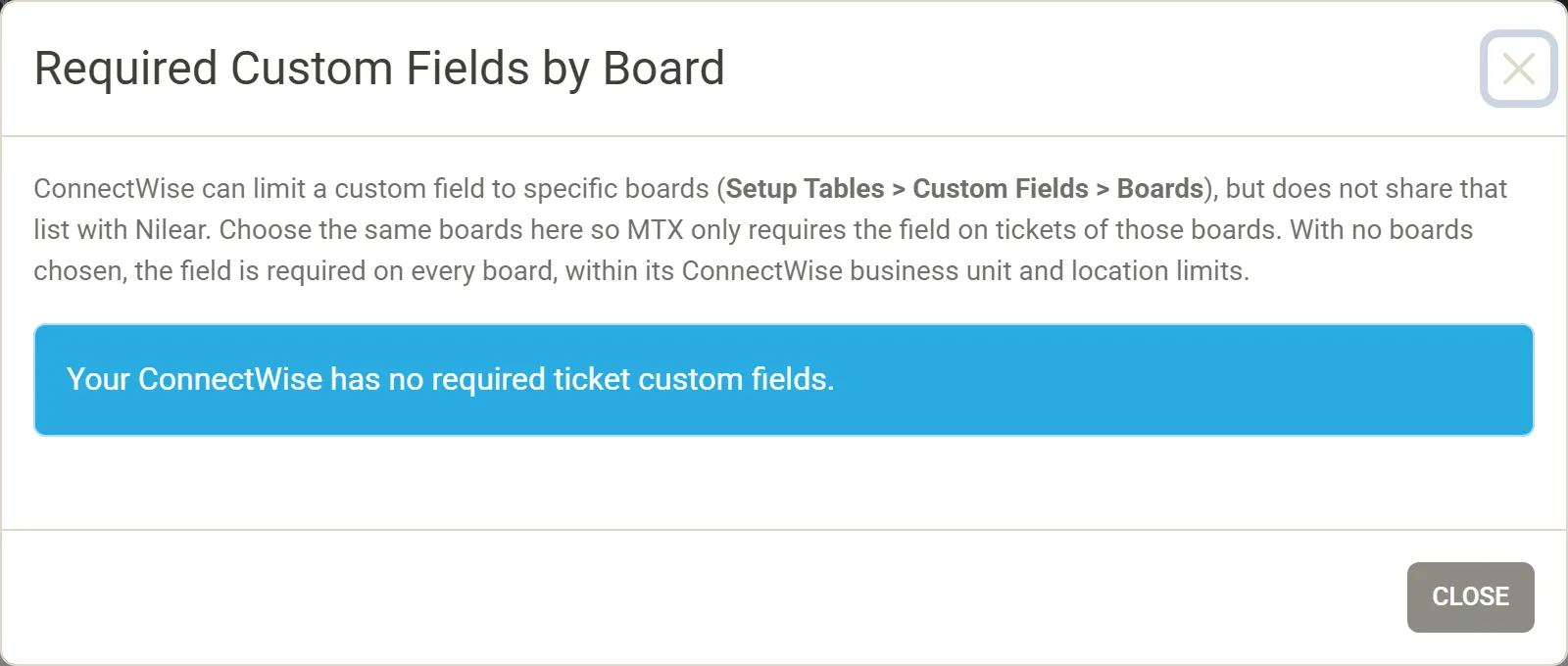
- In MTX Interface, click the cog beside Required Custom Fields by Board. Only administrators see this row.
- The dialog lists your required ticket custom fields by their ConnectWise caption, each showing All boards or the boards chosen. For each field, choose the same boards as in ConnectWise (Setup Tables, Custom Fields, Boards).
- Close the dialog. Each change is saved as you make it.
What changes for technicians
Section titled “What changes for technicians”On a board you did not choose, the field is no longer asked for or enforced anywhere in MTX: not in the “Missing Required Information” prompt, not as a “Missing custom fields” chip in the status lists, not on the ticket summary’s Custom Fields tab, and not in the New Ticket wizard. Custom fields a technician has pinned keep showing.
A field’s board choice never widens it: a field limited in ConnectWise to another business unit or location stays out of scope on that board.
Clearing every board returns the field to All boards. A field that is no longer required but still has boards chosen stays listed, so you can clear it. When MTX cannot load your custom field definitions, the dialog says so and changes nothing.