
Administrator settings
MTX’s company-wide settings are in Nilear’s web app, Settings, My Tickets, at app.nilear.com/settings/my-tickets, unless a section says otherwise. Only members with Nilear’s Admin access level can change them. Each is saved as you change it. “Default” is the setting’s default as its own explanation on the page gives it; “—” means the page states none.
Time Entries
Section titled “Time Entries”| Setting | Default | What it does |
|---|---|---|
| Default On-site Work Type | Required | Work type for on-site time entries. |
| Default Project On-Site Work Type | Same as on-site | On-site work type for project tickets. |
| Travel To Work Type | Required | Work type for travel to a client. |
| Travel From Work Type | Required | Work type for travel back from a client. |
| Default Admin Work Type | Required unless Use Admin/Comm Work Types is off | Work type for a session with no notes and no email. |
| Default Communication Work Type | Required unless Use Admin/Comm Work Types is off | Work type for a session in which only an email was sent. |
| On-site Work Role, Remote Work Role | ConnectWise Default | Work role for on-site or remote time, instead of the member’s default. |
| Reduce Time Entry Creation | — | One time entry per ticket, per technician, per day. |
| PSR Continues Time Entry | — | Shown while Reduce Time Entry Creation is off. Returning from PSR adds to the earlier time entry. |
| Nilear Manages Default Work Types | On | MTX picks the work type; off, technicians choose it for every time entry. Each board can be turned off under Default Work Type per Service Board Management. |
| Include Notes with Emails | On | Discussion and Resolution notes are added to drafted emails. |
| Include Tasks with Emails | On | Notes of completed or failed tasks are added to drafted emails. |
| Include Tasks in Time Entries | On | Notes of tasks the technician completed go into the time entry. |
| Record AI Tasks as Internal Notes | Off | Tasks Nilear AI creates start marked Internal. |
| Include Emails in Time Entries | On | The drafted email goes into the time entry; off, into a ticket note. |
| Use Admin/Comm Work Types | On | Off: always the ticket’s default work type. |
| Require Notes for Billable Time | Off | No wrap-up of a billable time entry without notes. |
| Require Notes for Time Entries | Off | No wrap-up of any time entry without notes. |
| Update CWM StopWatch | Off | Work on Ticket also drives the member’s ConnectWise ticket stopwatch. |
| Record Seconds on Time Entries | Off | Times recorded to the second. |
| Skip Separate Emails on Notification Statuses | Off | No separate email when the status chosen already notifies the customer. |
| Custom Onsite / TravelTo / TravelFrom Work Type per Board | None | A board’s own on-site or travel work type. |
See Set up time entries.
Expenses
Section titled “Expenses”| Setting | Default | What it does |
|---|---|---|
| Mileage/KM Expense | — | Expense type for mileage recorded by My Tickets Mobile when travelling to or from an on-site appointment. Disable Option turns it off. |
| Source for Distance Calculations | Google Maps | Google Maps uses the expected travel distance, which the technician can change; ConnectWise uses the company site’s distance in ConnectWise, which they cannot. |
| 2x Travel To | — | Double the travel-to distance and tolls instead of asking for a travel-from distance. |
| Default Mileage/KM Payment Method, Default Parking Payment Method | — | How mileage or parking was paid, such as by the employee or the employer. |
| Tolls Expense, Parking Expense | — | Expense types for tolls and parking. Disable Option turns each off. |
Schedules
Section titled “Schedules”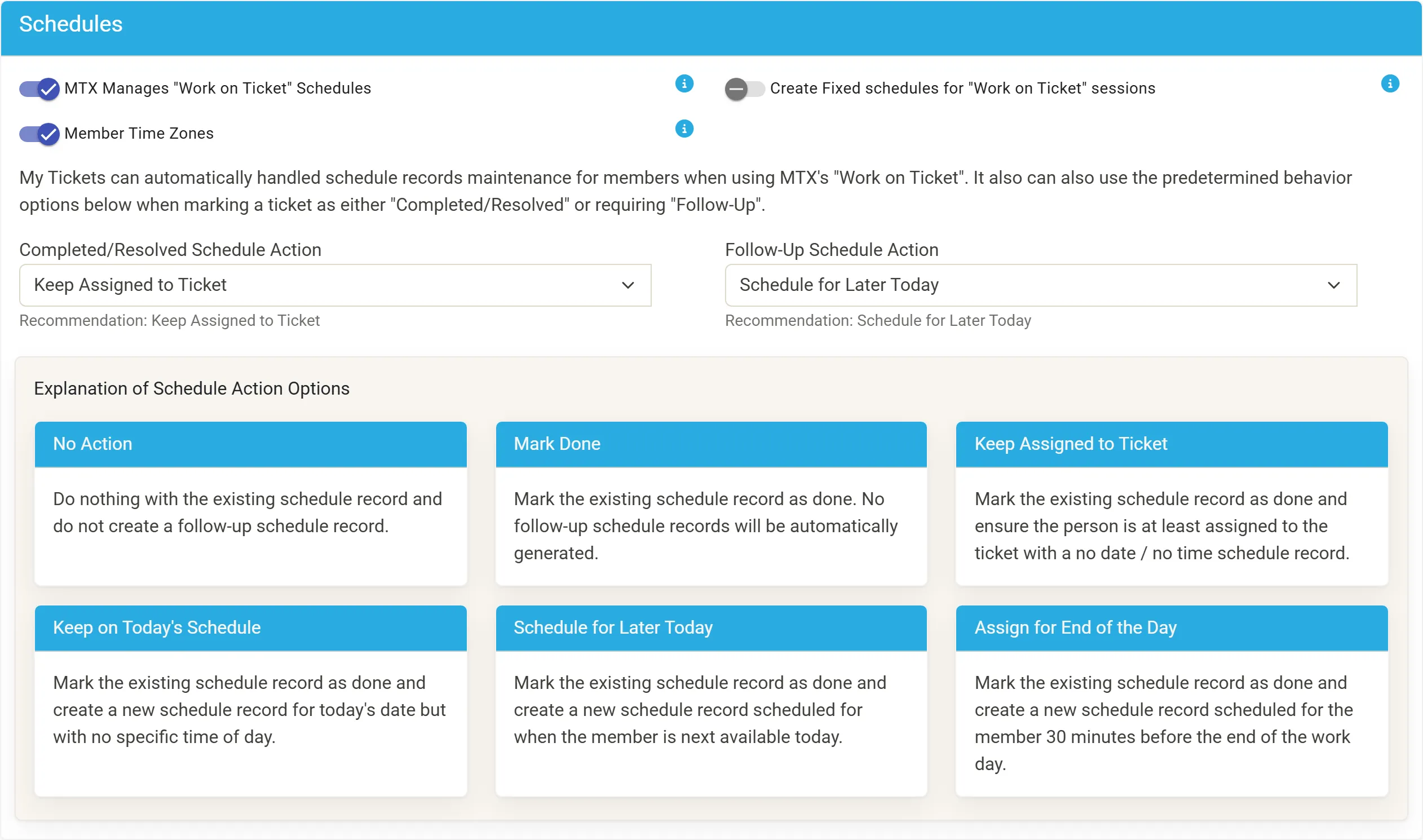
| Setting | Default | What it does |
|---|---|---|
| MTX Manages “Work on Ticket” Schedules | On | MTX keeps the schedule records of Work on Ticket sessions. Off, technicians manage their own. |
| Create Fixed schedules for “Work on Ticket” sessions | — | The schedule record MTX creates for a session with none is Fixed; off, Floating. |
| Member Time Zones | Off | Schedules are shown in each member’s ConnectWise time zone and entered in the scheduled member’s zone. Off, in the device’s time zone. |
| Completed/Resolved Schedule Action | — | What happens to schedule records when a ticket is completed. Nilear recommends Keep Assigned to Ticket. |
| Follow-Up Schedule Action | — | What happens when a ticket needs follow-up. Nilear recommends Schedule for Later Today. |
The schedule actions are No Action, Mark Done, Keep Assigned to Ticket (done, and the member stays assigned with a no-date schedule record), Keep on Today’s Schedule (done, and a new record today with no time), Schedule for Later Today (done, and a new record when the member is next available today) and Assign for End of the Day (done, and a new record 30 minutes before the end of the member’s working day).
MTX Interface
Section titled “MTX Interface”| Setting | Default | What it does |
|---|---|---|
| Use Company Full Name | On | Off: MTX shows the company’s ID name instead of its full name. |
| Before Creation | TSI Not Requested | Whether the New Ticket wizard asks for Type, SubType and Item: TSI Requested, Only Type & SubType Requested or Only Type Requested. Asked, never required. The cog excludes boards. |
| Always Ask for Status | Off | The New Ticket wizard always stops at the Status step, offering the board’s default new status as one click. |
| Require Tasks to be Completed before Resolving | On | A ticket cannot be resolved while tasks are open. |
| Before Resolving | — | Whether Type, SubType and Item must be set before a ticket is resolved: TSI Required, Type & SubType Required (Item Optional), Type Required (SubType and Item Optional) or TSI Not Required. The cog excludes boards. A value containing “Change Me”, “Must Be Changed” or “Must Change” counts as not chosen. |
| Required Custom Fields by Board | All boards | Which boards each required ConnectWise ticket custom field is enforced on. How |
| Require Configurations | Off | Asks to attach a configuration before leaving a service, monitoring or project ticket that has none. |
| Keep Agreement on Contact/Site Change | Off | Keeps the ticket’s agreement when only the contact or site changes. |
| Use Geolocation for MTM | On | My Tickets Mobile locates the member’s start for their first on-site trip; off, it asks home or office. |
| Restrict Chips and Strips on Time Machine | Off | Members who are not Managers or Admins see only their own chip and strip. |
| Restrict Viewing Availability of Others | Off | Opens the Members page, where availability rights are set. How |
| Require Dates for Schedules | Off | A schedule record needs at least a date. |
| Require Times for Schedules | Off | A schedule record needs a date and a time. Turning it on turns on dates too. |
| Allow Spectators | On | Off removes the spectator options from a ticket’s Scheduling tab and wrap-up. |
| Allow Ticket Merging | On | Off offers only Bundle, and Nilear refuses a merge from MTX for everyone. A ConnectWise merge cannot be undone. |
| Require Schedule/Queue for Unresolved | Off | An unresolved ticket must be scheduled or queued before work on it ends. The cog excludes boards. |
| Allow Emails to be Scheduled | On | Technicians may schedule an email for later delivery. |
| Auto-assign Owner | On | A ticket with no owner gets one when it is assigned on its Scheduling tab, or when wrap-up completes it or creates a future schedule. |
| Force One Ticket Method | — | Every member uses the One Ticket Method. Off, each member chooses. How |
| Skill Management | On | Off hides My Skills, Skill Management and Queue Targeting Rules from everyone, and stops skill prompts. |
| Skill Prompts | On | MTX asks members during business hours to confirm their skills. |
| SMS | On | Technicians may send SMS to US and Canadian mobile numbers. Off hides Draft SMS. |
| Restrict Queue | Off | Only Managers and Admins may change the queue’s order and targeting rules. |
| PSR | On | Off (not recommended) removes PSR. May take effect the next day. |
| Default Budget (mins) | — | The budget of a ticket with no schedule record and no budget hours. At least 15; -1 turns budget notifications off. |
| PSR Limit | Unlimited | How many tickets a member may hold in PSR at once, 1 to 6. Nilear recommends 2 or 3. |
| Show Ticket View Tracking | Off | Shows everyone who viewed a ticket and when, under the summary’s Additional Ticket Options. Views are always tracked. |
AI Features
Section titled “AI Features”| Setting | Default | Off hides |
|---|---|---|
| Enable Email AI | On | Polish on emails. |
| Enable Summary AI | On | Polish on the ticket summary. |
| Enable Notes AI | On | Polish on working notes, and Support Advisor in MTX. |
| Enable TSI AI | On | Suggest TSI. |
| Enable Split Ticket AI | On | Split Ticket AI. |
Boards: Mapped Statuses
Section titled “Boards: Mapped Statuses”For each active board whose processing is on: Default New Status, Default Assigned Status, Default In Progress Status, Default Waiting Status, Default Completed Status and Default Follow-Up Status. See Map your boards’ statuses.
Other Settings pages
Section titled “Other Settings pages”All in Settings at app.nilear.com, Admins only for changes:
| Page | What it holds |
|---|---|
| SLA Review | Each status’s SLA escalation, changed in ConnectWise. How |
| Board Types | Each board’s type (Service, Monitor, Project, Sales, Other) and switches: Auto-queue (add not-responded, unscheduled tickets to MTX’s queue), Scoring, TSI (enforce TSI on the board; shown while TSI is required), Budget (budget alerts) and Processing (Nilear processes the board’s tickets for the Time Machine, Availability, MTX and Nilear Live). |
| Work Types | Which ConnectWise work types are technical and which administrative. |
| Lunch/AFK Charge Codes | Auto-generate Charge Code Time Entries when members are marked unavailable, with a minimum duration and the Lunch and AFK charge codes. |
| In/Out Board | In/Out Board 2-way Sync between the Availability board and ConnectWise’s In/Out Board. Not recommended if you do not use the In/Out Board. |
On the Members page
Section titled “On the Members page”At my.nilear.com, Admins only:
| Setting | Tab | What it does |
|---|---|---|
| MTX | Access | Who may use MTX. See Access levels. |
| Availability board | Classic settings | Hidden leaves a member off the board. |
| Availability status | Classic settings | Whose availability a member may see and change. Default Anyone’s. |
| Restrict availability | Classic settings, Defaults row | Yes: members who are not exempt see and change only their own availability. Default No. |
| Non-ticket user | Classic settings | Shows a member who does not work tickets as In during working hours. |
| View Settings | Classic settings | Shows the Global Settings tab of MTX Preferences to a member who is not an Admin or Manager. |