
Get started
These steps take a ConnectWise PSA from ScheduleSync switched off to its first synced schedule entry. You need to be an administrator in Nilear: the ScheduleSync page is under Settings, which only administrators can open.
-
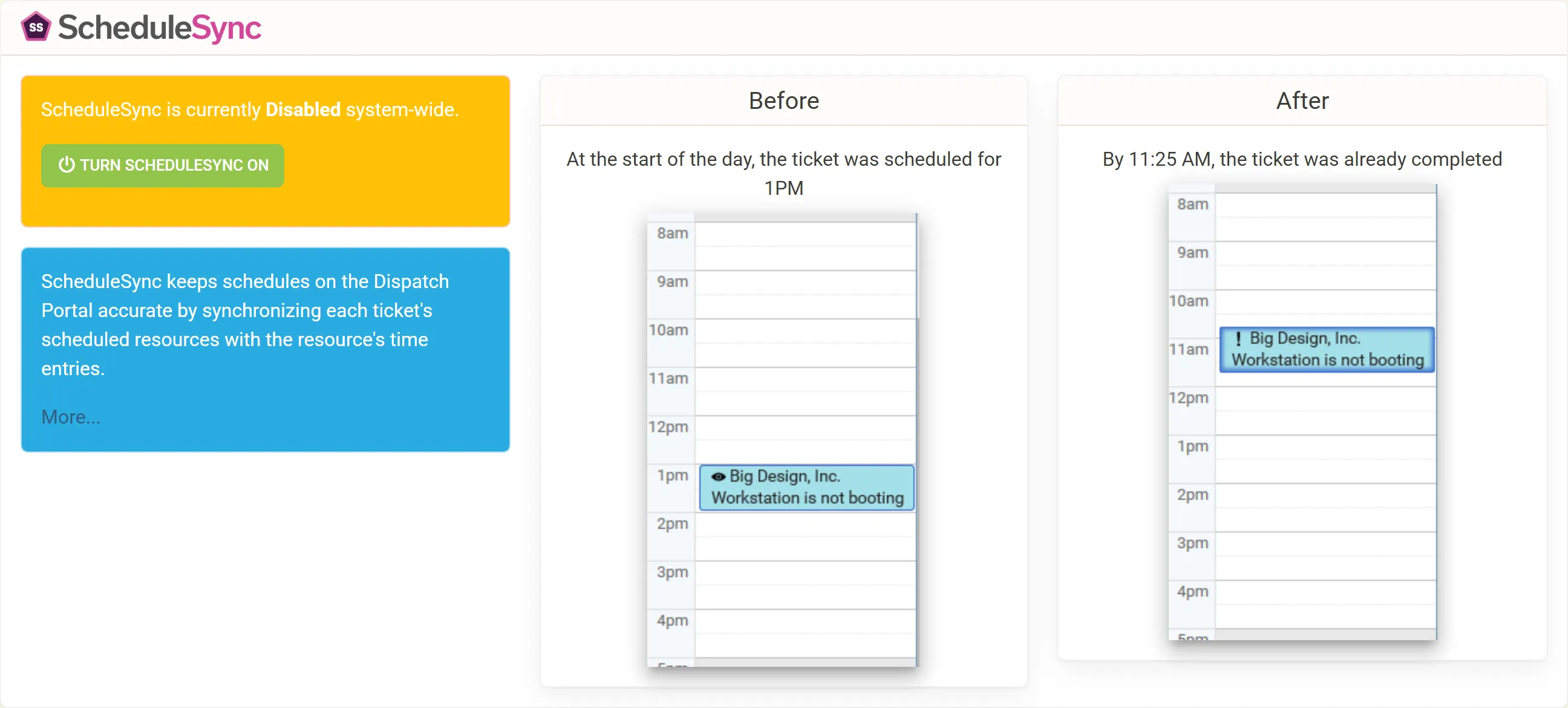
Open the ScheduleSync page. Sign in at app.nilear.com, open Settings, and click Select on the ScheduleSync card. The Home page’s ScheduleSync card has an Open button to the same page.
-
Turn ScheduleSync on. Click Turn ScheduleSync ON. The card then says ScheduleSync is currently Enabled system-wide.
-
Turn TravelSync on or off. The TravelSync card below has its own switch, Turn TravelSync ON or Turn TravelSync OFF. The two are independent: TravelSync can run while ScheduleSync is off, and the other way round. Before you turn TravelSync on, check its prerequisites.
-
Choose who it applies to. Each member has a Schedule Sync and a Travel Sync switch on the Members page at my.nilear.com. Leave a member on Default to follow the Defaults row, or turn one off for a member whose schedule should be left alone. See Turn ScheduleSync off for a member.
-
Tell technicians the two habits. Close the schedule entry when entering time, and never reuse a schedule entry once work has been done on it. See Enter time so schedules sync.
-
Check the first result. Once a technician enters time on a scheduled ticket, open the Dispatch Portal: their schedule entry for that ticket now spans the time they entered. A closed (done) entry is moved straight away; an open one may wait until it is nearly over (see when an entry is moved).
What you can do next
Section titled “What you can do next”- Set up TravelSync so technicians’ travel shows on the Dispatch Portal.
- Read how ScheduleSync chooses the entry to move.