
Ignore accounts automatically
Every client has accounts that should never become contacts: administrators, shared mailboxes, service accounts, your own staff. Auto Ignore keywords make ConnectActive set new directory users and ConnectWise contacts that match a keyword to Ignore, in every company.
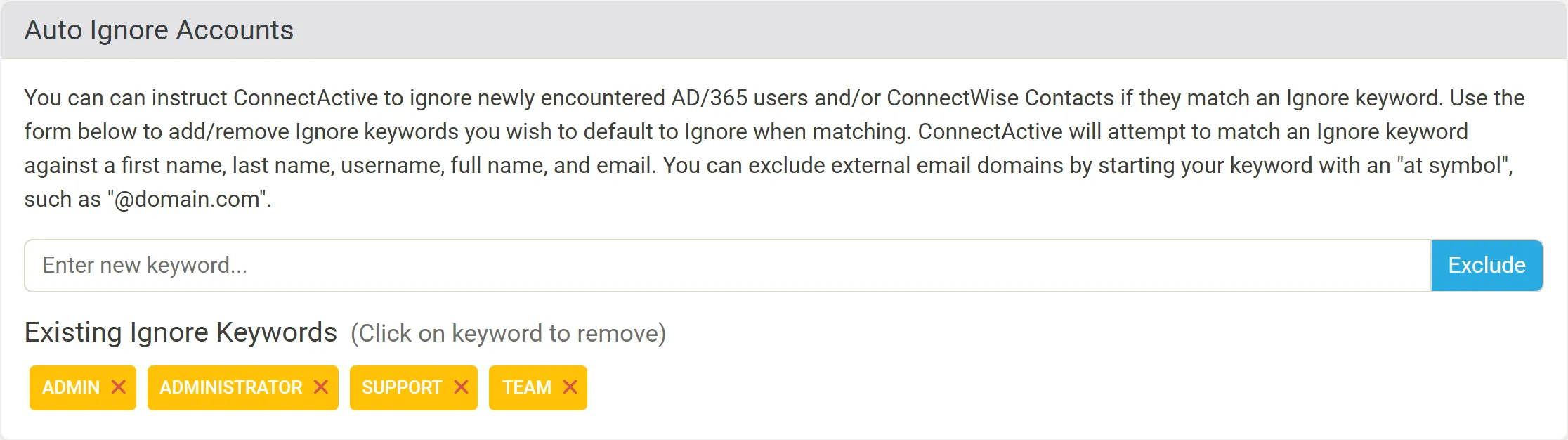
- Open ConnectActive’s Auto Ignore tab.
- Enter a keyword and click Exclude. ConnectActive matches it against a user’s or contact’s first name, last name, username, full name and email.
- To leave out a whole email domain, such as your own staff’s addresses, start the keyword with
@, for example@yourcompany.com.
Existing Ignore Keywords lists them; click one to remove it.
Keywords apply to users and contacts ConnectActive meets for the first time. Someone already matched or ignored keeps their setting; change it on the company’s Matching Form (Review and commit a sync).