
Efficiency Strips
The Efficiency Strips are the chips laid out in time: one row per member, on one time axis, so you can see not only how much of each day was worked, but when. Switch between chips and strips with the two-icon switch in the chips header; see Switch views and layout.
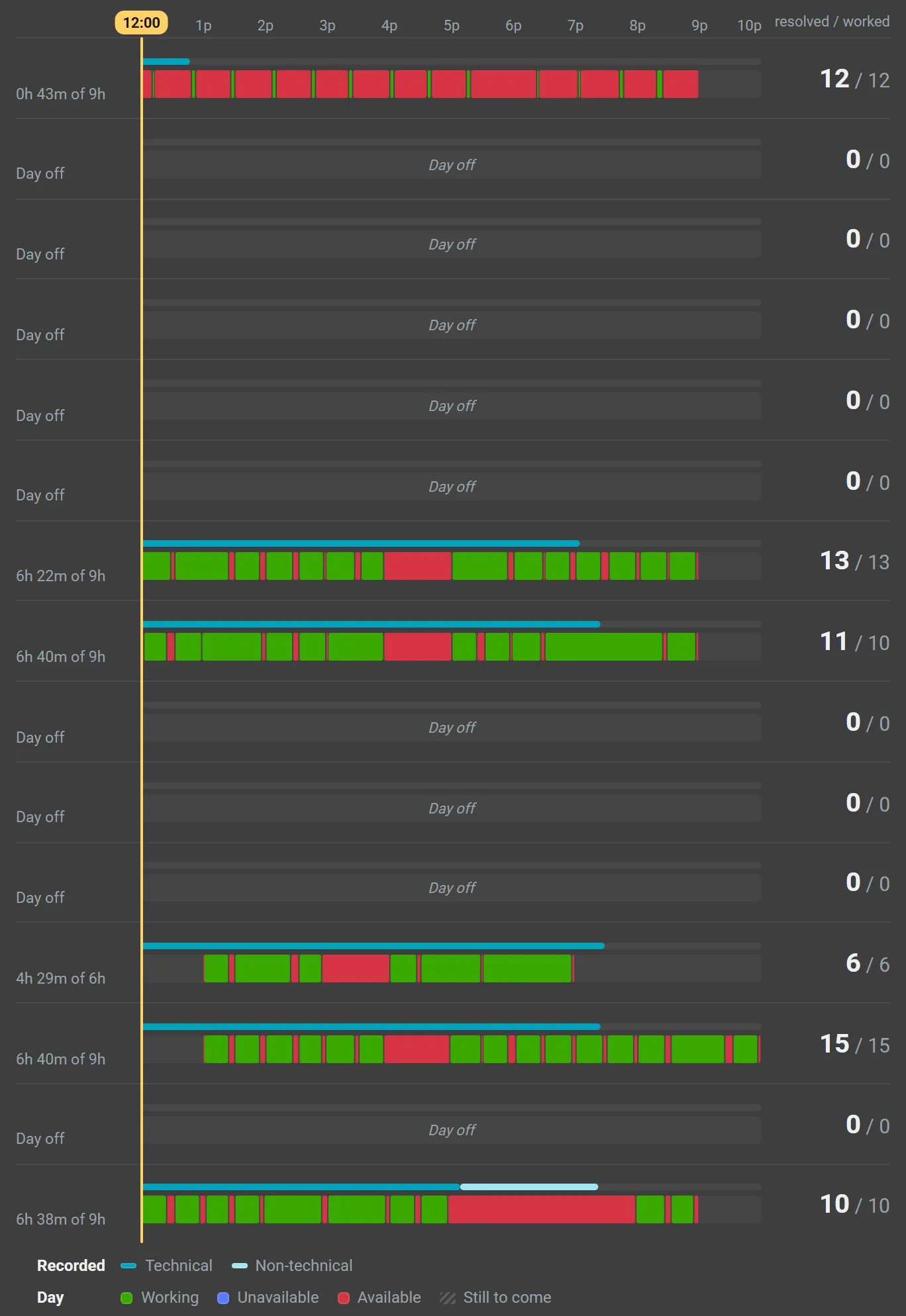
Each row shows, for one member:
- their name, preceded by the status dot, and their recorded time against the working day, such as 5h 25m of 8h (or Day off);
- a thin recorded lane: technical time, then non-technical time, as a share of their working day (or of eight hours when they have none);
- a thick day lane: when they were Working (green, a ticket In Progress), Unavailable (blue) or Available (red: within the working day, neither working nor unavailable). Outside the working day only working and unavailable stretches are drawn;
- the tickets resolved / worked, counted as on the chip.
Unlike the chip, the day lane draws every stretch at its full length: no break allowance is taken, whatever the calc rule.
The time axis
Section titled “The time axis”All rows share one axis, running from the earliest start to the latest end of the shown members’ working days, widened by up to an hour at either end for work that started earlier or ran later. A stretch running beyond the axis is cut at its edge and marked as continuing; point at it for its full times.
On the current day a line crosses every row at the present minute, and the rest of the day is hatched as still to come. When you choose a moment on the timeline, the line moves to it. The line is also a handle: drag it, or click the hour axis, to choose a moment; the timeline and the board follow. See Go back in time.
Point and click
Section titled “Point and click”Point at a stretch to see its kind, its start and end and its duration, and for a working stretch the ticket worked, such as Working on #48211. Point at the recorded lane for the technical and non-technical durations.
Click a working stretch for the member’s working report, an unavailable or available stretch for the non-working report, the recorded lane for the time-entry report, and the name or counts for the chip report. See Open a member’s details.