
Use a suggestion in MTX
When your AI client calls Suggest next steps, its suggestion appears as a card in the ticket’s Support Advisor tab in MTX, titled Suggested by client for you. Everyone who opens the tab sees it. Nothing reaches the ticket, its email draft or ConnectWise until you click one of its actions.
- Open the ticket in MTX and select the Support Advisor tab.
- Click the card’s title to expand it, if it is collapsed.
- Use the parts you want:
| Part | Actions |
|---|---|
| Analysis | Copy, Add as Discussion Note, Add as Internal Note |
| Email to the customer | Copy, Insert into Email (it then reads Inserted into Email) |
| Task, or Tasks with their count | Copy and Add as Task on each; Copy All and Add All as Tasks for several |
| Internal note | Copy, Add as Internal Note |
| Resolution | Copy, Add as Resolution Note |
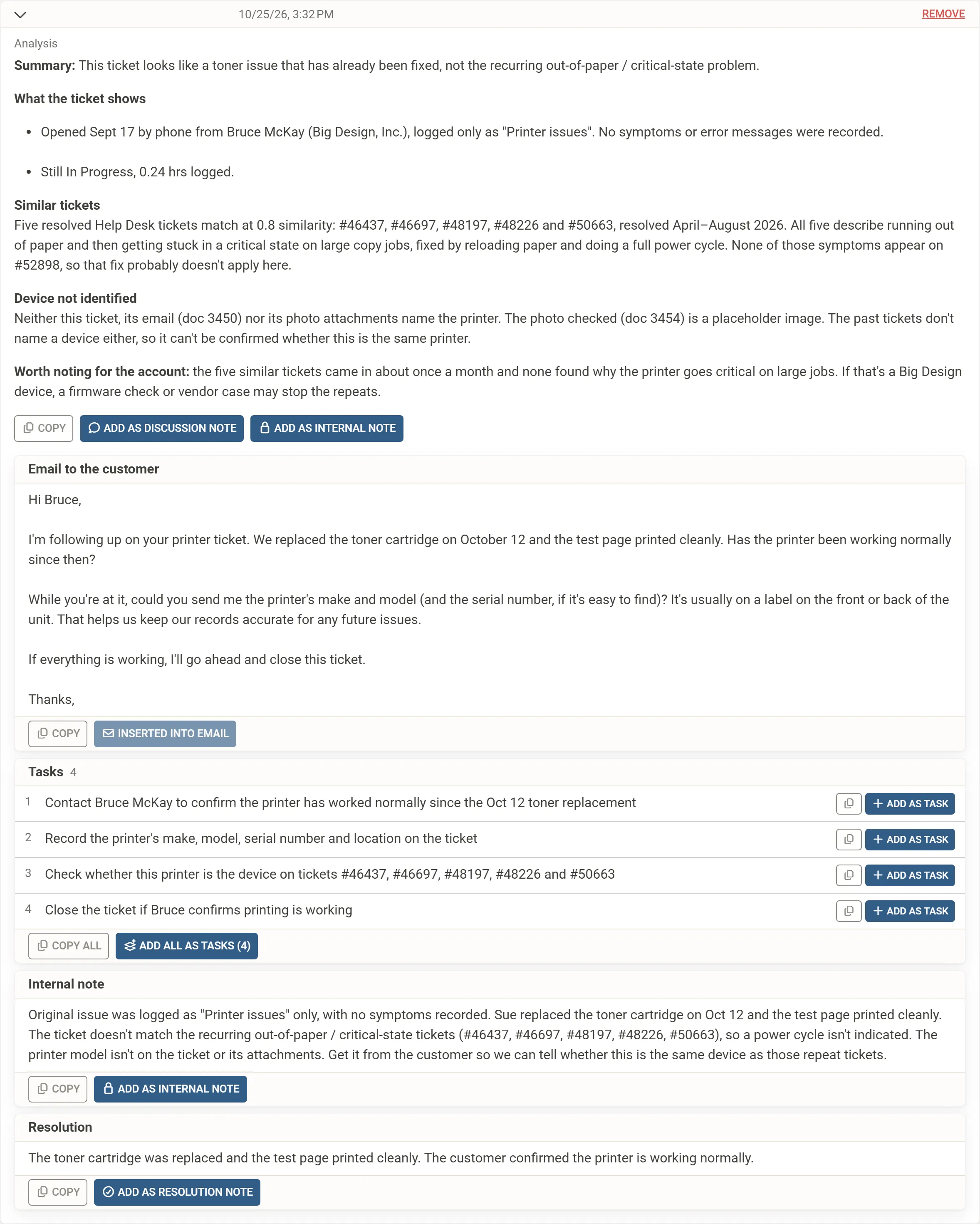
While you are working the ticket, a note action adds the text to your working notes, as a note, an internal note or a resolution note; it reaches ConnectWise when you save your work. Insert into Email puts the email in the ticket’s email draft, for you to review and send.
Once the suggestion is posted, the tab’s badge and the Support Advisor part of the ticket list’s AI column read Assistant, whichever client made it, until a newer automatic read gives its own verdict. Like Support Advisor’s own answers, the suggestion stays in the tab until a member removes it with Remove. For the rest of the tab, see Read the advice.