
Turn on prorating
With prorating on, when a mapped addition’s count rises after it was invoiced, ConnectActive adds a one-time prorated addition to the next invoice for the rest of the period; with refunds on, it adds a negative one when the count drops. Prorating explains it with examples.
Turn it on
Section titled “Turn it on”- Set up the company’s agreement mappings first (Agreement mappings).
- On ConnectActive’s Prorate Options tab, click Use Prorating. To refund drops as well, turn on Use Prorated Refunds.
- In ConnectWise, tick Prorate Agreement on each agreement whose additions should be prorated. Clear it on the agreements of clients you do not prorate.
ConnectActive processes the addition and its prorated additions each time it finds a change.
Prorate only some companies or additions
Section titled “Prorate only some companies or additions”Prorating applies where the ConnectWise agreement has Prorate Agreement ticked, and then follows these settings, the narrower one winning:
| Where | Setting | Values |
|---|---|---|
| Company Sync Settings | Enable Prorating on Additions by Default | Ticked: every addition of the company is prorated when its agreement allows it. Cleared: only additions set to ON. |
| Company Sync Settings | Prorate Refund Settings | AUTO (follows Use Prorated Refunds), ON, OFF |
| A mapping | Prorate Settings | AUTO (follows the company), ON, OFF |
| A mapping | Prorate Refund Settings | AUTO (follows the company), ON, OFF |
ON takes effect only if the agreement in ConnectWise has prorating enabled. A mapping’s header says whether prorating is enabled on it, or why not.
Prorate on every addition
Section titled “Prorate on every addition”By default ConnectActive prorates only when the count rises above the count already invoiced. A drop from 10 users to 8 followed by a rise to 9 in the same month adds nothing: the client was invoiced for 10. Tick Prorate All Additions to have ConnectActive add a prorated addition for every new user regardless. It is not needed with Use Prorated Refunds, which prorates every addition and removal.
Annual agreements
Section titled “Annual agreements”For an addition on an annual agreement, choose where the prorated additions go: on the mapping, next to Prorating Under, click EDIT. In Prorating Addition Agreement Assignment, Create Prorates Against is either Agreement Itself or another monthly agreement of the client. The same window shows the agreement’s ConnectWise flags: Prorate Agreement must be ticked, and to prorate against the annual agreement itself, Bill Prorated Additions Immediately must be ticked too. Prorating against a separate monthly agreement also keeps a master agreement free of prorated lines.
Billing in arrears without prorating
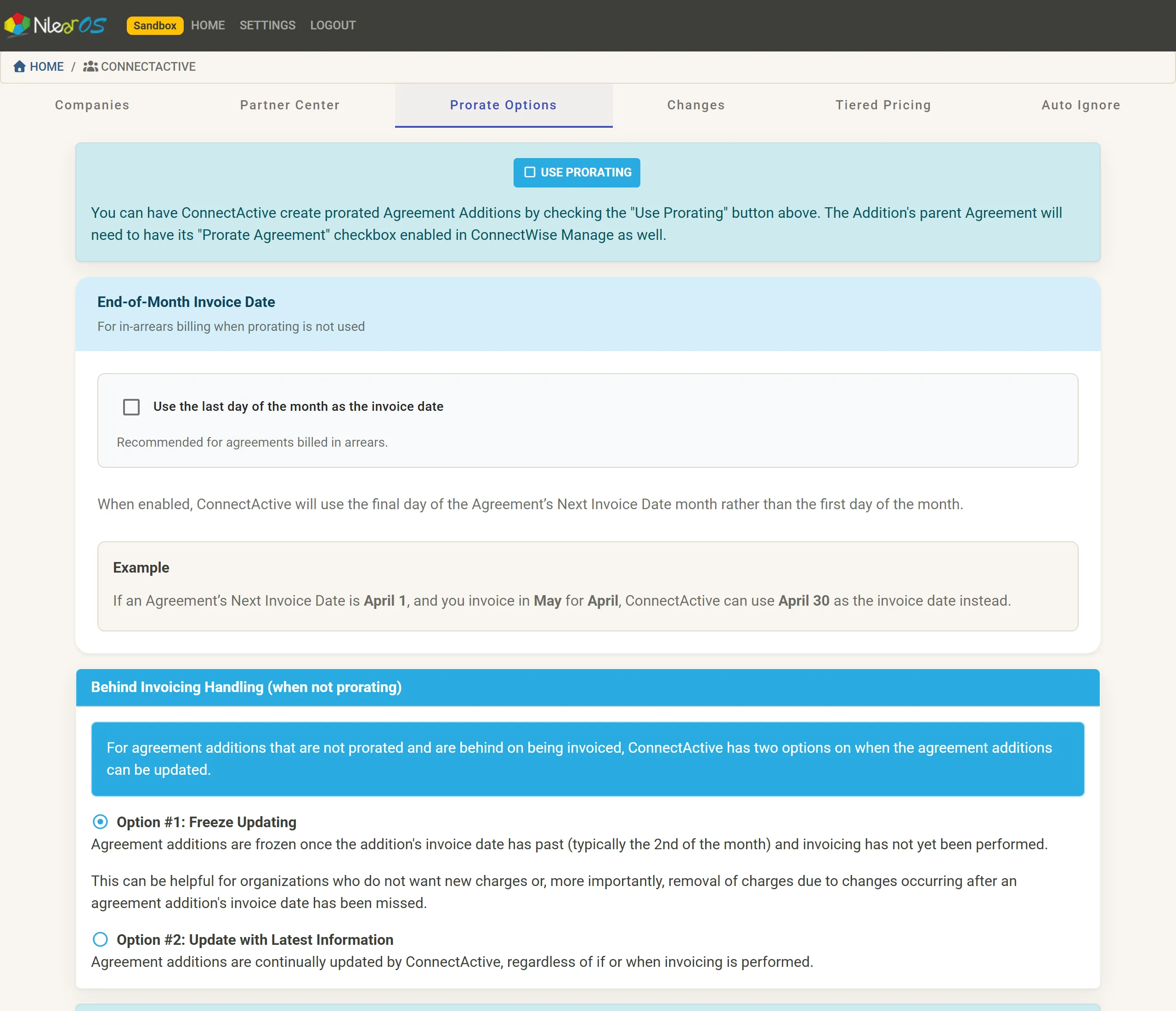
Section titled “Billing in arrears without prorating”Three settings on the Prorate Options tab are for clients you invoice after the period rather than prorate:
- End-of-Month Invoice Date: tick Use the last day of the month as the invoice date to have ConnectActive use the last day of the agreement’s Next Invoice Date month instead of the first. For example, with a Next Invoice Date of April 1, invoiced in May for April, it uses April 30.
- Behind Invoicing Handling (when not prorating), for additions whose invoice date has passed without an invoice:
- Option #1: Freeze Updating: the addition stops changing once its invoice date (typically the 2nd of the month) has passed until invoicing is done, so late changes neither add nor remove charges.
- Option #2: Update with Latest Information: the addition keeps updating whether or not invoicing was done.
Hold dropped contacts until invoicing
Section titled “Hold dropped contacts until invoicing”Hold Addition Contact Drops until After Invoicing keeps a user who left on the addition until the addition is next invoiced in ConnectWise, then removes them. For example, with an addition invoiced on 3/31 for March and a user deactivated on March 7, the March invoice still includes the user and April’s does not. With it off, the user is removed at once and the March invoice does not include them. It applies only to additions billed in arrears. Each mapping can override it with Hold Contact Drops until After Invoicing: AUTO, ON or OFF.