
Record time
While you work a ticket, MTX times your session and prepares its time entry. You review it in the working view’s third step, Time Review, before wrap-up. The time entry is saved to ConnectWise when you finish wrap-up or put the ticket in PSR.
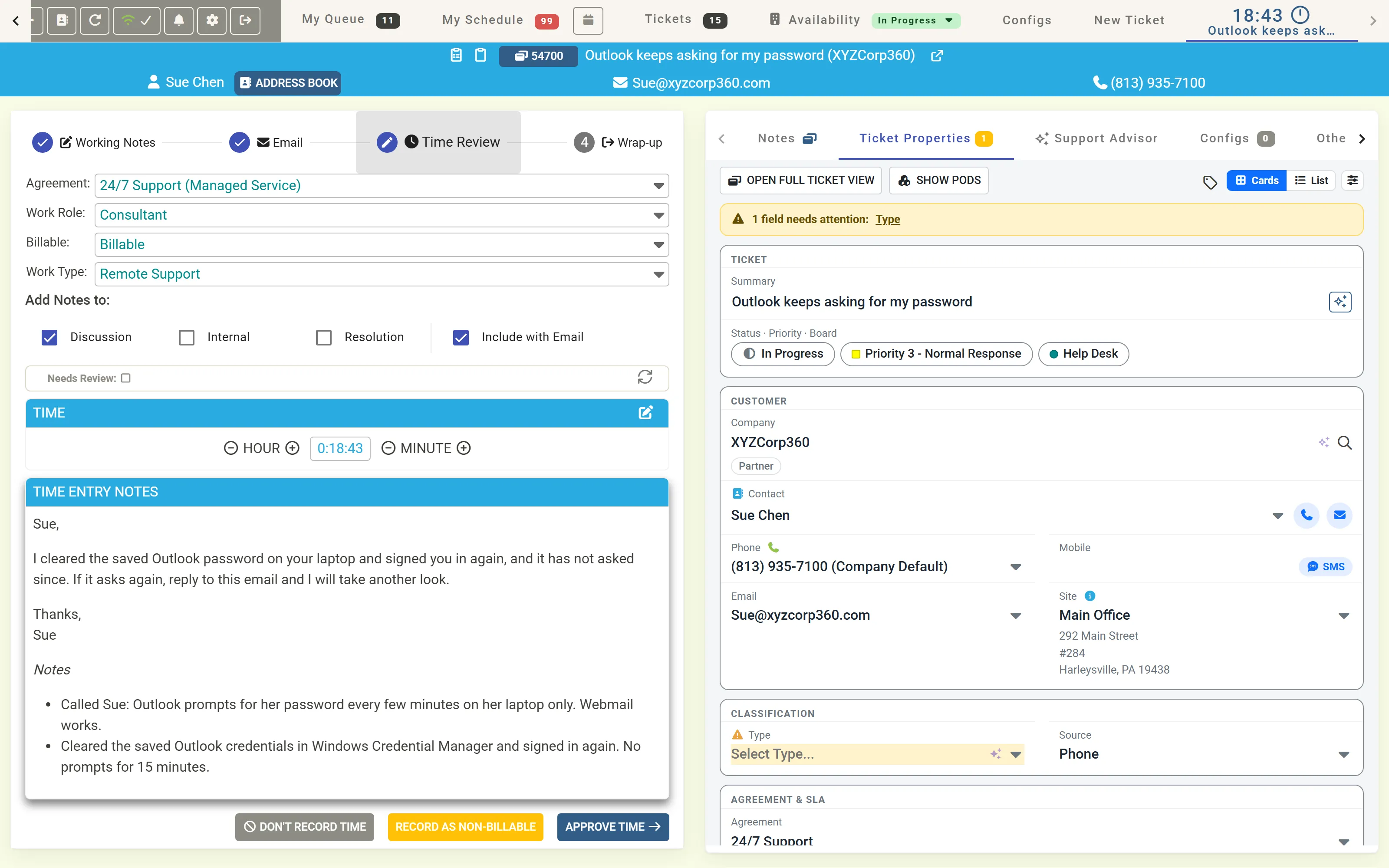
Review the time entry
Section titled “Review the time entry”- Check the Agreement, Work Role, Billable and Work Type. MTX fills them in for you.
- Check what the notes count as under Add Notes to.
- Tick Needs Review to flag the entry for review.
- Check the Time. Use − and + beside Hour and Minute to change it, or the pencil to open Manually Set Time and type it.
- Read the Time Entry Notes: the email you are sending and your working notes, as they will be saved.
- Click one of:
| Button | Saves |
|---|---|
| Approve Time | The time entry as it stands. |
| Record as Non-Billable | The time entry, marked non-billable. |
| Don’t Record Time | No time entry. Your notes are saved as ticket notes instead. |
When MTX skips the time entry by itself
Section titled “When MTX skips the time entry by itself”MTX saves a time entry when you wrote notes, when the session lasted at least five minutes, when you complete the ticket, when you set the time by hand, or when the session already saved one. A shorter session with nothing written saves none. See How time entries are recorded.
Add a time entry outside a session
Section titled “Add a time entry outside a session”For work you did without Work on Ticket, open the ticket’s summary, select Time, and click Add Time Entry. The tab also shows the ticket’s billable, non-billable and invoiced hours.
The New Time Entry steps ask for the notes and what they count as, verify the work type and the agreement, offer to email the notes (to Everyone on Ticket, External Contacts Only or Internal Resources Only, or Skip Email), and set when the work ended:
- type a Time End, or
- type Hours, a decimal such as 0.25 or 1.5, and the Time End becomes the Time Start plus that many hours.
A time entry cannot run past midnight. Finally it offers to update the ticket’s status or keep it.
If the ticket’s status does not allow time entries, MTX says so and recommends Work on Ticket using MTX if you are working on the ticket now, or changing the status.