
Efficiency Chips
An Efficiency Chip is a snapshot of one member’s day: how much they accomplished, and how accurately they kept ConnectWise up to date as they went. Click any part of a chip for the detailed report behind it.
The header
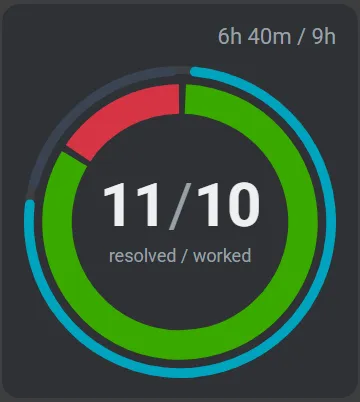
Section titled “The header”The chip is headed by the member’s name and, on the right, their recorded time against their working day, such as 7h 15m / 8h. Recorded time is technical time, including time on a ticket In Progress now, plus non-technical time. The working day comes from the member’s working calendar in ConnectWise; a member without one is given an eight-hour day.
The dot before the name is the member’s status, in the Availability board’s color for it: working, waiting, inactive, missing, on-site / travel, away, off or other. Point at it for its name. When you look at a past moment, the dot shows the status at that moment.
The outer ring: recorded time
Section titled “The outer ring: recorded time”The thin outer ring is the member’s recorded time, as a share of their working day:
| Color | Part |
|---|---|
| Cyan | Technical time: time entries on work types flagged Technical, starting at the top and going clockwise. While a ticket is In Progress, each minute counts as technical time, expecting a time entry to follow. |
| Light cyan | Non-technical time: time entries on any other work type, after the technical time. |
Which work types are Technical is set in Nilear under Settings, Work Types. | Slate | Unused: the working day not yet recorded. |
The more technical a member’s role, the more technical time you expect; the more administrative or managerial, the more non-technical.
The inner ring: how the day was spent
Section titled “The inner ring: how the day was spent”The thick inner ring shows how the member’s day was spent:
| Color | Part |
|---|---|
| Green | Working: time with a ticket In Progress, starting at the top. Only one ticket counts at a time: two tickets held In Progress together for 30 minutes count as 30 minutes, not 60. |
| Blue | Unavailable: time marked as Lunch, AFK, PTO, Off or another unavailable status, within the working day only. |
| Red | Available: working-day time that was neither working nor unavailable. It is the same red the board uses for a member who is Missing. |
A member who marks time away as Lunch, AFK, PTO or Off, rather than leaving it unexplained, keeps their red small. Unavailable time counts only within the working day: PTO from 6 AM to midnight for a 9 AM to 5 PM member counts as eight hours.
Under the default calc rule, an allowance for planned breaks, one sixteenth of the working day and at most 30 minutes, is taken off the unavailable part as drawn; the time shown on hover stays the full time. See Set the calc rule.
The centre: tickets
Section titled “The centre: tickets”The centre shows resolved / worked: the tickets the member moved to resolved today, and the tickets they worked on today. The first can be the higher of the two. “Worked on” means having a time entry for today on the ticket; a ticket In Progress now also counts, once.
Reading a chip at a glance
Section titled “Reading a chip at a glance”- The more green, the better a member used their time and ConnectWise.
- When the outer and inner rings line up, the member has been updating ConnectWise in real time.
- The higher the numbers in the centre, the more tickets the member worked. A help desk technician is generally in the teens; a project engineer lower.
- The closer the two numbers, the better the member resolves what they work on. Many tickets worked and few resolved can mean they are struggling to resolve them.
Which members get a chip
Section titled “Which members get a chip”A chip is shown, in name order, for each member listed on the board: the members of the selected team; with no team, your favourites, or everyone if you have none. A member with no activity yet today still gets an empty chip. Where your company restricts chips and strips, a member who is not a Manager or Admin sees only their own chip.
Chips for today stay current: they change as members’ activity arrives, and at least once a minute so that time In Progress keeps growing.