
Create a custom module
Besides the automatic modules, you can create your own to rate your team’s performance: sales, customer feedback, SLA, or “Awesome” points. You enter the weekly scores into the ScoreCard yourself. You need the Manager or Admin access level.
Create the module
Section titled “Create the module”- Open a ScoreCard: see Set up a ScoreCard.
- In Add Additional Scoring Modules, click Create Custom Module.
- Fill in the form, then click Create.
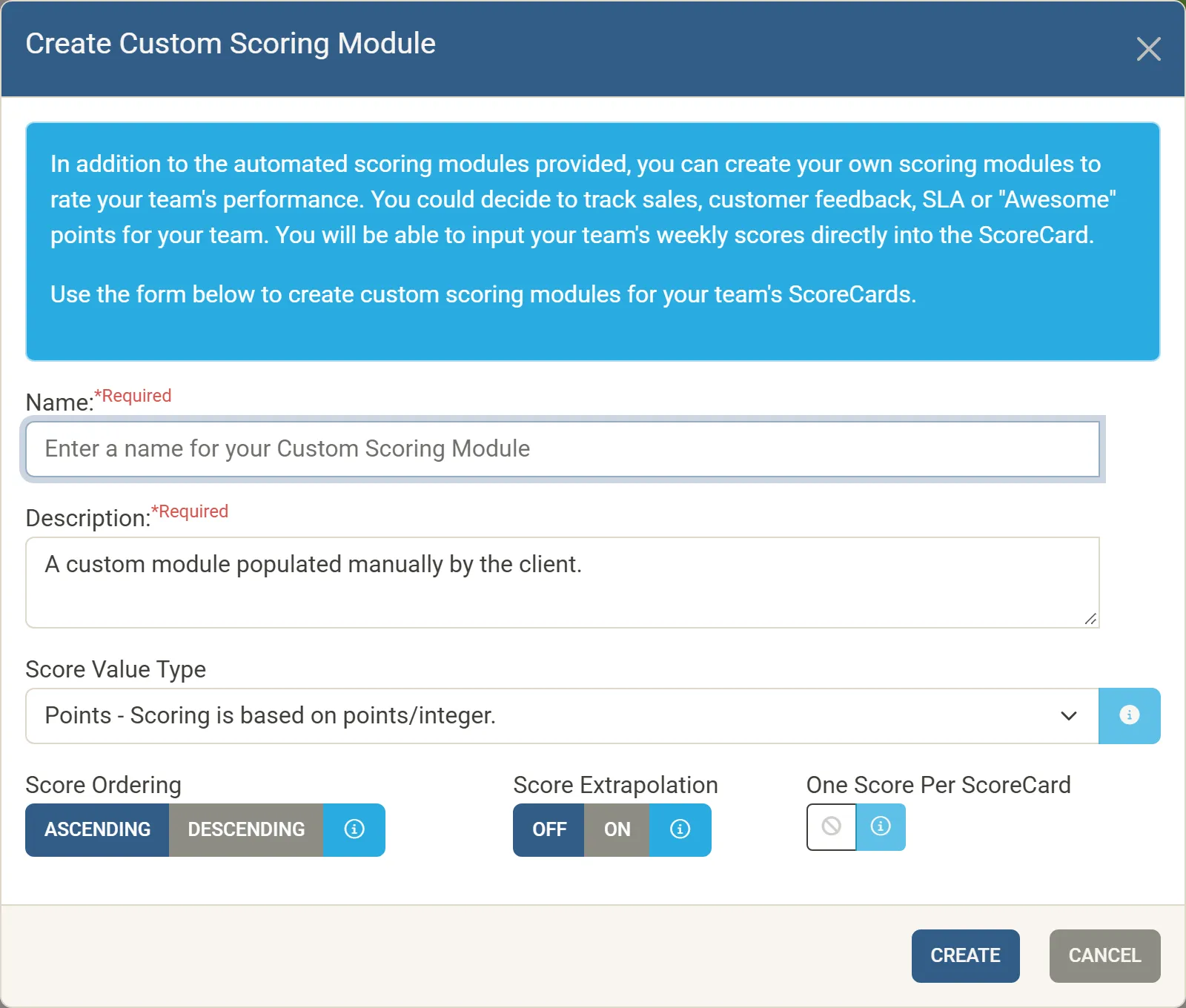
| Field | Choose |
|---|---|
| Name, Description | Required. |
| Score Value Type | The kind of number you will enter: Points (whole numbers), Decimal (such as 76.8), Percentiles (such as 78%), Currency (such as $768), Quartiles (only Bad, Poor, Good or Great) or Pass/Fail (only Passed or Failed). |
| Score Ordering | Ascending: the highest score is best. Descending: the lowest score is best. |
| Score Extrapolation | Off (default): a member’s current score is compared directly with the Rocks. On: Nilear projects where the member will finish the week from the time passed and the points so far. |
| One Score Per ScoreCard | One score for every week of the ScoreCard, such as new clients signed in the month. Off by default. |
Your custom module is then listed under Add Additional Scoring Modules, where you can add it to this and other ScoreCards with Add Module, and edit its settings.
Enter the scores
Section titled “Enter the scores”- Open the ScoreBook and find the week.
- Click the edit icon beside a member’s score in the custom module’s column.
- Enter the Score (or choose Passed or Failed, or Bad, Poor, Good or Great) and any Notes. Notes are shown when someone points at the score.