
Add a company
Each client you sync is a company in ConnectActive, tied to one ConnectWise company.
Add a company
Section titled “Add a company”- Open ConnectActive and stay on the Companies tab.
- Click Add Company, then find and choose the client’s company in Company Lookup. If the company is already in ConnectActive, its Settings open instead.
- In Select Sync Method, click Select on the source that holds the client’s users: Microsoft 365 / Entra ID, Active Directory(PS), Microsoft 365 + Active Directory(PS) or Google Workspace. To reuse a directory another company already syncs, choose it under Use an Existing Sync Company instead.
- Connect the source on the company’s Settings page: Microsoft 365, Active Directory or Google Workspace.
- Run and commit the first sync: Review and commit a sync.
A Microsoft tenant you reach through Microsoft Partner Center is added from the Partner Center tab instead: see Add Partner Center customers.
Add another source to a company
Section titled “Add another source to a company”A company can sync from several sources at once, for example a client with two Microsoft 365 tenants after a merger, or Active Directory alongside Microsoft 365.
- Open the company’s Settings.
- In the Sync Sources card, click the + button (Add additional sync sources).
- Choose Microsoft 365 / Entra ID, Active Directory(PS) or Google Workspace, and connect it as above.
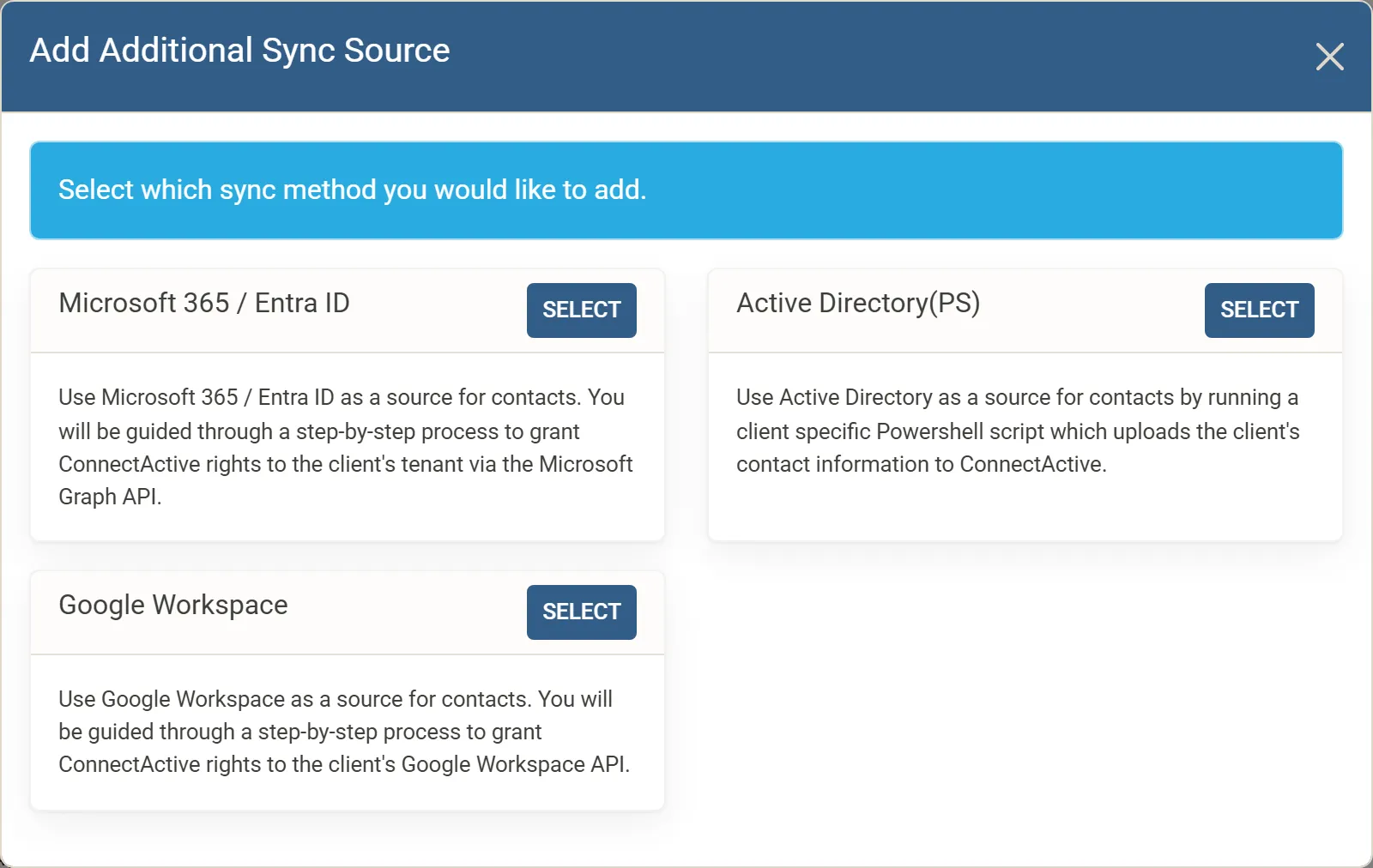
The + button is shown for companies set up with sync sources. A company set up with one of the older combined sync methods shows a Sync Method choice in Sync Settings instead.
To make a mapping count only the users of one source, use the mapping’s Limit to Source option (see Mapping options).
Removing a source
Section titled “Removing a source”Removing a source keeps the agreement mappings that counted its users: they are detached. A detached mapping keeps its agreement addition and every setting, stops counting anyone, and does not change the addition until you point it at a group or license from one of the company’s current sources with Select New Group (or Select New License). Until then, its addition cannot be used by another mapping. OU selections, filters and Contact Mappings that came only from the removed source are removed, and a Limit to Source naming it is cleared.
Pause or remove a company
Section titled “Pause or remove a company”- Pause: on the company’s Settings, click AutoSync Activated so it reads AutoSync Deactivated, or click Deactivate in the company list. The company moves to the Deactivated tab and stops syncing automatically. Activate brings it back.
- Remove: on the company’s Settings, click the bin icon and confirm with Delete. ConnectActive stops syncing the company and removes it, with the Microsoft authorizations it held. The contacts and additions already in ConnectWise are left as they are.
Find a company
Section titled “Find a company”On the Companies tab, type in Search Companies to filter the list by name. The tabs split your companies by state; see Statuses and messages.