
Work a ticket with Support Advisor
The situation
Section titled “The situation”A customer, Big Design, Inc., logged a ticket that says only “Printer issues”. It sits in the technician’s queue on the Help Desk board, where Support Advisor is ticked and past tickets are indexed. The board does not read tickets automatically, so the technician asks.
1. Open the ticket and its Support Advisor tab
Section titled “1. Open the ticket and its Support Advisor tab”The technician opens the ticket from MTX’s My Queue and selects the Support Advisor tab. On a ticket nobody has asked about yet, the tab says that Support Advisor answers this board’s tickets when asked, with a box for anything to add.
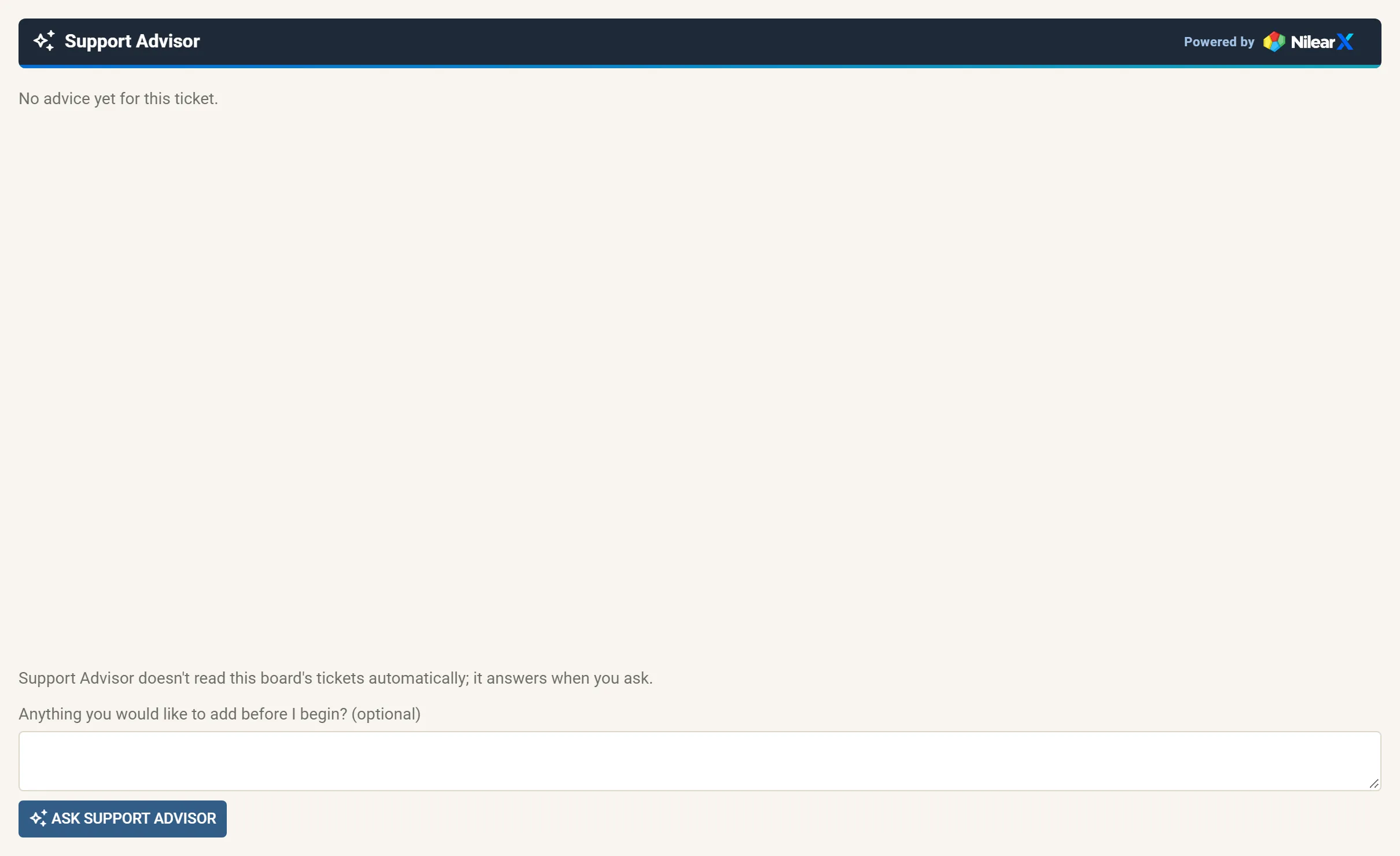
On a board set to read new tickets automatically, the advice would already be there, and the ticket list’s AI column would show its verdict.
2. Ask, with what the ticket does not say
Section titled “2. Ask, with what the ticket does not say”On a call, the customer said the printer shows as offline on two PCs since the morning, while other PCs still print. The technician types that into the box and asks. The tab shows Support Advisor is answering…, and anyone else who opens the ticket sees that the technician asked.
3. Read the answer
Section titled “3. Read the answer”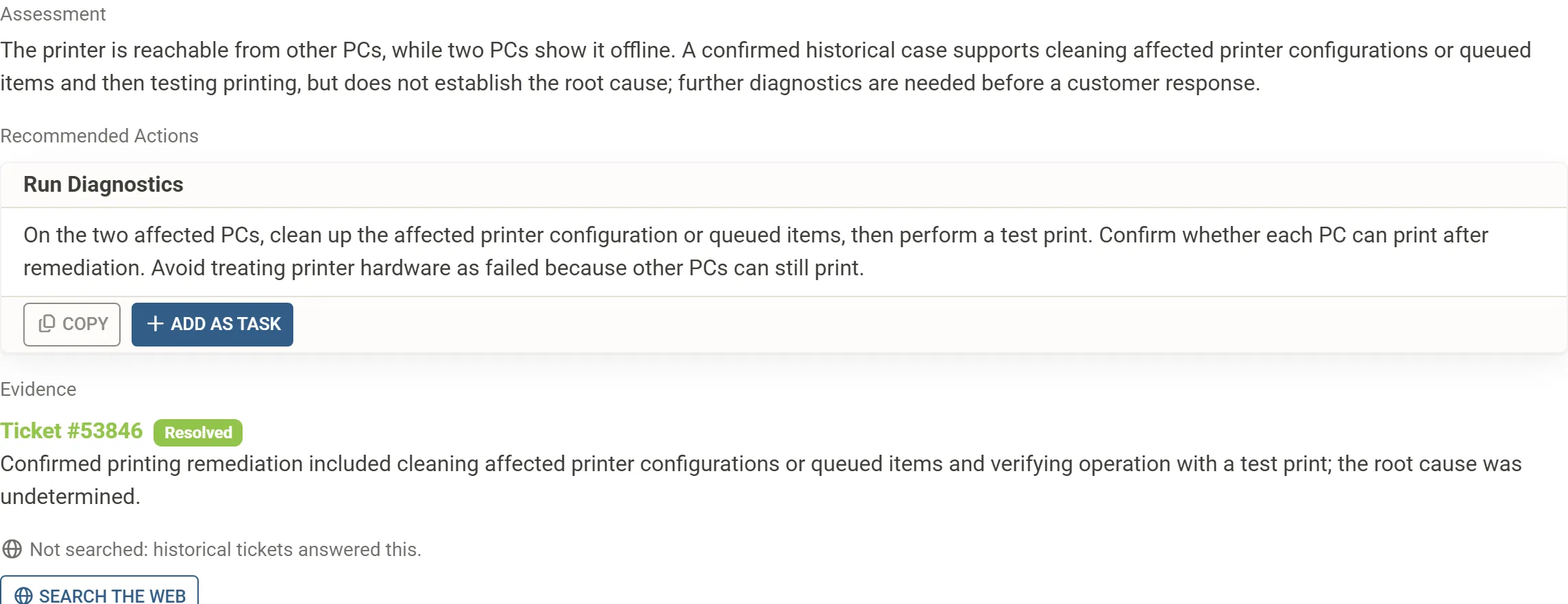
- Verdict: Partial Guidance Only. A past ticket gives a lead, not a full answer.
- Assessment: the printer is reachable from other PCs, so the problem is on the two PCs; a confirmed case supports cleaning up their printer configuration or queued items, but further diagnostics are needed before replying to the customer.
- Recommended action: Run Diagnostics, on the two affected PCs only, and a warning not to treat the printer as failed.
- Evidence: ticket #53846, labelled Resolved: a fix your team confirmed, whose root cause was never found.
- Research line: “Not searched: historical tickets answered this.”
4. Act on it
Section titled “4. Act on it”The technician clicks Add as Task, so the diagnostic step is on the ticket’s checklist, and opens ticket #53846 from the evidence to see exactly what was done then. Nothing reached the ticket or the customer before that click.
5. Follow up
Section titled “5. Follow up”If the clean-up does not fix it, the technician says so in the chat box, for example “Cleared the queue and re-added the printer on both PCs; still offline.” Support Advisor will not suggest the same step again, and answers in the same conversation. If it does fix it, the technician can ask “Draft a short email telling the customer it’s fixed”, and Insert into Email puts the draft in the ticket’s email, ready to review and send. See Ask a follow-up.
6. Resolve
Section titled “6. Resolve”Once the ticket is resolved and closed, its fix is indexed into the history as a Resolved case, so the next technician who meets the problem gets it as evidence.