
Review and commit a sync
A sync you run by hand shows you everything it would change before it changes anything. Run one for a company’s first sync, after changing its settings or mappings, or whenever you want to see where it stands. Automatic syncs apply the same rules without asking, keeping the decisions you made here.
Start it with Perform Sync on the company’s Settings or Agreements page, or Sync in the company list.
The Matching Form
Section titled “The Matching Form”ConnectActive reads the client’s directory and the company’s ConnectWise contacts, and pairs them up. Each row is one directory user, one ConnectWise contact, or a matched pair, with the action ConnectActive proposes.
List View shows one line per row; Block View shows each row as a card with more detail. Click the user or the contact to see their details.
Actions on a row
Section titled “Actions on a row”| Control | What it does |
|---|---|
| Action Plan | What ConnectActive does with the row: Create Contact, Match » another user or contact, Deactivate ConnectWise Contact, Do Nothing. Choose another plan from the list. |
| Unmatch | Splits a pair that is not actually the same person. |
| Sync switch | Off means Ignore: ConnectActive takes no action on this user or contact, now or in later syncs. Turn it on again to have ConnectActive manage it. |
| Skip Once | Leaves the row out of this sync only, for a user you cannot decide about yet. The rest of the company syncs. |
| Agreement | Shown when the company has agreement mappings: Auto, On or Off (below). |
A row may also show DISABLED (the account is disabled in the directory), UNLICENSED (a Microsoft 365 account with no license), or source Only (the user exists in only one of the company’s sources).
The Agreement column
Section titled “The Agreement column”- Auto (the default): ConnectActive decides. In a company-wide mapping, a user counts when the account is active and not unused or abandoned (for example, not signed in for 30 days).
- On: the contact always counts against the company’s additions.
- Off: the contact never counts. For a Microsoft 365 license mapping, it still counts unless the mapping has Honor Agreement Off Flag ticked.
Users that are not matched to a contact, and ignored ones, never count against a company-wide addition.
Other controls
Section titled “Other controls”- Refresh reads the directory and ConnectWise again.
- View Trace Log shows how the form was built, for troubleshooting.
- Change to Last Name, First Name changes the sort order.
When the form is right, click Proceed to Final Review Page. Nothing has been written yet.
The Review Form
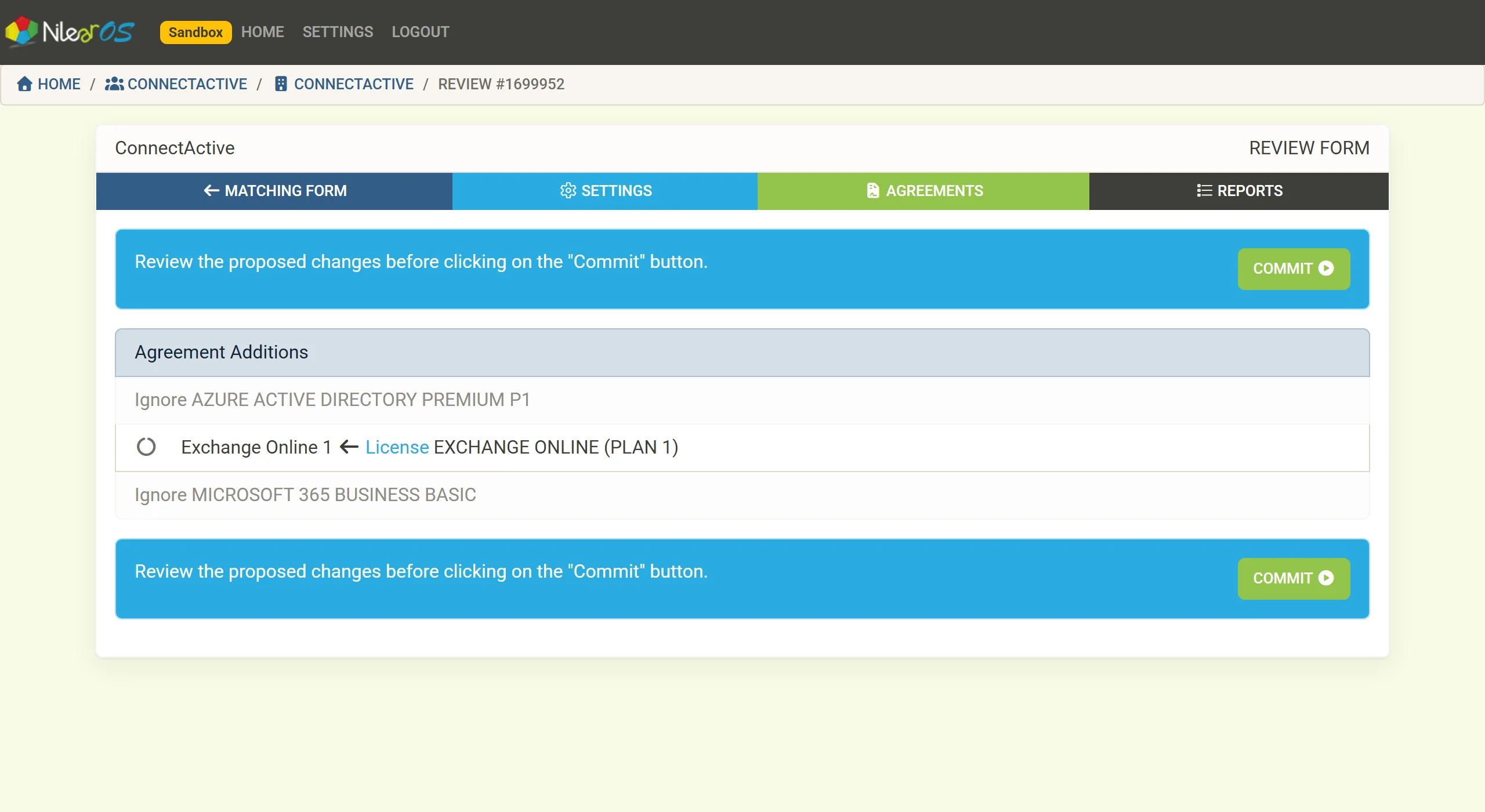
Section titled “The Review Form”The Review Form groups the changes by kind: Contacts to Create in ConnectWise, Contacts to Deactivate in ConnectWise, Contacts with Wrong Last Name, Contacts with Incorrect Email, Contacts to Match, Do Nothing with Contacts, Skipping Once, Contacts to Ignore, Contacts to Update Contact Types / Custom Fields and Contacts Matched. Under Agreement Additions, each mapping shows the count it will write and the addition it writes to, or Ignore for an ignored license.
Badges on a contact show Contact Type, custom field and site changes; hover one to see why it is made.
- Check the changes. To correct something, click Matching Form to go back.
- Click COMMIT. ConnectActive shows Processing n of total as it writes. STOP halts it part way.
- When it says Completed!, it lists how many contacts were processed, any failures, and the count written to each addition. Click Close.
A company’s first committed sync adds it to the daily sync. Use Sync All on the Active Syncs tab to queue every active company, or Sync All Failed on Failed Syncs to retry the failing ones.
When the form cannot be built
Section titled “When the form cannot be built”If ConnectActive cannot read the company’s source, the form shows the error and an Edit Sync Settings button. See Troubleshooting.