
Connect Active Directory
ConnectActive reaches an on-premises Active Directory through a script that runs inside the client’s network. The script reads the directory and uploads it to ConnectActive; nothing connects into the client’s network from outside. Each company has its own script, so the upload lands on the right ConnectWise company.
What you need
Section titled “What you need”- A Windows machine in the client’s network that can read Active Directory: a domain controller, or another server or workstation with the Active Directory Module for PowerShell installed.
- PowerShell 3.0 or later. Windows Server 2008, 2008 R2 and Windows 7 may need PowerShell upgraded.
- Outbound HTTPS from that machine to Nilear. The script uses TLS 1.2.
- Rights to create a Windows Scheduled Task.
Set it up
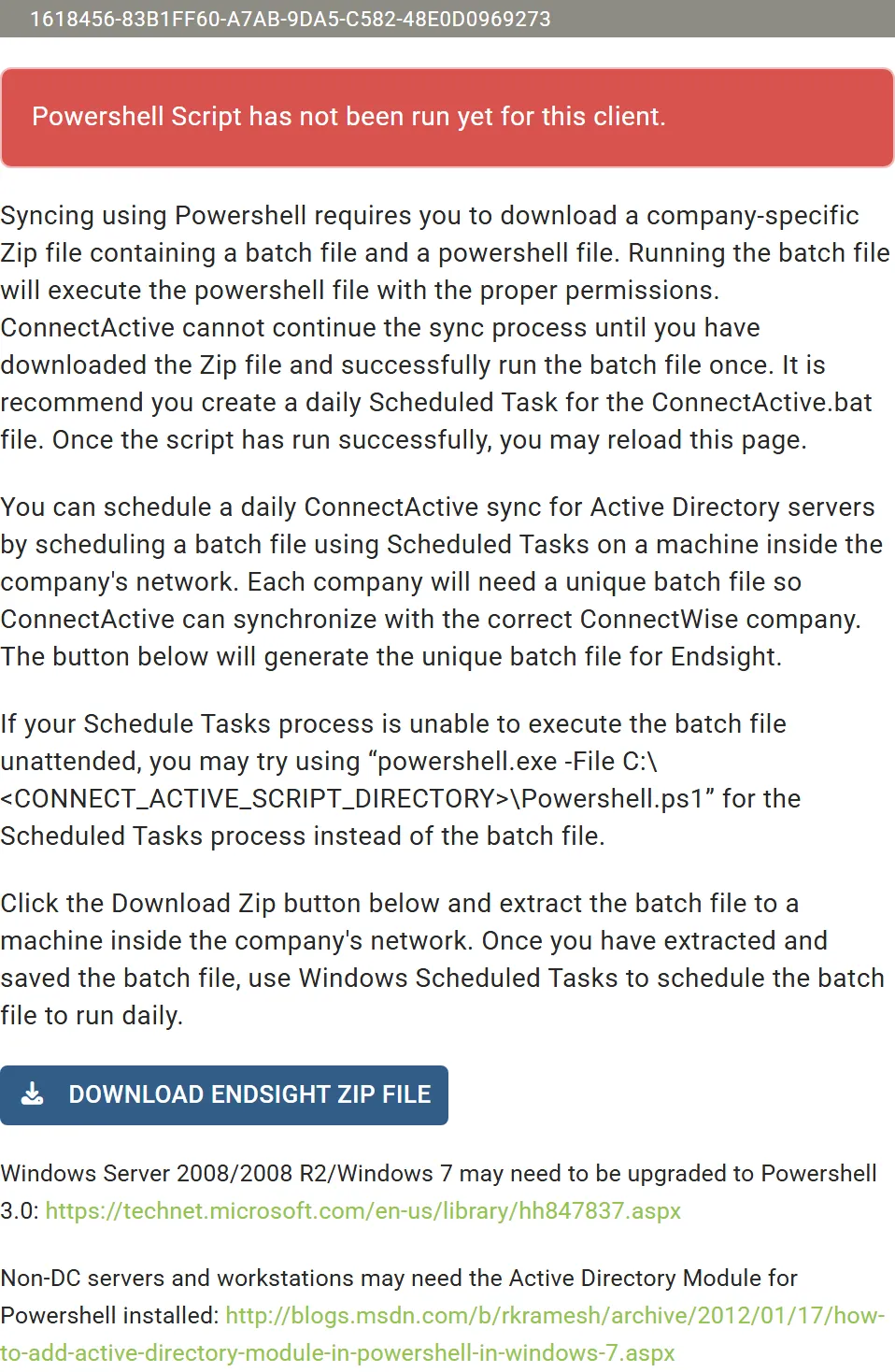
Section titled “Set it up”- Open the company’s Settings. Under Sync Sources, the Powershell Script source says Powershell Script has not been run yet for this client.
- Click Download company Zip File. The Zip holds Run ConnectActive.bat and Powershell.ps1, made for this company only.
- Extract both files to a folder on the machine in the client’s network. Do not use a restricted folder such as the
root of
C:\orC:\Windows. - Run Run ConnectActive.bat once. It starts Powershell.ps1 with administrator rights; accept the prompt.
- Reload the company’s Settings. Once the upload has arrived, the source is configured and you can click Perform Sync to run the first sync (Review and commit a sync).
- Schedule Run ConnectActive.bat to run daily with Windows Task Scheduler, using the settings below.
Scheduled Task settings
Section titled “Scheduled Task settings”| Tab | Setting |
|---|---|
| General | Run whether user is logged on or not ticked. It is ticked for you if the task runs as SYSTEM. |
| Triggers | Daily, at the time you want the client’s sync to run. |
| Actions | Start a program pointing at Run ConnectActive.bat where you extracted it. |
| Settings | Allow task to be run on demand, Stop the task if it runs longer than set to 1 hour, and If the running task does not end when requested, force it to stop, all ticked. |
If the task cannot run the batch file unattended, run the script directly instead: set Program/script to
C:\Windows\System32\WindowsPowerShell\v1.0\powershell.exe (the location may differ) and Add arguments to
-ExecutionPolicy Bypass -File "<folder>\Powershell.ps1", with the folder you extracted the files to.
Then check the task: The PowerShell script does not run.
What the script reads and sends
Section titled “What the script reads and sends”Each run uploads three things to ConnectActive: the directory’s enabled users (names, sign-in names, email addresses and aliases, phone numbers, title, department, group memberships, last sign-in and password-change dates), its groups, and its OUs. It only reads; it changes nothing in Active Directory. It records its progress in the machine’s Windows Application event log under the source ConnectActive.
Each upload starts a sync of the company, usually within minutes. If ConnectActive’s copy of the directory is more than two days old, the source panel says so and gives the date of the last upload.
Use Microsoft 365 as well
Section titled “Use Microsoft 365 as well”A client with both an on-premises directory and Microsoft 365 can sync both: choose Microsoft 365 + Active Directory(PS) when you add the company, or add a Microsoft 365 source later (Add a company). ConnectActive matches each AD user to its Microsoft 365 user, so the contact gets the AD account and its Microsoft 365 licenses.