
Write instructions
Instructions tell an automation how your company works: which priority a kind of ticket deserves, where password resets belong in your Type tree, which requests must never be split. You write them in Markdown, for every board, for one board, or both. You need the Admin access level.
The automations work without instructions. Add them when a Preview note shows a decision that is wrong for your company.
For every board
Section titled “For every board”- In Ticket Automation, open Global Instructions. Its header counts the services that have instructions, such as “3 of 10 configured”.
- In the Board automations card, find the automation and write in its Global Instructions field. Each empty field shows an example.
- Click Save.
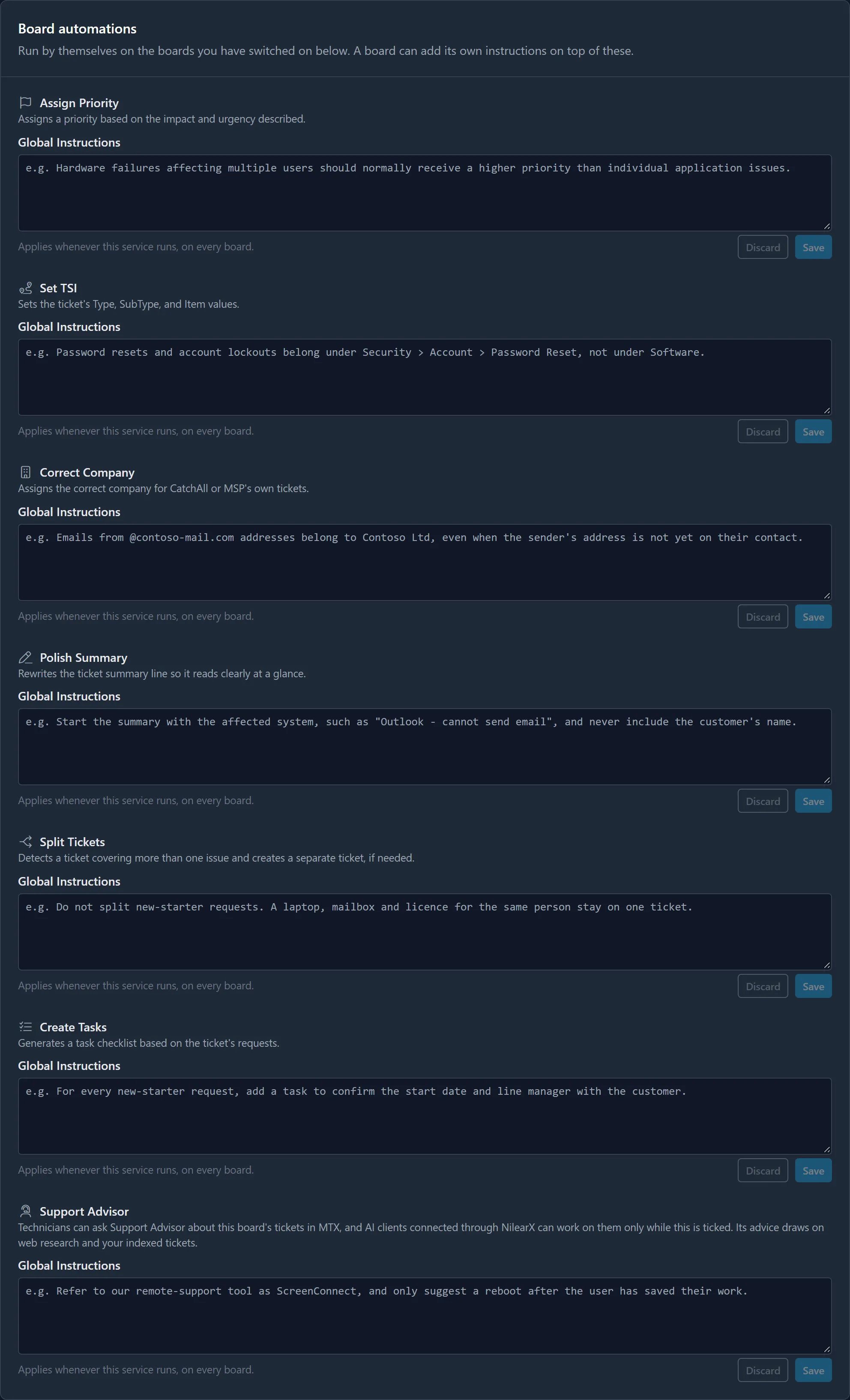
The Technician tools card holds the instructions for Polish Email, Polish Notes and Company Profile, which have no board instructions (Use the technician tools).
For one board
Section titled “For one board”- On Boards, click the board’s name to expand it. Under Board Instructions there is a field for each ticked automation. An automation with global instructions is marked Global instructions apply.
- Write the instructions for this board only. They are given in addition to your global instructions for the same automation, so there is no need to repeat those.
- Click Save.
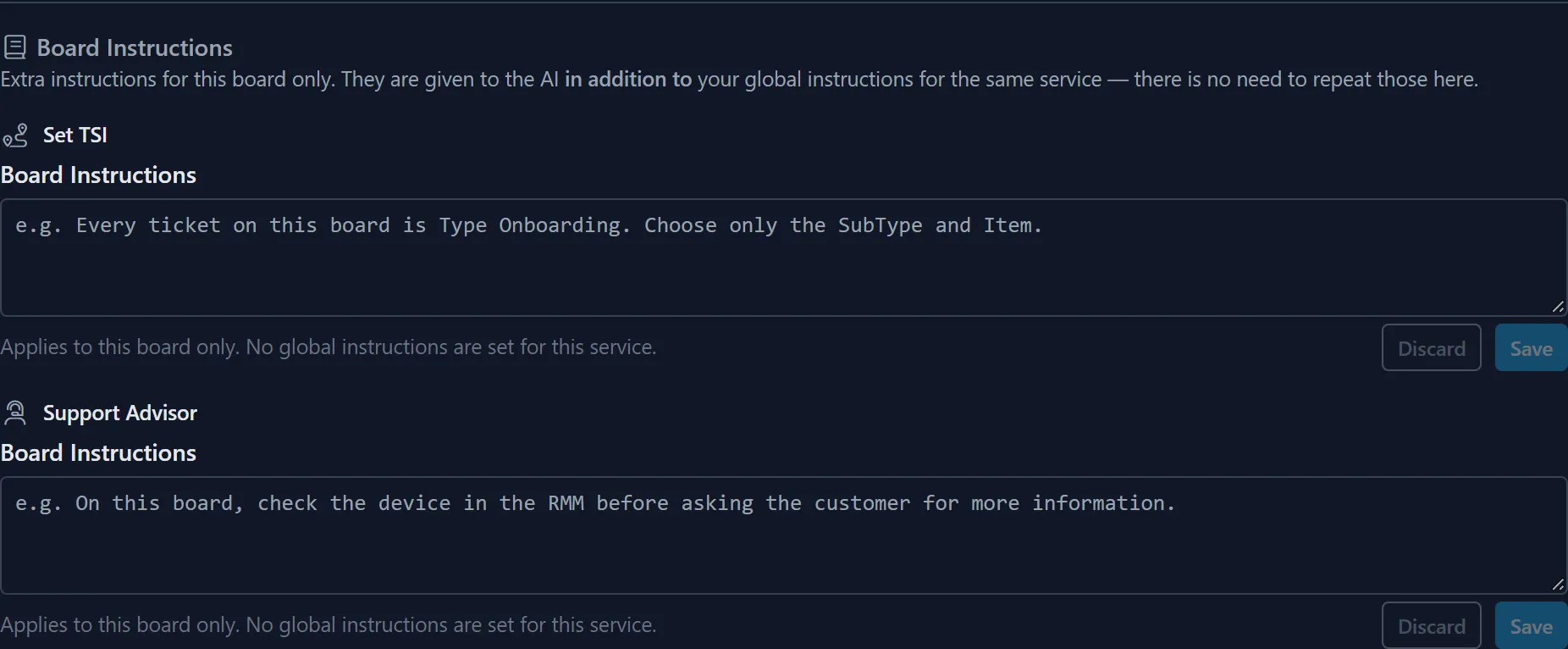
Unticking an automation keeps its board instructions for when you tick it again. Switches and ticks are saved at once; instructions only when you click Save. Discard drops your unsaved edit.
How they are used
Section titled “How they are used”- Global instructions come first, then the board’s. Neither replaces the other.
- They add to Nilear’s own rules and can never override them: they can shape a decision, but not disable a safeguard. For example, no instruction makes Set TSI choose a combination the board does not have, or Split Tickets create more than three tickets.
- New text is used from the next ticket processed.
The check when you save
Section titled “The check when you save”When you click Save, your text is first checked against what that automation is given and can do. If nothing is found, it is saved. Otherwise nothing is saved yet, and each finding quotes your words, names the problem and says why, sometimes with a suggested wording (“Try: …”) you can apply with Use this:
| Finding | Meaning |
|---|---|
| Needs information the AI is not given | The instruction relies on something the automation cannot see, such as the time of day or the ticket’s owner. |
| Asks for something this service cannot do | Such as assigning a task to a person. |
| Reaches beyond the one ticket | Each automation works on one ticket at a time. |
| Belongs to a different service | The instruction is for another automation. |
| Conflicts with Nilear’s own rules | Nilear’s rules win, so the instruction would be ignored. |
| Contradicts your global instructions | A board instruction disagrees with the global one. |
Then choose Save anyway, which saves the text as it is, or Keep editing. Editing the text clears the findings, and the next Save checks again. If the check cannot be made, the text is saved and the field says “Saved without being checked” and why. Emptying a field and saving deletes its instructions, with no check.
Saved text can be checked at any time with Check. When it finds nothing, it says “No problems found. The AI can follow these instructions.”
For example, “Update the priority of all tickets that my uncle owns” for Assign Priority is found to need information the AI is not given (“my uncle”) and to reach beyond the one ticket.
What each automation is given lists what each can and cannot see.
Unsaved edits
Section titled “Unsaved edits”Unsaved edits are kept when you move between Boards and Global Instructions, and the page footer counts them, such as “2 unsaved instruction edits”. Your browser asks before you reload or leave with edits unsaved.