
Wrap up a ticket
Wrap-up is the working view’s last step, after Time Review. It ends your session: MTX saves the time entry, sends the email, sets the ticket’s next status, closes the ticket’s tab and stops showing you In Progress on it.
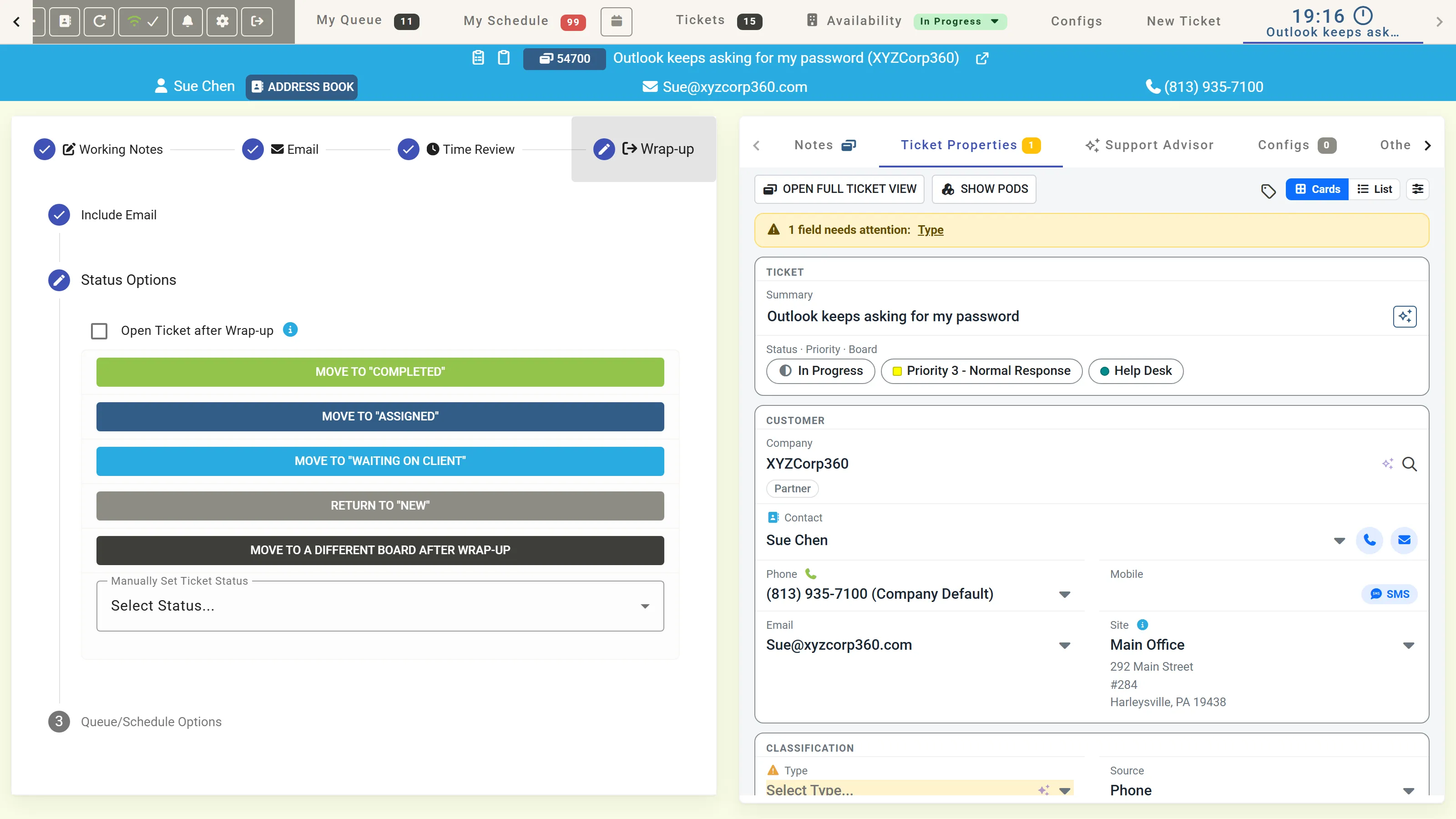
1. The email
Section titled “1. The email”The first line confirms the email from the Email step: Include Email, or Skip Email. With no email drafted you can still choose Draft Email, or Send Notes as Email.
2. Status Options
Section titled “2. Status Options”Choose the ticket’s next status:
- Move to “status”: your board’s default statuses for completed, assigned and waiting, such as Completed, Assigned and Waiting on Client.
- Return to “status”: the status the ticket had before you started work.
- Move to a Different Board after Wrap-up: choose the Post Wrap-up Board and its status.
- Manually Set Ticket Status: any other status of the board.
Tick Open Ticket after Wrap-up first if you want the ticket’s summary to open once you are done.
When MTX asks for more first
Section titled “When MTX asks for more first”- Missing Required Information: the status needs fields the ticket does not have yet, such as its type, subtype and item (TSI). Fill them in, or click Suggest TSI for an AI suggestion: TSI Suggestion Review shows the current and suggested values, and you choose Use AI Values or Keep Originals. Then click Move to “status”.
- Open tasks: where your company requires tasks to be closed before a ticket is resolved, MTX lists the open tasks with their Done, N/A and Failed marks. Mark them there, then continue.
- Tasks that still need input: an open task ending with ? or : whose answer is empty is named, such as “1 task still needs input”. It blocks nothing; answer it in Working Notes if you want it on the ticket. See Answer a task.
- Configurations: where your company requires one, MTX asks whether to attach a configuration first. You may decline.
3. Queue/Schedule Options
Section titled “3. Queue/Schedule Options”When the ticket stays open, say when it is worked next. Where your company uses the queue, Queuing offers:
- Add to Back of Queue, Add to Front of Queue, or Keep Current Queue Slot for a ticket already queued;
- Open Queue Targeting Options… to choose who it is queued for;
- Schedule Instead, to schedule it;
- Skip and Commit, or De-queue and Commit to take it off the queue.
Scheduling offers the Quick Scheduler, Use Full Scheduler… and Use Dispatch…, then Create Schedule & Commit. When the ticket already has a future schedule, a Keep “date” Schedule & Commit button keeps it as it is. Skip Schedule & Commit finishes without one; if the ticket has future schedule records, MTX first lists them and asks what to do with them. Make me a Spectator & Commit adds you to the ticket as a spectator.
Your company may require every unresolved ticket to be queued or scheduled at wrap-up.
In-house Update adds an internal note for whoever works the ticket next.
Completing a ticket
Section titled “Completing a ticket”Choosing a completed status, such as Completed, ends the session at once, with no queue or schedule step. MTX completes your schedule records on the ticket, takes it off the queue, and, if other open schedule records remain, offers to remove them.
After wrap-up
Section titled “After wrap-up”The ticket’s tab closes and MTX returns you to the MTX tab you last chose. MTX sends the changes to ConnectWise in the background; until they arrive, the ticket shows the status it is moving to. Under the One Ticket Method, a ticket you had in *PSR resumes.