
Start and stop work
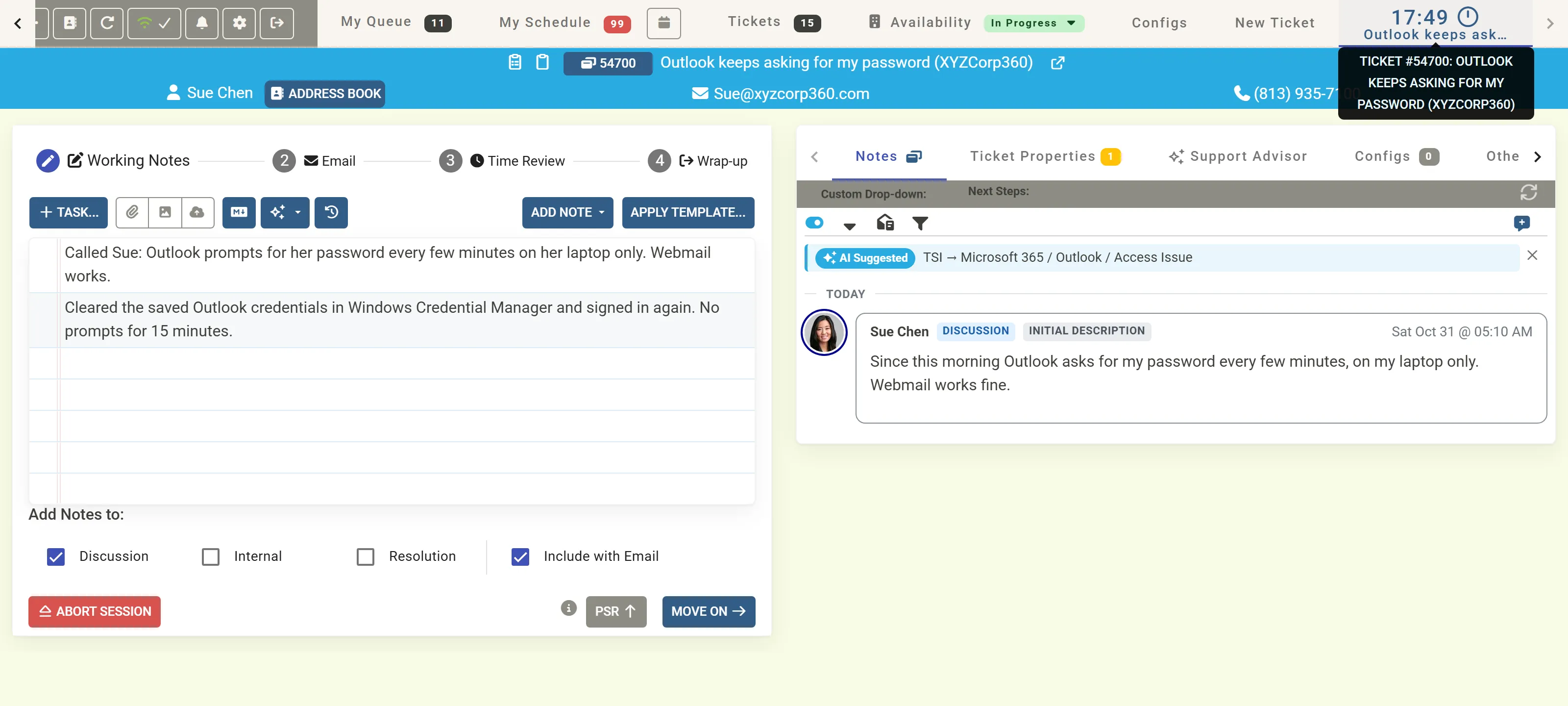
In MTX you work a ticket in a session. The session runs your timer, keeps your notes and email together, and ends with the time entry, the email and the ticket’s next status, all saved at once.
Start work
Section titled “Start work”- Open the ticket’s summary.
- Click Work on Ticket, or press W. In the ticket list, W on a highlighted row does the same.
MTX then, at once:
- moves the ticket to In Progress, and remembers the status it had;
- starts your timer, shown on the ticket’s own tab at the end of the tab bar;
- shows you In Progress on that ticket on the Availability board;
- records the session in a schedule record for you on the ticket, unless you unticked Manage Schedule Records in MTX Preferences > Working Ticket Method;
- clears the ticket’s customer-responded mark.
The ticket’s tab opens on the working view.
When someone else is working it
Section titled “When someone else is working it”If another member is working the ticket, MTX names them and asks whether to work on it as well, or cancel. Their initials also show in the summary’s action bar.
When work cannot start
Section titled “When work cannot start”MTX says why and changes nothing when, for example:
- you already have two tickets in progress under the Classic Method;
- your company limits how many tickets you may hold in PSR, and you have reached it;
- you are travelling to or from a site;
- the ticket is merged into another, is a catch-all ticket, is on a board not enabled for Nilear, or its company does not allow updates.
A closed ticket asks whether to reopen it first. See Messages for each message.
Your timer
Section titled “Your timer”Only one of your timers runs at a time. How it runs depends on your working ticket method, which you or your administrator choose in MTX Preferences > Working Ticket Method (One Ticket Method and Classic Method):
| One Ticket Method | Classic Method | |
|---|---|---|
| Tickets in progress | One. | Up to two. |
| The timer runs | Whenever the ticket is In Progress, whatever tab you are on. | Only while the ticket’s tab is selected, unless you turn on Keep Running in the tab’s timer options. |
| Starting another ticket | Puts the first into *PSR (Auto PSR). When you finish the new one, the first resumes by itself, its timer running again. | Allowed for a second ticket. A third needs one of the two wrapped up or put in PSR first. |
Under the One Ticket Method you can stop Auto PSR tickets from resuming by themselves: untick Resume Auto PSR tickets automatically in MTX Preferences > Working Ticket Method. The ticket then waits in *PSR until you click its tab.
If someone else moves your ticket out of In Progress while you work it, MTX moves it back a minute later, unless you have a status change of your own waiting.
Stop work
Section titled “Stop work”| To | Do | What happens |
|---|---|---|
| Finish | Go through Move On to Wrap-up and choose a status. | The notes, email and time entry are saved, and the ticket takes the status you chose. See Wrap up a ticket. |
| Pause and come back | PSR | Your work so far is saved, the ticket moves to Process Still Running and keeps its tab. See Put a ticket in PSR. |
| Undo the start | Abort Session | The timer stops, the ticket returns to its previous status, the session’s schedule record is undone and nothing is saved. |
Abort Session ends at once when nothing was recorded. When you wrote an email or travelled, it asks you to confirm first. Once you have written working notes, abort is no longer offered: wrap up or PSR instead.
Leaving MTX during a session
Section titled “Leaving MTX during a session”Your session carries on when you change tab, reload or sign in on another device. If you close or reload the page while changes are still waiting to be sent to ConnectWise, your browser asks you to confirm first.