
Choose the ticket list's columns
The columns button, beside Filters on the Tickets tab and My Queue, opens the Columns menu. Changes show in the list as you make them, and are saved for you when the menu closes. They apply to every ticket list in MTX.
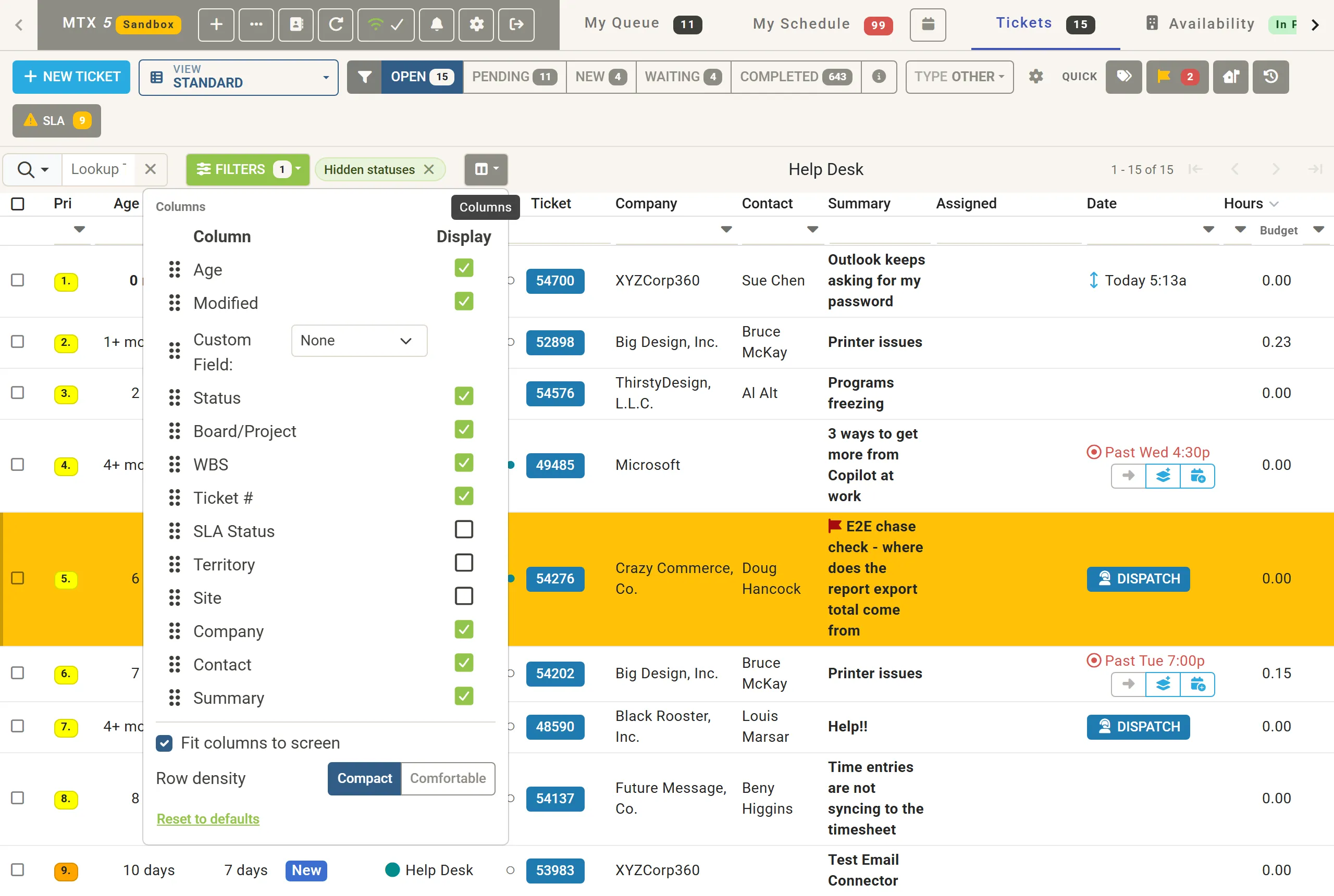
Show, hide and order columns
Section titled “Show, hide and order columns”- Tick or untick a column’s Display box to show or hide it.
- Drag a column by its handle to move it.
- Custom Field adds a column for one of your ConnectWise ticket custom fields: choose the field from its list.
The columns you can add are SLA Status, Territory, Site, Company, Contact, Customer Responded, AI, Team, Source, Type, SubType, Item, Date, Budget, Config Count and the custom field.
When Company and Contact are hidden, the Summary cell shows them under the summary. When Date is hidden, the Assigned cell shows the schedule. When Budget is hidden, Hours shows the hours as “actual / budget” with a meter, which turns to the warning color when the ticket is over budget.
Fit, size and height
Section titled “Fit, size and height”- Fit columns to screen: while ticked, MTX hides the columns that do not fit the window. Untick it to keep every column you chose, scrolling sideways when needed.
- While Fit columns to screen is off, drag the right edge of a column title to set its width. Double-click the edge to return the column to its automatic width.
- Row density: Compact, or Comfortable for roomier rows, with the company and contact on a second line under the summary.
- Reset to defaults restores the default columns, widths and row height.
The AI column
Section titled “The AI column”The AI column says at a glance what Nilear’s AI is doing on each ticket. It is off until you tick it, and you may need to untick Fit columns to screen to see it.
A cell has up to two parts. The first is Ticket Automation’s: for example Automating, Automated or Suggested. The second is Support Advisor’s: for example Reading, Ready, Needs info or No match. Every value, and what to do about it, is explained by each product:
- Ticket Automation’s part: Read the AI column.
- Support Advisor’s part: Read the AI column.
You can sort and filter the AI column like any text column, and clicking a cell opens the ticket.