
Use tasks and ticket goals
Ticket tasks are ConnectWise’s checklist on a ticket. In MTX you see them in the ticket summary’s Tasks tab, and, while you work the ticket, among your working notes, where you mark them as you go.
Add a task
Section titled “Add a task”- In the working view’s Working Notes step, click Task….
- Type the task under Enter Task Note.
- Click Add & Close, or Add (or press Enter) to add it and start the next one.
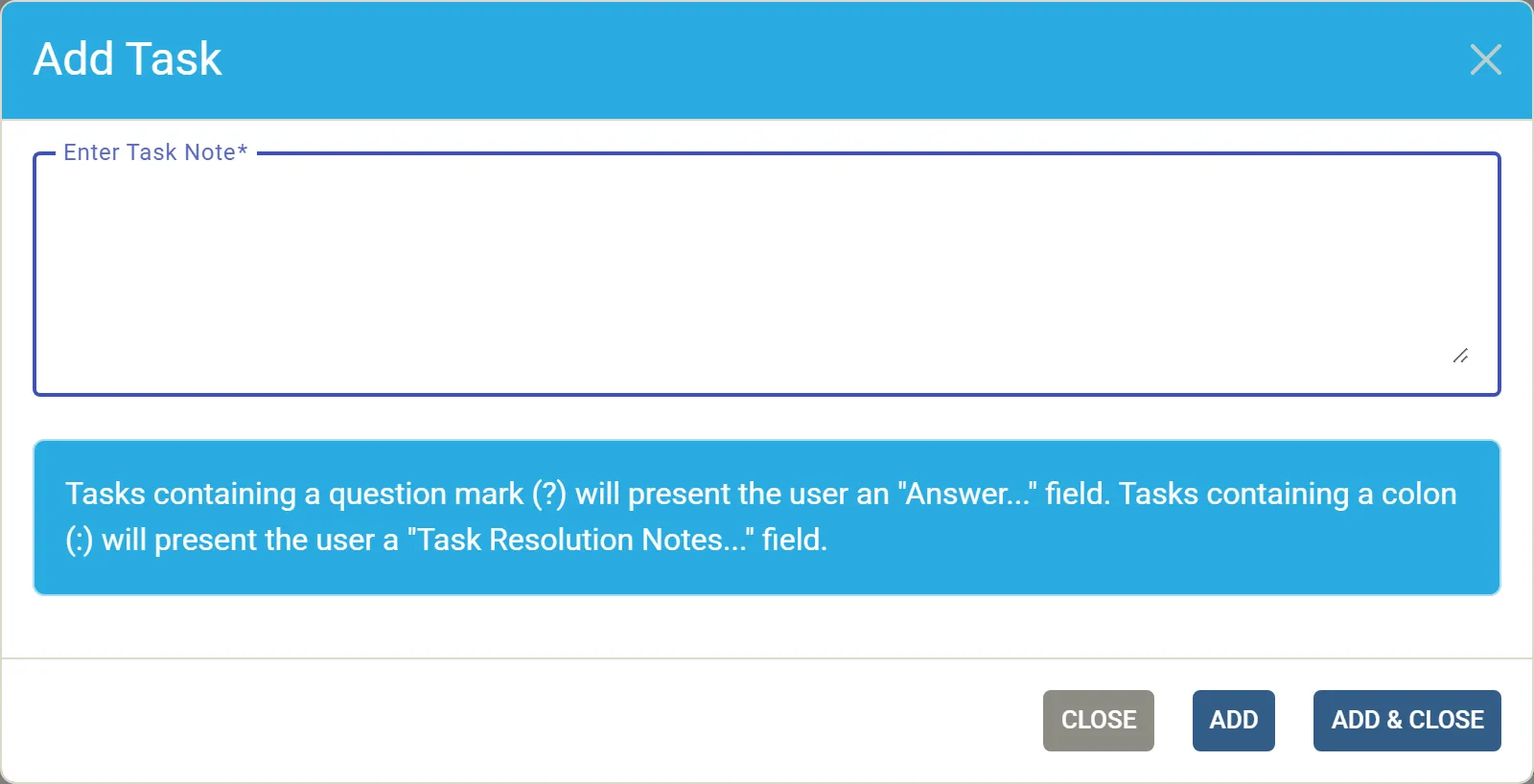
A task that ends with a question mark or a colon asks for input, and shows an answer box under it:
- A task ending with ?, such as “Which static IPs are free?”, shows Answer…, for the answer to the question.
- A task ending with :, such as “Logger:”, shows Details…, for details or a running list.
A ? or : elsewhere in the text, as in “Call Bob re: printer” or a link, adds no box. The box appears as you type.
Answer a task
Section titled “Answer a task”In Working Notes, type in the task’s answer box:
- In a colon task’s answer, Enter starts a new line, and continues a list that starts with
-,*,+or a number. Enter on an empty list item ends the list. Ctrl+Enter (Cmd+Enter on a Mac) marks the task Done and moves to the next line. - In a question task’s answer and in a task’s text, Enter marks the task Done and moves on, as before.
- ↑ and ↓ move through a multi-line answer, and move to the next box only from its first or last line. ↓ from a task’s text goes into its answer.
When you are not editing it, an answer shows formatted: its lists, bold and links. Click it to edit it. Hover over a list item and click × to remove it.
An open colon or question task without an answer is marked Needs details or Needs answer. Wrap-up names these tasks, such as “2 tasks still need input”, but you can still finish the session.
Apply Template… adds the tasks of one of your company’s service templates at once.
Mark a task
Section titled “Mark a task”Mark each open task Done, N/A or Failed. A task you mark without resolution notes of its own gets notes recording its state and who marked it. Your colleagues see the mark straight away.
Where your company requires tasks to be closed before a ticket is resolved, wrap-up lists the open tasks with their marks, so you can close them without leaving it. See Wrap up a ticket.
A link in a task shows as a chip you can open with one click.
Create ticket goals with AI
Section titled “Create ticket goals with AI”Ticket goals are tasks for what the customer asked for: one task per request, each a result to deliver rather than a troubleshooting step.
- Click the AI button (sparkles) in the Working Notes toolbar, or in the ticket’s Tasks tab.
- Choose Create Ticket Goals.
- The AI reads the ticket’s summary and conversation, and proposes a goal for each request not yet resolved. Review them: edit any goal’s text, or leave out the ones you do not want.
- Confirm, and the goals are added as ticket tasks.
Because goals are tasks, a ticket whose company requires closed tasks cannot be resolved until they are done.
Support Advisor can also add a task: Add as Task on a recommended action. See Use the Support Advisor tab.