
MTX
MTX is where your technicians work their ConnectWise tickets, schedules and time. It reads and writes your ConnectWise PSA, so everything a technician does in MTX is in ConnectWise too: the ticket’s status, its notes, the email to the customer, the time entry and the schedule record. MTX does the bookkeeping around the work, so a technician can stay on the ticket instead of on ConnectWise’s screens.
Nilear’s MTX introduction video shows it in a few minutes.
Who uses it
Section titled “Who uses it”- Technicians work their queue and schedule, start and stop work on tickets, write notes, email customers and record time. Most of this guide is for them.
- Dispatchers and managers also see the team’s queues, schedules and availability.
- Administrators choose how MTX works for the whole company, in Nilear’s settings.
The main screens
Section titled “The main screens”MTX opens at app.nilear.com/mtx. Its tabs run along the top:
| Tab | What it is for |
|---|---|
| My Queue | The tickets waiting for you, in the order to work them. See Work your queue. |
| My Schedule | Your schedule records: past due, due today and ahead, as a list or a calendar. See Use My Schedule. |
| Tickets | Every ticket on the boards you chose, with views, filters and columns. See Use the Tickets tab. |
| Availability | Where your team is and what they are working on, and your own status. See Set your availability. |
| Configs | Search, review and create configurations. See Find a configuration. |
| New Ticket | Create a ticket in five short steps. See Create a ticket. |
| A tab per working ticket | Each ticket you are working, or have in PSR, gets its own tab with its timer. See Start and stop work. |
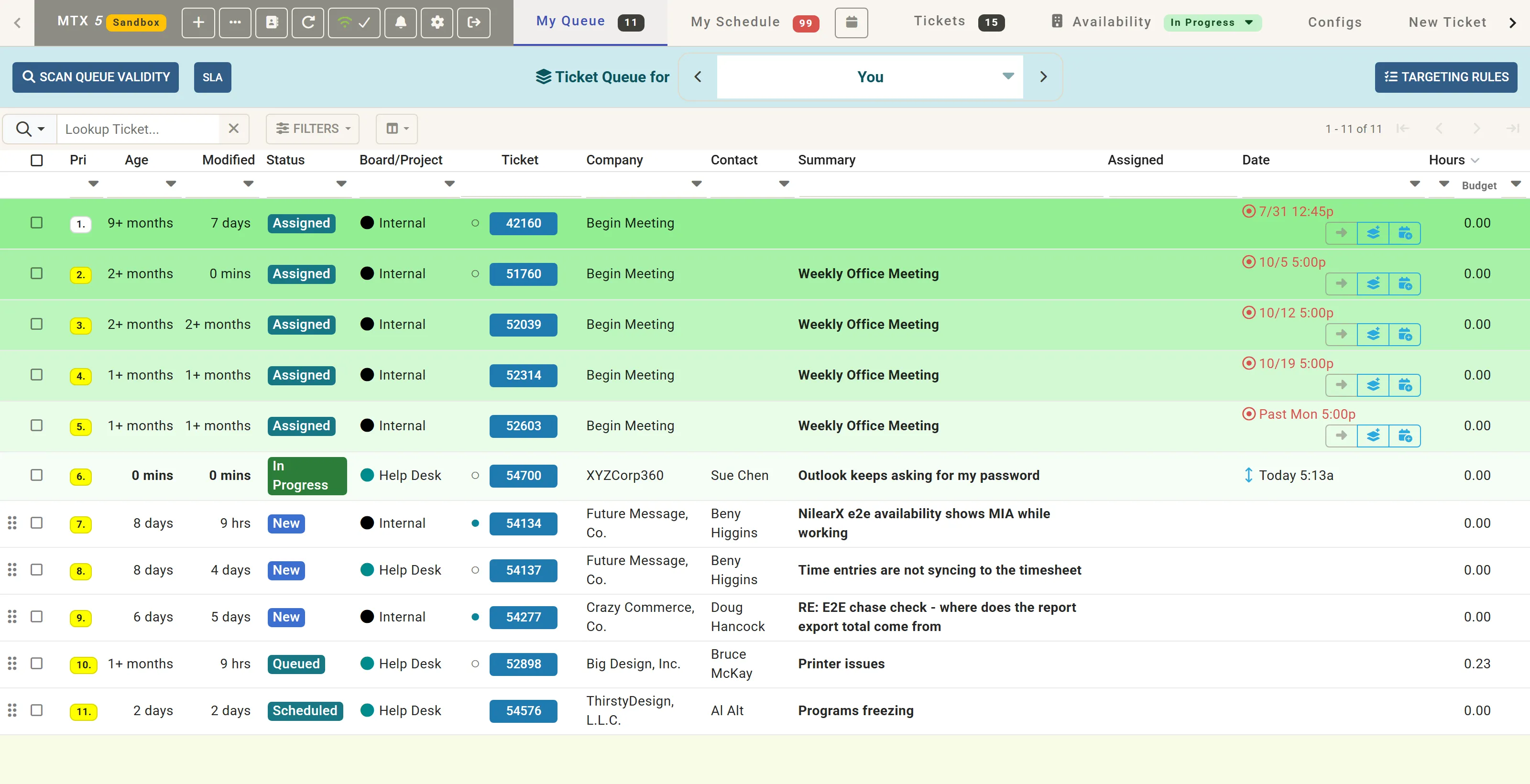
Click any ticket number to open the ticket’s summary, and Work on Ticket there to start working it.
A ticket’s day in MTX
Section titled “A ticket’s day in MTX”- You pick the next ticket from My Queue or My Schedule.
- Work on Ticket sets the ticket In Progress, starts your timer and shows you In Progress on the Availability board.
- You write Working Notes as you go.
- You move on to the email, which goes to the customer once you finish.
- You review the time MTX recorded.
- You wrap up with the ticket’s next status, and choose whether to queue or schedule it again.
The walkthrough follows one ticket through all of it.
AI in MTX
Section titled “AI in MTX”MTX shows the work of Nilear’s AI products where technicians already look:
- The ticket list’s AI column says what Ticket Automation and Support Advisor are doing on each ticket.
- Suggestions such as an AI Suggested TSI above a ticket’s notes come from Ticket Automation.
- A ticket’s Support Advisor tab gives advice drawn from your team’s past tickets.
Get startedSign in, open MTX and make your first settings.
How-to guidesEvery task of a technician's day, one page each.
WalkthroughOne ticket from the queue to resolution.
ReferenceMTX's settings and what they do.
TroubleshootingWhen something in MTX does not work as expected.