
Get started
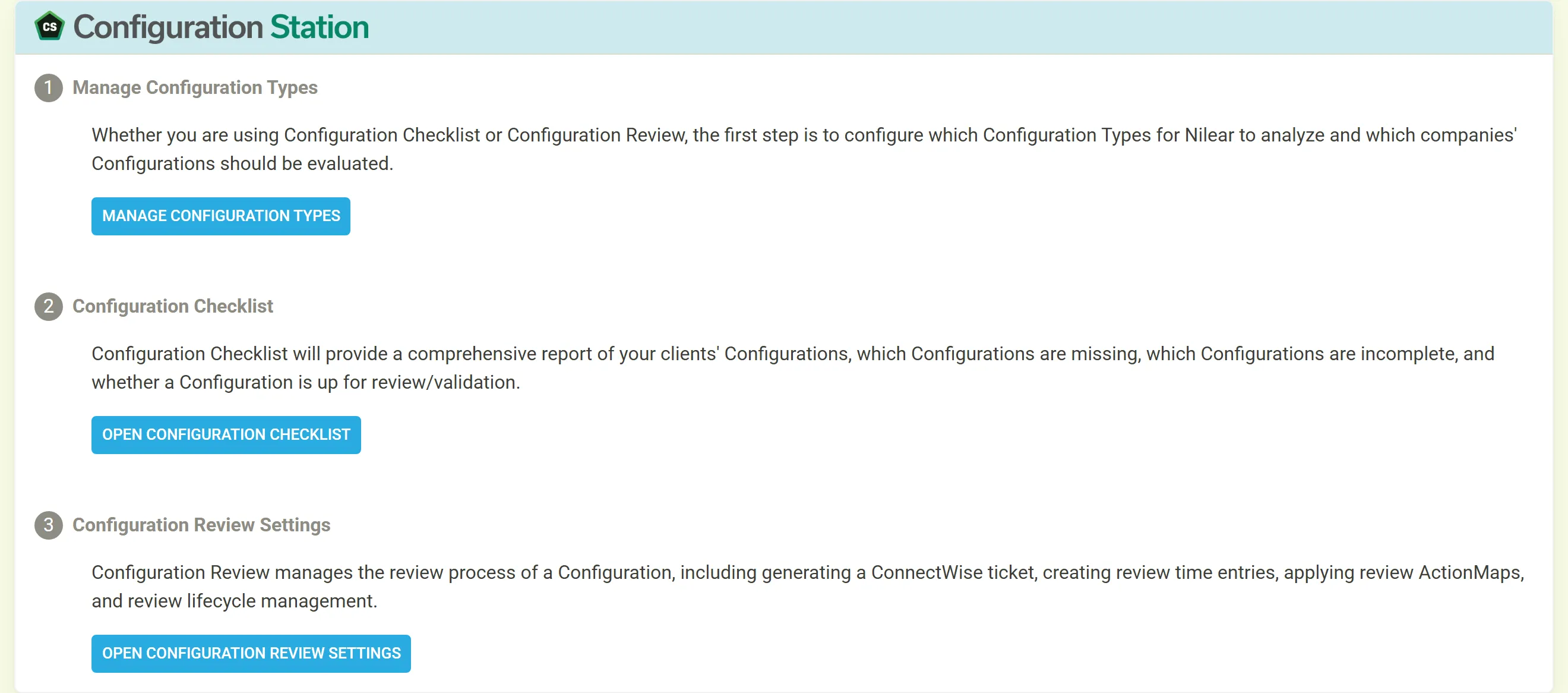
Configuration Station is set up in three steps, shown in the same order on its own page. Sign in at app.nilear.com and click Open on the Configuration Station tile of the Home page.
-
Give the right people access. On the Members page at my.nilear.com, the Config Station column decides who can use Configuration Station. Admins and Managers always can. See Access.
-
Choose what to require for each configuration type. Click Manage Configuration Types, then a type. Set its review cycle, tick the fields every configuration of that type must have, and choose the company types and agreement types whose clients must have one. Repeat for every type you care about. See Require configuration types and fields.
-
Open the checklist. Click Open Configuration Checklist. Each client the settings apply to is listed with a score; click one to see its configuration types, and a type to see and correct its configurations. See Use the Configuration Checklist.
-
Switch reviews on (optional, administrators only). Click Open Configuration Review Settings and choose the Board for Configuration Review Tickets. The status changes to ACTIVE and MTX’s Configs tab gains a Review tab. See Set up configuration reviews.
-
Flag your paying customers’ company types. Reviews are offered only for configurations of companies whose company type is flagged on Nilear’s Settings, Company Types page as your active customer base.
-
Generate the first review ticket. In MTX, open Configs, then Review, and click GENERATE TICKET on a configuration. See Review a configuration.