
Use My Schedule
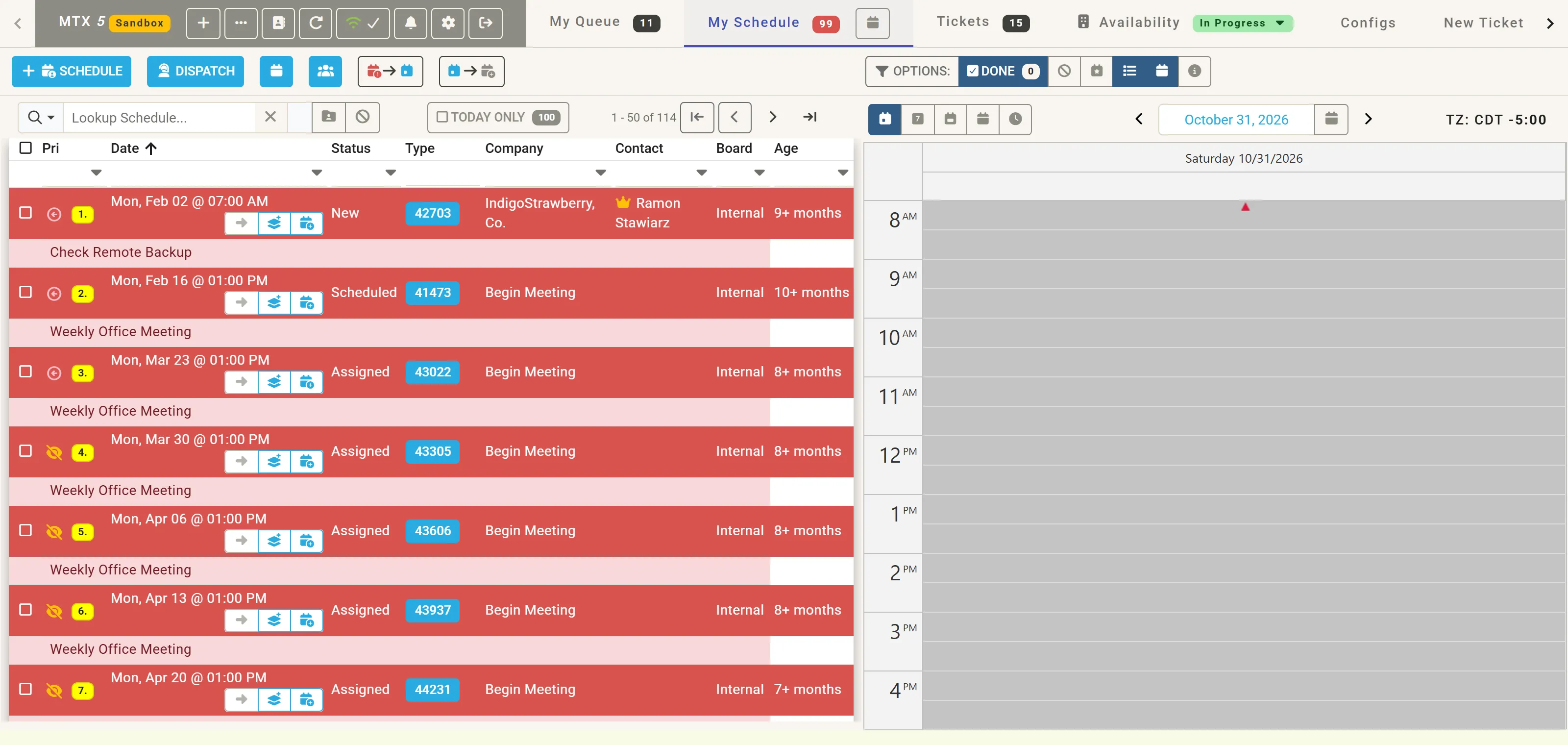
My Schedule lists your schedule records: those past due, those due today and those ahead, with a calendar of the day beside them. Its tab shows how many are past due, or, when none is, how many tickets a customer has replied on. The number shakes when it goes up.
Read the list
Section titled “Read the list”Each record shows its date and time, the ticket’s status, number, company, contact and board, its age, and its summary below. Past-due records are in red. Click a ticket number to open the ticket’s summary, and Work on Ticket there when you start on it.
- Today Only shows only today’s records, with their count.
- Lookup Schedule… narrows the list by text, and the row under the column titles filters each column.
- The calendar on the right follows the same narrowing. Its buttons choose the day, week or month, and the arrows and the date move it. TZ shows the time zone your schedules are in.
The buttons under each record’s date move that record to the next business day, or remove it and add the ticket to the member’s queue.
Move or close records in bulk
Section titled “Move or close records in bulk”- Move Past Schedules to Today (the first arrow button) moves your past-due records to today.
- Move Today’s & Past Schedules to Next Business Day (the second) moves today’s and past ones on.
Tick records first to move only those: the buttons then say Selected. With records ticked, Mark Done closes them all, and the cross clears the selection.
Options
Section titled “Options”| Option | Does |
|---|---|
| Done | Also lists the records you closed today, with their count. |
| No company | Leaves out records with no company. |
| Firm | Highlights firm schedules, which should not be moved for other work. |
| List, calendar | Shows the list, the calendar, or both. |
| i | Explains the options. |
Your options are kept for next time.
Add a schedule
Section titled “Add a schedule”Schedule adds a schedule record for you. Dispatch opens the dispatch scheduler, and the team button opens another member’s My Schedule, where your access allows.
My Calendar
Section titled “My Calendar”Click the calendar button on the My Schedule tab’s label. The tab becomes My Calendar: a full calendar of your schedules, unfiltered and including closed ones. Click it again to return to the list. MTX remembers which you used.