
Set up a ScoreCard
You need the Manager or Admin access level.
Add or open a ScoreCard
Section titled “Add or open a ScoreCard”- In Score My Team, click the edit icon on the ScoreBook’s card (or the edit icon on a ScoreCard of an open ScoreBook).
- Under ScoreCards, click + on Add ScoreCard, or Edit ScoreCard on an existing one.
A new ScoreCard starts with the previous ScoreCard’s modules, weights and Rocks.
Choose its weeks
Section titled “Choose its weeks”Enter a ScoreCard Name, such as the month, and choose its Starting Time Period and Ending Time Period. A ScoreCard is divided into weeks, Sunday to Saturday, and typically starts and ends within the same month.
Choose the scoring modules and their weights
Section titled “Choose the scoring modules and their weights”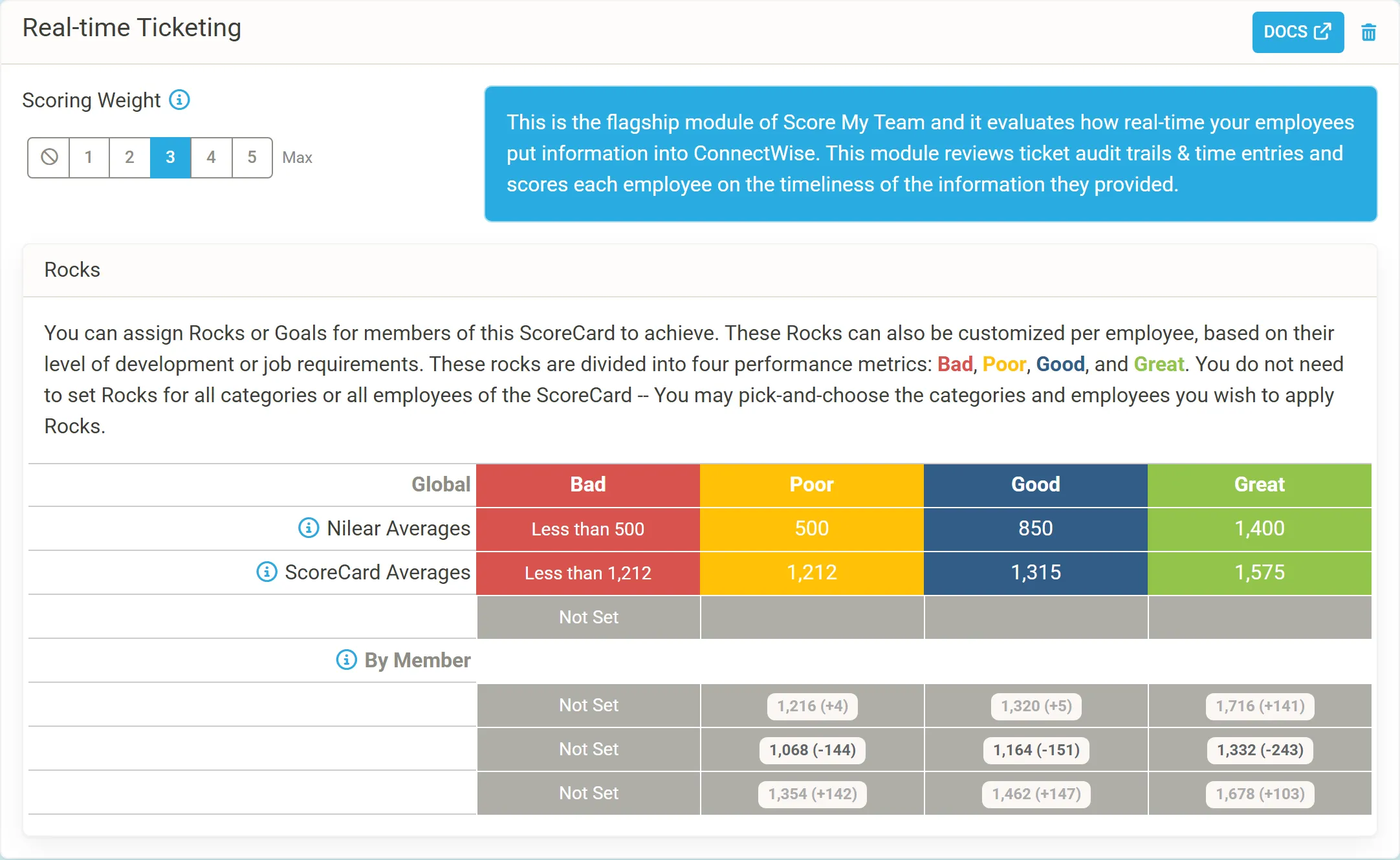
- Under Add Additional Scoring Modules, click Add Module on each module you want. A module already on the ScoreCard shows Already Added. See Scoring modules.
- Under Scoring Modules, give each module a Scoring Weight from 1 to 5. Click the ban symbol to give a module no weight. A module you want to emphasize gets a higher weight. Each module’s resulting share is shown beside its name on the ScoreCard.
- To remove a module, click the trash icon on its card.
- For By Individual Metrics, set the Rocks: see Set Rocks.
Changes are saved as you make them. Click View ScoreCard to see the scores.
Let Nilear add the next ScoreCard
Section titled “Let Nilear add the next ScoreCard”On the ScoreBook’s edit page, tick Future ScoreCards under Auto Generate. Nilear then adds each next ScoreCard for you, with the same modules, weights and Rocks.
Delete a ScoreCard
Section titled “Delete a ScoreCard”Click the trash icon in the ScoreCard’s header.