
Open a member's details
Click a chip, or a strip, to open that member’s details for the day, on the report for the part you clicked:
| Click | Opens |
|---|---|
| The working (green) part of the inner ring, or a working stretch | Working |
| Another part of the inner ring, or an unavailable or available stretch | Non-Working |
| The outer ring, or the recorded lane | Time Entry |
| The member’s name, recorded time or the counts | Chip |
Nothing opens on a wall dashboard.
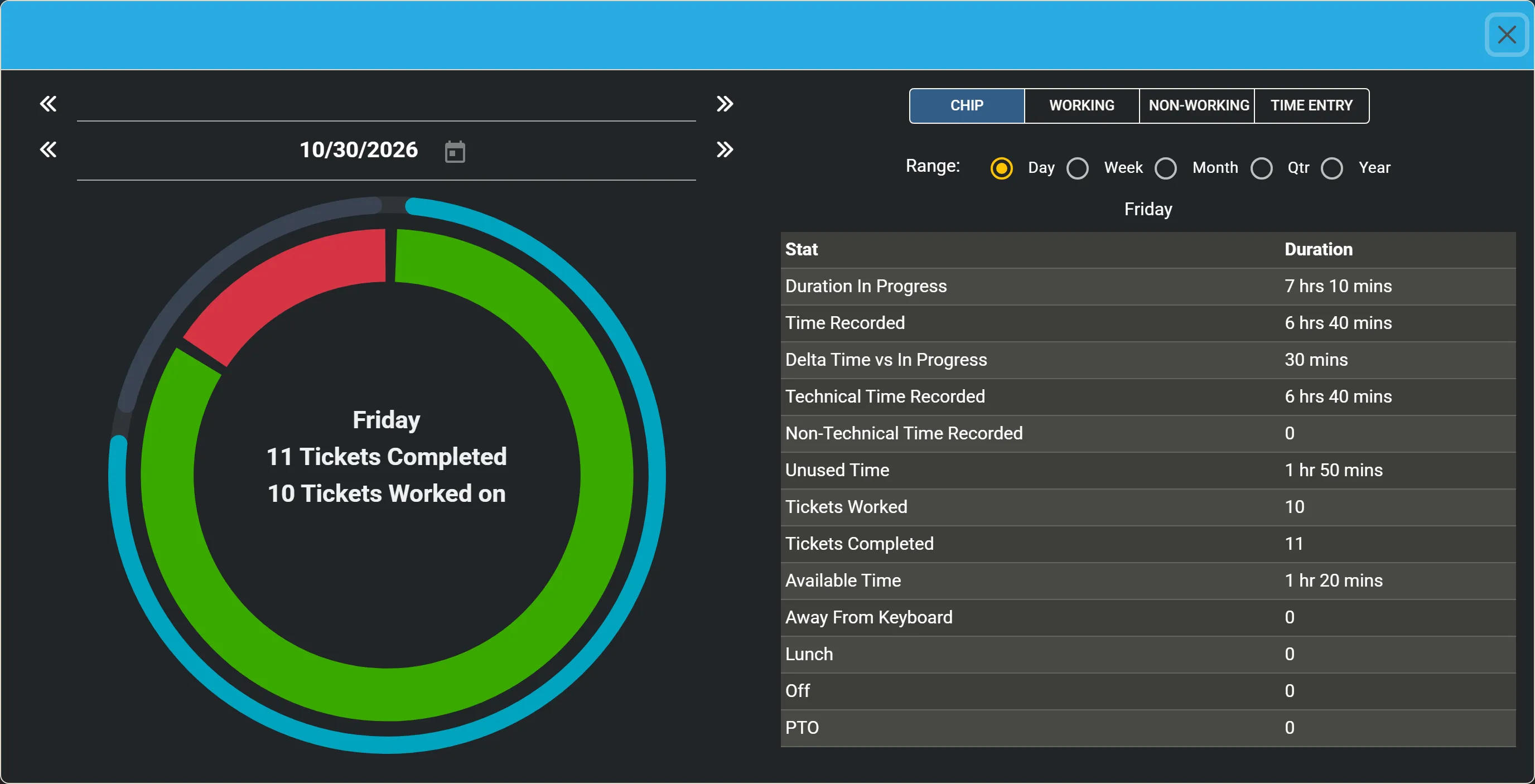
Choose whose details, which day and which report
Section titled “Choose whose details, which day and which report”- Member: choose from the list, or step with the arrows either side. It lists the members with activity that day, in the team you chose. It is not shown to a member who may see only their own availability.
- Day: pick a date, or step with the arrows. Changing it here does not change the day the Time Machine shows.
- Report: Chip, Working, Non-Working or Time Entry.
- Range: Day, Week (Sunday to Saturday), Month, Qtr or Year.
The Working, Non-Working and Time Entry reports draw the day as a time wheel, one slice per stretch, beside a table of the same stretches:
- Working: the tickets worked, each with its color, number, start, end and duration;
- Non-Working: the other stretches, such as Lunch or Available, with their start, end and duration;
- Time Entry: the time recorded, broken down by entries, boards, board types, companies or work types. By entries, each row shows the time recorded, the time In Progress and the difference; a difference of 10 minutes or more that exceeds an eighth of the time recorded is flagged.
Point at a slice for its description and duration; the matching table rows light up. Sort the table by any column. Show a row’s details for its ticket’s summary, company, contact, board and status, or a time entry’s notes.
Click a ticket’s slice or number to open the ticket. Click a breakdown group, such as a company, to list its time entries. Click the start or end time of a stretch to move the Time Machine to that moment.
The Chip report shows a large chip beside the figures. See The details dialog.
A range
Section titled “A range”For a week, month, quarter or year, each report is shown as a calendar of days, or as a graph; switch with the control above it. Your choice is remembered on your device.
- The calendar shows each day’s chip (or strip, for a week or month in the strips view) or small wheel. Click a date for that day’s details.
- The graph plots, for each working day, the time In Progress and the time recorded, and the tickets worked and completed; the Non-Working graph plots PTO, Off, Lunch, Away and Available time. Click a point for that day.
With a range, the figures show totals and averages per working day. A difference between recorded and In Progress time of more than an hour is flagged.