
Turn ScheduleSync or TravelSync on or off
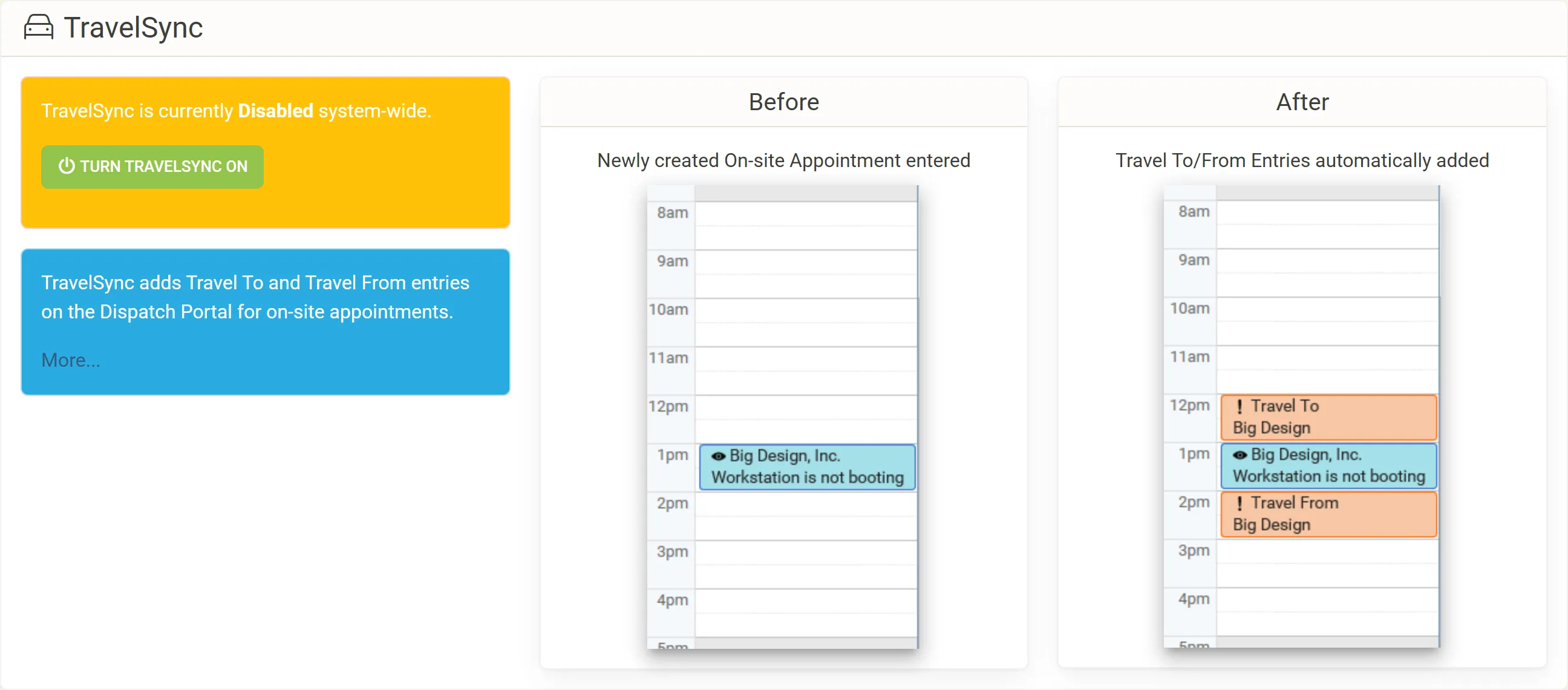
ScheduleSync and TravelSync each have one company-wide switch. You need to be an administrator in Nilear.
- Sign in at app.nilear.com and open Settings.
- On the ScheduleSync card, click Select.
- On the ScheduleSync card, click Turn ScheduleSync ON or Turn ScheduleSync OFF. On the TravelSync card, click Turn TravelSync ON or Turn TravelSync OFF.
The card says which is in force: ScheduleSync (or TravelSync) is currently Enabled or Disabled system-wide. The change applies to the next time entry or schedule change ConnectWise reports.
What the switches decide
Section titled “What the switches decide”- The two switches are independent. TravelSync can run with ScheduleSync off.
- Turning a switch off stops new changes. It does not undo schedule entries already moved or travel entries already written.
- With a switch on, each member’s own switch on the Members page still decides whether it works on their schedule. See Turn ScheduleSync off for a member.
If you are not an administrator, Nilear refuses the change with Your account does not have Administrator Rights to perform this action.