
Get started
These steps take a technician from signing in to working a first ticket in MTX. Your administrator has already connected your company’s ConnectWise to Nilear and given you access to MTX.
-
Sign in. Go to app.nilear.com and choose Sign in with Microsoft or Sign in with Google, with your work account. Nilear no longer offers email-and-password sign-in.
-
Open MTX. On Nilear’s home page, the MTX card offers Open, which opens MTX here, and Open Tab, which opens it in a new browser tab. You can also go straight to app.nilear.com/mtx and keep it as a bookmark.
-
Say where you are working. When MTX does not yet know where you are working, a Work Location window asks Where are you working from? Choose Office, Home, On the Road, Remote or Other. MTX needs an answer before it can take any further action. Your team sees it on the Availability board, and you can change it later from your availability.
-
Close the updates. When MTX has changed since you last looked, an Updates for MTX window lists what is new. Read it, or click Close.
-
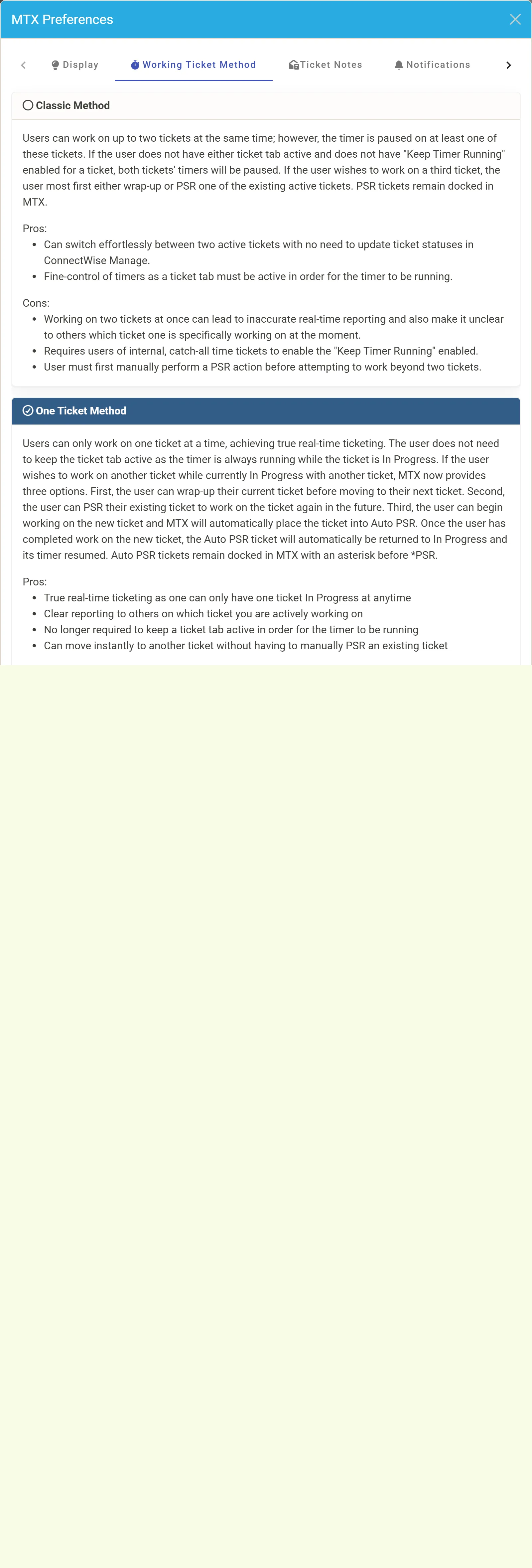
Check your working ticket method. Click the gear in the toolbar to open MTX Preferences, and select Working Ticket Method. Your administrator may have chosen the method for everyone; if not, choose one:
- One Ticket Method: one ticket In Progress at a time. Its timer runs while it is In Progress, whatever tab you are on. Starting work on another ticket puts the first one in *PSR (Auto PSR) and returns to it when you finish the second.
- Classic Method: up to two tickets in progress at once. A ticket’s timer runs only while its tab is selected, unless you turn on Keep Running for it.
Nilear recommends the One Ticket Method for new users. See Start and stop work for what each does.
-
Open your queue. Select My Queue. The tickets are listed in the order to work them. See Work your queue.
-
Work your first ticket. Click a ticket’s number to open its summary, then click Work on Ticket. MTX sets the ticket In Progress, starts your timer, and opens the ticket’s own tab. Follow the walkthrough for the rest of the way.
Other first settings
Section titled “Other first settings”In MTX Preferences:
- Display: switch between the light and dark theme, and turn on Compact tabs to show MTX’s tabs as icons and leave more room for your working tickets.
- Ticket Notes: open email notes in Text View instead of the original email.
- Notifications: choose which customer replies and in-house updates you are told about, or silence them for today.
- Time Zone: see the time zone your schedules are shown in.
See Set your preferences.