
Send an email
While you work a ticket, its email to the customer is the working view’s second step. Click Move On from Working Notes to reach it. The email is not sent while you write it: it goes once you finish wrap-up, as the note “Final email is delivered after Wrap-up has been completed unless Skip Email selected” says, and it is recorded on the ticket with your time entry.
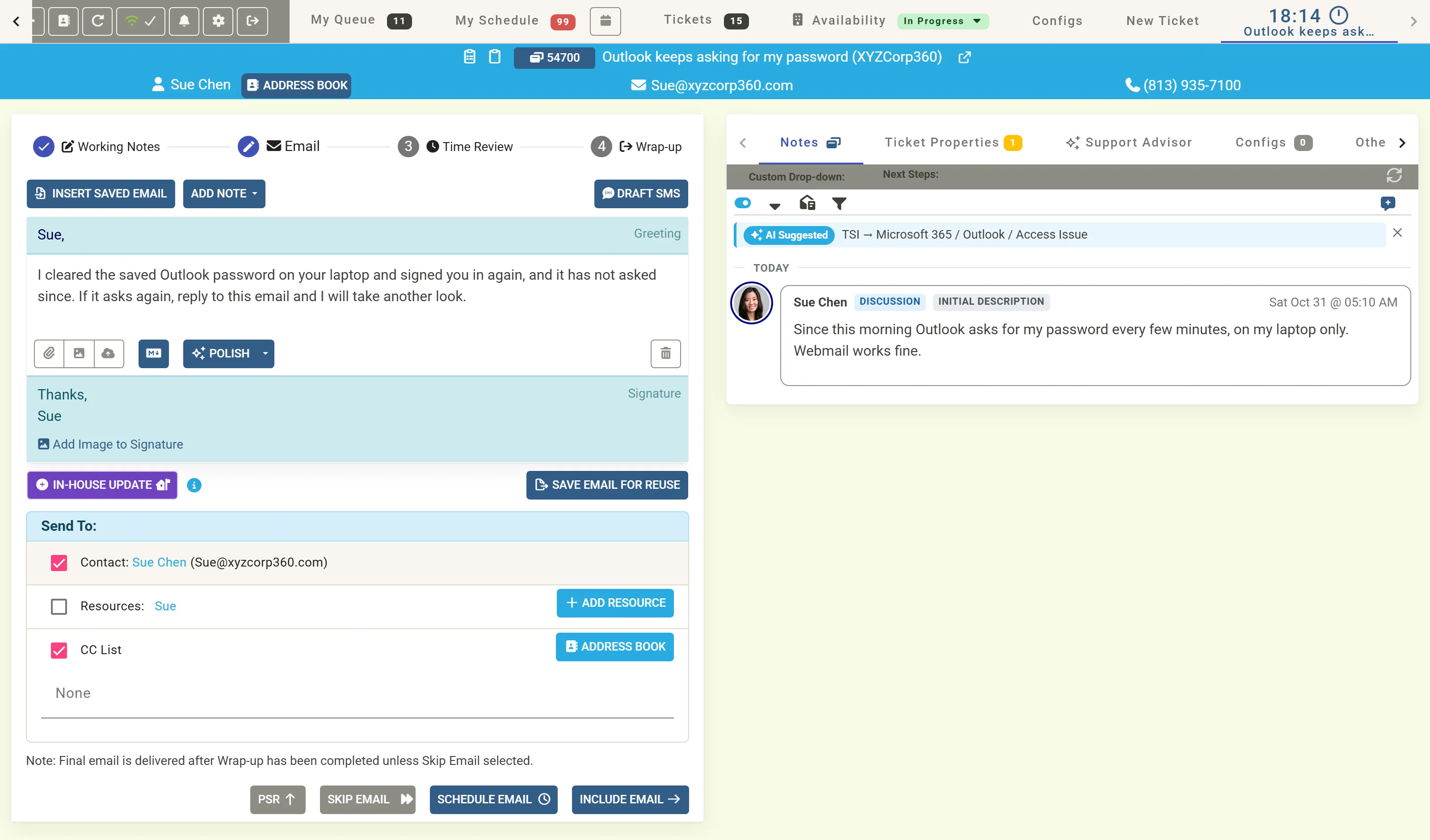
Write it
Section titled “Write it”- Check the Greeting: MTX fills it with the contact’s first name.
- Write the Body. Or start from a saved email with Insert Saved Email, or insert a standard note with Add Note.
- Check the Signature. Add Image to Signature adds a picture to it.
- Attach a document or an image with the buttons under the body, or drag a file onto them.
When Include with Email is ticked under Working Notes, your working notes follow the body under a Notes heading.
Save Email for Reuse keeps the email to insert in another ticket later. The bin button clears the body; an Email cleared notice offers Undo for 15 seconds.
Polish it with AI
Section titled “Polish it with AI”Click Polish, choose a tone (Neutral, Friendly or Firm), and compare your draft with the polished one side by side before accepting it. Only the email’s text is sent to the AI. See Ticket Automation’s technician tools.
Choose who gets it
Section titled “Choose who gets it”Under Send To:
- Contact: the ticket’s contact, ticked to start with.
- Resources: the members assigned to the ticket. Add Resource adds one.
- CC List: the ticket’s CC list. Address Book adds a contact from the company’s address book.
Untick a line to leave it out.
Then choose
Section titled “Then choose”| Button | Does |
|---|---|
| Include Email | Keeps the email, to be sent when you finish wrap-up, and moves on to Time Review. |
| Schedule Email | Sends it at a time you choose instead. After wrap-up the ticket moves to Email Scheduled, and once the email goes, to the status you chose at wrap-up. |
| Skip Email | Sends no email and moves on. A drafted email is then not sent. |
| PSR | Puts the ticket in PSR, saving your notes and draft email so far, to come back to. |
With nothing in the body, the step offers Skip Email, and wrap-up offers Draft Email and, when you have notes, Send Notes as Email, which sends your working notes as the email.
Other ways to email
Section titled “Other ways to email”- In-house Update writes an internal note flagged for whoever works or dispatches the ticket next. They see the ticket highlighted and get a notification, rather than the customer.
- Draft SMS drafts a text message.
- Outside a session, the ticket summary’s Email button writes an email at once, and Internal Email writes one to the resources only. See Open a ticket’s summary.