
Work your queue
My Queue lists the tickets waiting for you, in the order to work them. Instead of a date and time for every ticket, the queue keeps one ordered list per technician: you take the ticket at the top, and whoever manages the queue reorders it as priorities change. Its tab shows how many tickets it holds.
Nilear’s short video on working the tickets in your queue shows the same steps.
Read the queue
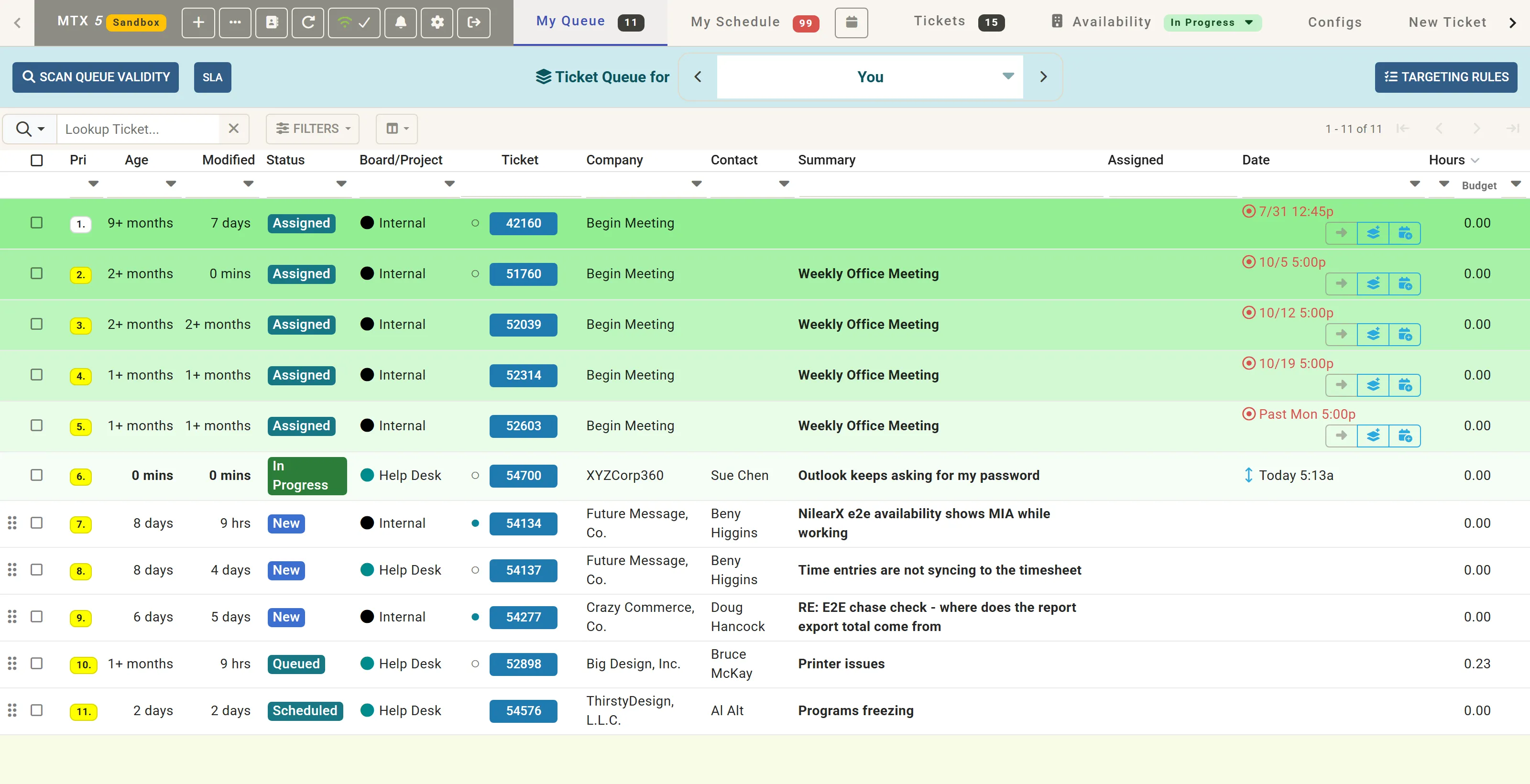
Section titled “Read the queue”- Ticket Queue for shows whose queue you are looking at: You, unless you choose another queue from the list or with the arrows beside it.
- The number in the first column is the ticket’s place in the queue, colored by its priority.
- Age is how long since the ticket was entered, Modified how long since it last changed.
- The ticket number opens the ticket’s summary.
- Lookup Ticket…, Filters and the columns button work as on the Tickets tab: see Filter the ticket list and Choose the ticket list’s columns. The queue’s Filters offer Single target, Age on a 24-hour clock and Last viewed.
The order
Section titled “The order”The queue is always in queue order: it cannot be sorted by another column. Some tickets go ahead of the queued ones whatever their position, ordered by urgency, and show no drag handle:
- a ticket In Progress or in Process Still Running;
- a ticket the customer has responded on;
- a ticket in your PSR;
- a ticket scheduled for a time, rather than queued for a day.
Every other row has a handle on its left. Drag it up or down to change the ticket’s place, unless your company has restricted changes to the queue.
How tickets join the queue
Section titled “How tickets join the queue”A ticket is put on the queue when its status changes to Queued, to a status named **Queued - **reason (for example Queued - Follow Up), or to *Dispatched, whether the change is made in MTX or in ConnectWise. A ticket already on the queue keeps its place. Your administrator can also have a board queue its new tickets by itself, and can set up Targeting Rules that decide whose queue a ticket goes to.
When you wrap up a ticket, you can queue it again instead of scheduling it.
Work the next ticket
Section titled “Work the next ticket”- Click the number of the ticket at the top of the queue to open its summary.
- Click Work on Ticket.
Or, without the mouse: press ↓ or J to highlight the ticket, then W. See Start and stop work.
Other controls
Section titled “Other controls”- Scan Queue Validity applies the targeting again and looks for queued tickets that no member can be targeted for, saying whether a targeting rule or a manual targeting is behind them.
- SLA lists the tickets with SLA warnings: yours, or all tickets, as your SLA warning settings say.
- Targeting Rules opens the rules that decide which queue a ticket goes to, where your access allows.