
Review a configuration
A review checks that every value of a configuration is still right. It is worked in MTX, on a review ticket, once an administrator has set up configuration reviews.
1. Generate the review ticket
Section titled “1. Generate the review ticket”- In MTX, open the Configs tab, then Review.
- Under Configurations Needing Review, find the configuration (use Filter to search) and click GENERATE TICKET. The button shows Creating Ticket…, then the new ticket’s number.
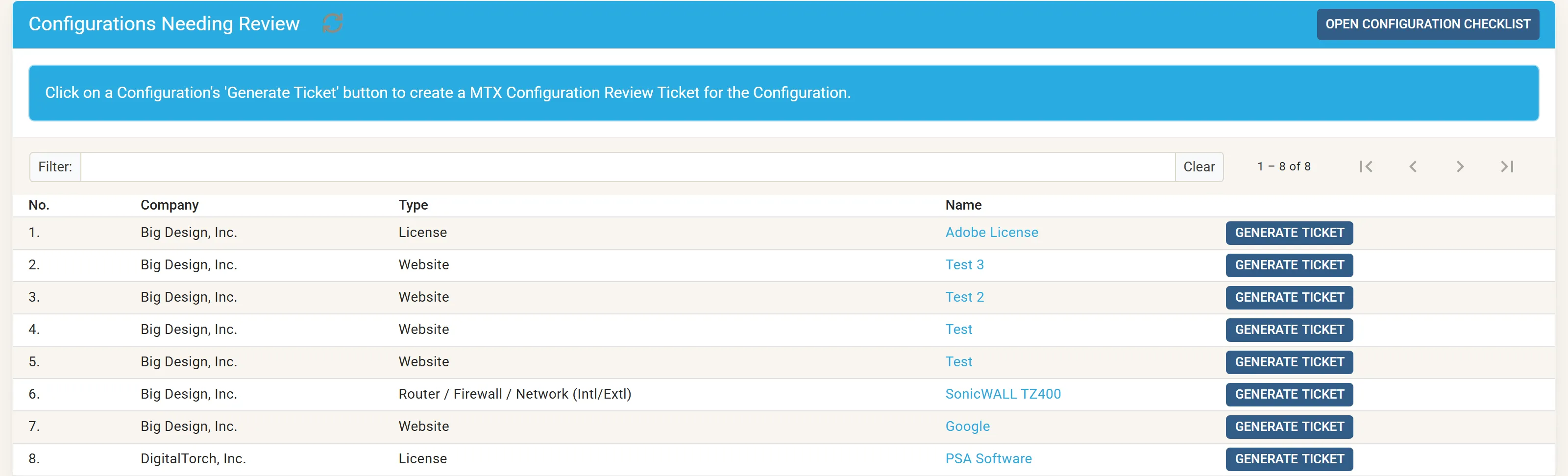
The ticket is created on the review board, in its default status, with the summary REVIEW: type [configuration name], the configuration attached, and a first note saying a review is needed. Above the list, the Review tab shows your review tickets.
If the configuration has become inactive, its type inactive, or it no longer exists, it is removed from the list and a message says why.
2. Work the ticket
Section titled “2. Work the ticket”Start working the review ticket in MTX’s Working On view: reviews can be processed only there. MTX adds a task for each element of the configuration under CONFIGURATION REVIEW: its name, status, contact, attachments, notes, vendor notes, dates, manufacturer, serial, model and tag numbers, and each of its type’s questions.
For each task, check the value against the device or the client’s records, and mark it:
| Icon | Means |
|---|---|
| Green check, Confirm Config Value | The value is right. |
| Yellow ban, Not Applicable | The element does not apply to this configuration. |
| Red circle, Invalid | The value is wrong. Correct the configuration. |
An empty value cannot be confirmed: mark it Not Applicable or Invalid. Several reviewers can share one ticket; each is credited with the tasks they marked.
3. Complete the ticket
Section titled “3. Complete the ticket”When every task is marked, move the ticket to a completed status as you would any ticket in MTX. The configuration is then recorded as reviewed on that day, and its next review falls due after its cycle.
Review instructions
Section titled “Review instructions”On a configuration, hover over a field and click + Add Review Instructions to tell reviewers how to check that field for every configuration of the type, up to 4,000 characters. Once written, the link reads Edit Review Instructions.
A daily limit
Section titled “A daily limit”You cannot start a review ticket while more than one of the review tickets you worked earlier that day still has open tasks. MTX says Maximum Daily Configuration Review Tickets with Open Tasks: finish marking off one of the earlier tickets first. This keeps reviews thorough, and keeps client tickets first.