
Take a board from Preview to Live
The situation
Section titled “The situation”An MSP’s administrator, with the Admin access level, has added the company’s OpenAI key and wants new tickets on the Help Desk board to arrive with their Type, SubType and Item already set, and tickets that mix several problems split apart. The team wants to see what automation would do before it touches a ticket.
1. Switch the board on in Preview
Section titled “1. Switch the board on in Preview”On Ticket Automation’s Boards page, the administrator expands Help Desk, leaves Preview selected, ticks Set TSI, and switches the board on. The row reads Preview and its number of automations.
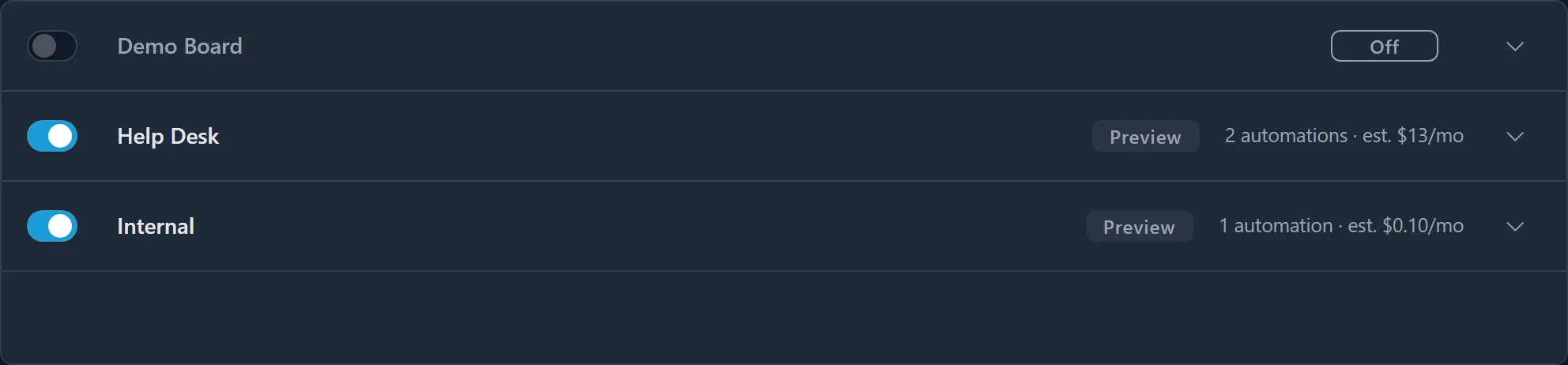
The expanded board estimates the monthly OpenAI cost from the 1,350 tickets entered on the board in the last 30 days: $1.85 for Set TSI. The board also has Support Advisor ticked, whose lines make up the rest of its $13.

2. Read the Preview notes
Section titled “2. Read the Preview notes”Over the next days, new Help Desk tickets that lack a Type get a note such as:
Nilear AI suggests these changes (Preview - nothing on this ticket was changed)
Suggestions: TSI → Hardware / Laptop / Screen
- Type / Subtype / Item: "Hardware" / "Laptop" / "Screen". The customer reports a cracked laptop screen.
Nothing on these tickets changes. Technicians who turned on MTX’s AI column see Suggested on each one, and the administrator filters the column on “Suggested” to review them together (Read the AI column).
3. Correct what is wrong with an instruction
Section titled “3. Correct what is wrong with an instruction”Most suggestions match what the technicians chose. But password resets are being put under Software, where the company does not want them. The administrator writes a board instruction for Set TSI:
Password resets and account lockouts belong under Security > Account > Password Reset, not under Software.
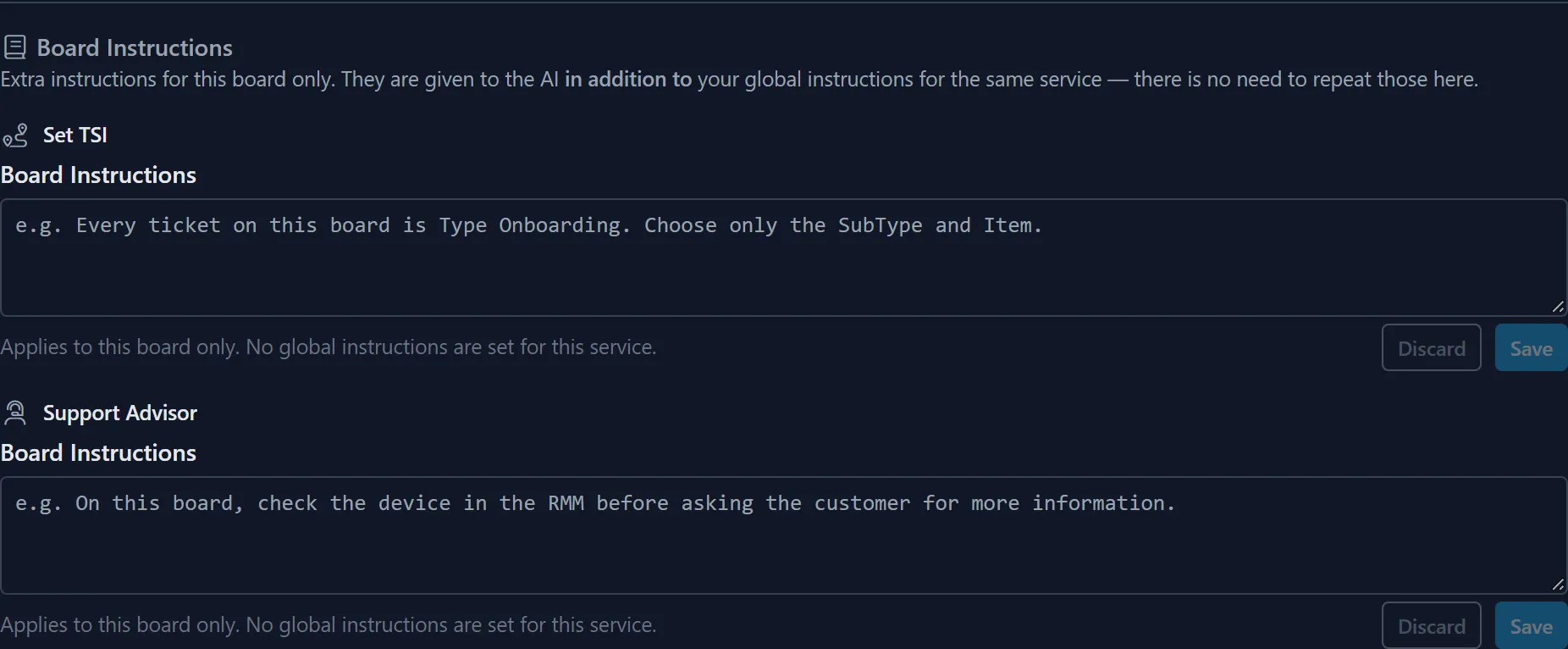
On Save, the text is checked against what Set TSI can see and do. It finds nothing, so the instruction is saved and used from the next ticket (Write instructions).
4. Add Split Tickets
Section titled “4. Add Split Tickets”The team often gets emails reporting two unrelated problems. The administrator ticks Split Tickets. The page checks that the company’s ConnectWise API member may add attachments, needed to copy a moved issue’s screenshots. Had it not, the box would stay unticked with Split Tickets cannot be switched on yet and the fix: System → Security Roles → the role → Companies → Manage Attachments, Add Level All, then Check again (Split Tickets).
The board’s estimate rises at once by Split Tickets’ cost.
5. Go Live
Section titled “5. Go Live”After a week in which the notes are right, the administrator selects Live under When automation changes a new ticket. It applies from the next ticket.

6. A ticket in Live
Section titled “6. A ticket in Live”A customer writes in one email that their availability shows Inactive or MIA while they work tickets, and, separately, that their time entries are not syncing to their timesheet, with a screenshot of the timesheet. The ticket arrives as “NilearX e2e: availability MIA and time entries not syncing” (ticket #54136).
About ten seconds later, Split Tickets finds two separate problems. In Live:
- a new ticket, #54137, “Time entries are not syncing to the timesheet”, is created on the same board, company and contact, with the customer’s description of that problem and the timesheet screenshot;
- the original’s summary becomes “Availability shows Inactive or MIA while working tickets”;
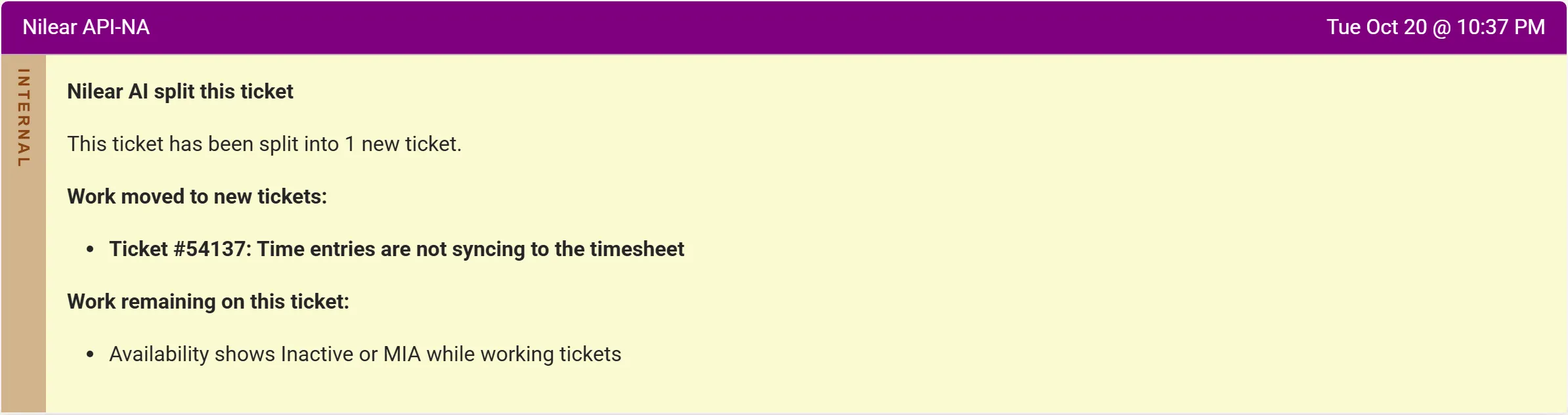
- each ticket gets a split note saying where the work went.
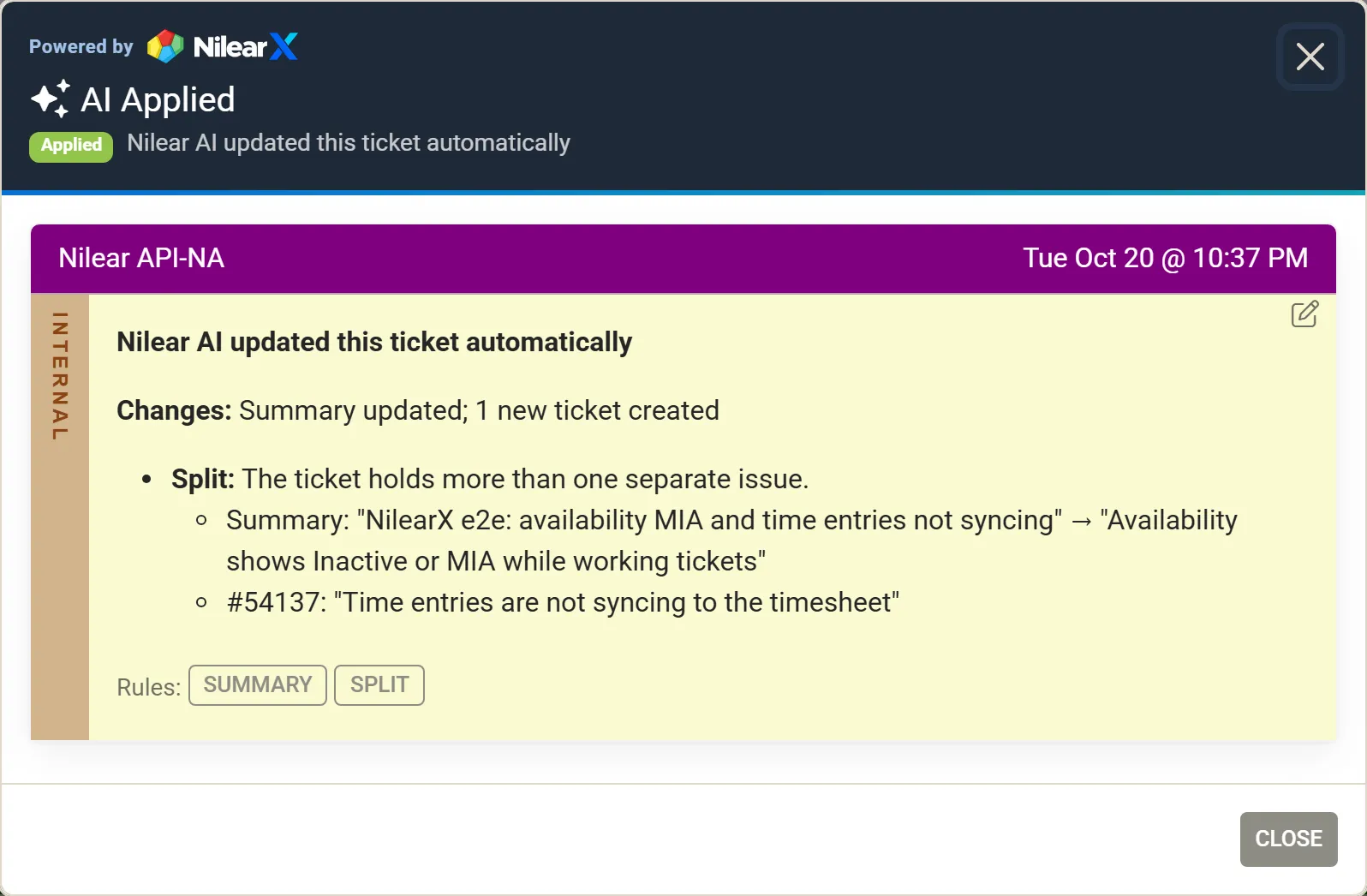
In MTX, the original shows the bar AI Applied, “Summary updated · 1 new ticket created”:

Clicking it opens the note:
And the original’s split note lists the work moved and the work remaining:
Ticket #54137 is then automated like any new ticket on the board, except that it is never split again or re-summarised. Two technicians can now work the two problems separately.
What to do next
Section titled “What to do next”- Add Assign Priority or Create Tasks, in Preview on another board first if you prefer: the mode is per board.
- Read Preview and Live and How a ticket is automated for the detail behind each step.