
Set up queue targeting rules
A ticket on MTX’s queue is offered to the members its targeting rule picks (how the queue works). Every company starts with one rule, the Default Rule: “For Tickets not matched by other targeting rules, target members of the ticket’s assigned board team.” You add rules above it for the tickets that should go elsewhere. Saving a rule needs Nilear’s Manager access level.
Open the rules
Section titled “Open the rules”In MTX, open the My Queue tab and click Targeting Rules, or open the View Additional Options menu (the … button in the MTX tab) and choose Queue Targeting Rules. The menu item is not offered when Skill Management is off for your company, or when Restrict Queue is on and you are not a Manager or Admin.
Add a rule
Section titled “Add a rule”-
Click Add Rule.
-
Give it a Name and leave it Active.
-
Under Ticket Matching, choose what a ticket must have for the rule to apply. Every condition you fill must match: Board Type, Board, Status, Service Team, Company (then Site and Contact), Priority, SLA, Territory/Location, Source, a Custom Field and its value, and Service Type, Service SubType and Service Item.
-
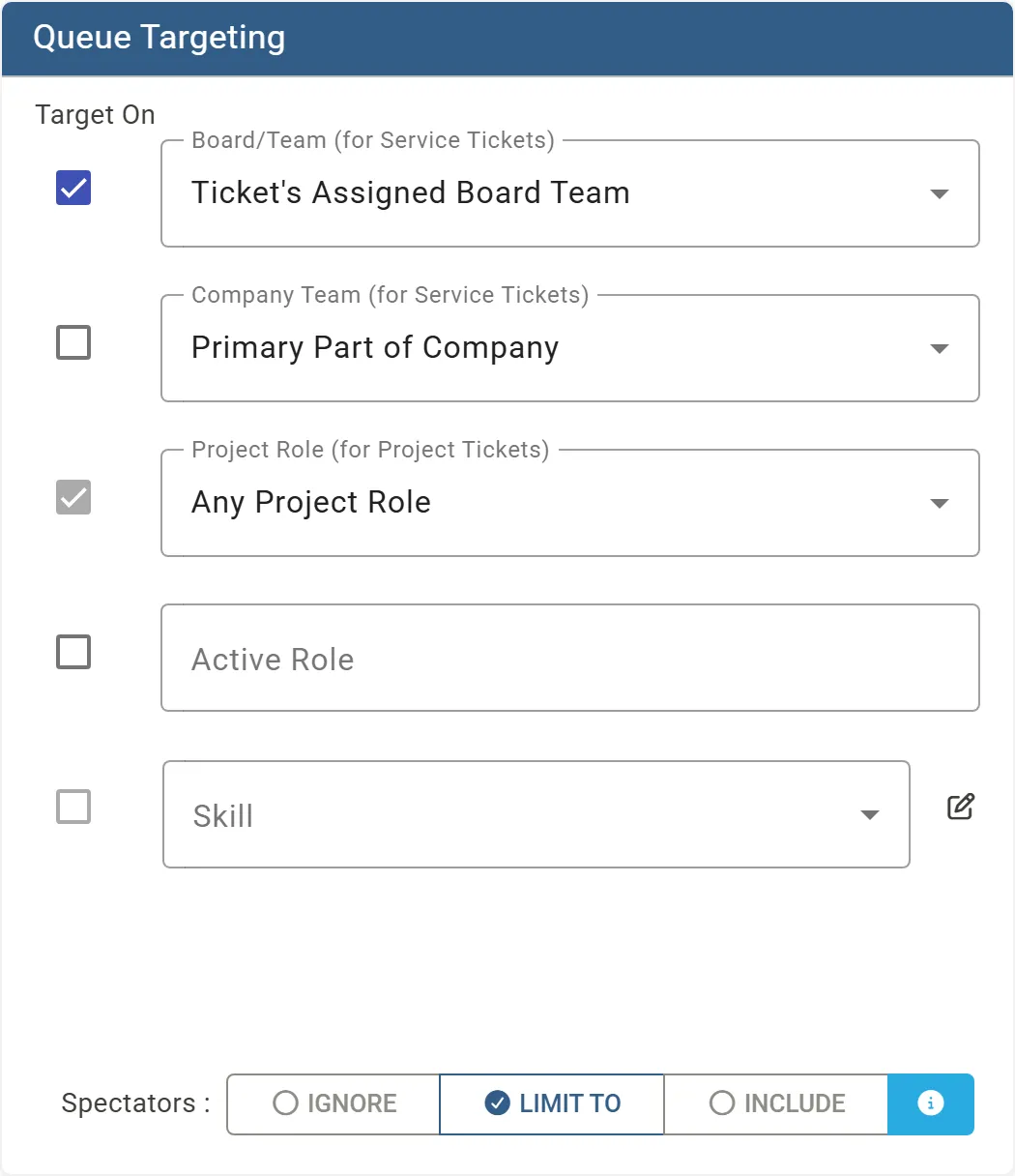
Under Queue Targeting, tick what a member must have to be offered the ticket, and choose its value:
Target On Meaning Board/Team (for Service Tickets) Ticket’s Assigned Board Team, or Any Member of the Ticket’s Board. Company Team (for Service Tickets) A role on the company’s team in ConnectWise, such as Primary Part of Company. Project Role (for Project Tickets) A role on the project’s team, or Any Project Role. Active Role The active role a member has set on their availability, such as “Dispatcher”. Skill A skill or skill category, with a Minimum Skill Level and, if you tick it, Require Cert. The edit icon opens Skill Management. -
Choose how Spectators are treated: Ignore, Limit to or Include. Spectators are members with a schedule record on the ticket without a date or time. Limit to offers the ticket only to its spectators when it has any; Include adds them to the members the rule picks.
-
Close the dialog. A changed rule shows MODIFIED, and closing asks Commit Targeting Rule Changes: choose Commit Changes to save them or Discard Changes to drop them. A rule whose conditions cannot be built is refused with “Targeting Rule has Errors” until you correct it.
The box at the top of each rule describes it in a sentence, so you can check it before saving. Switching a saved rule’s Active off or on saves at once.
Order matters
Section titled “Order matters”Rules are tried from the top, and a ticket takes the first active rule it matches. Drag a rule by its handle to move it. The Default Rule stays last and catches every ticket no other rule matches; its ticket matching cannot be changed. A rule that is not active is skipped and shows INACTIVE.
Who can change the queue
Section titled “Who can change the queue”With Restrict Queue on in Settings, My Tickets, only Managers and Admins may change the queue’s order and its targeting rules. Off, every member may change the order.