
Turn Support Advisor on for a board
Support Advisor works on a ticket only when three things hold: it is switched on for your company, the ticket’s board is switched on in Ticket Automation, and Support Advisor is ticked on that board. This page covers the board. You need the Admin access level.
- In Nilear, open Ticket Automation, then Boards.
- Turn on the board’s switch. Its tooltip says what that means: “Off keeps all AI off this board’s tickets, in MTX and AI clients too. On runs what is ticked below, Support Advisor included.”
- Click the board’s row to expand it, and tick Support Advisor.
- The first time you tick it on a board, a setup panel opens. Choose the board’s indexing and click Confirm (Choose a board’s indexing). Cancel saves nothing and leaves the box unticked. Ticking it again later saves at once, with the indexing you chose before.
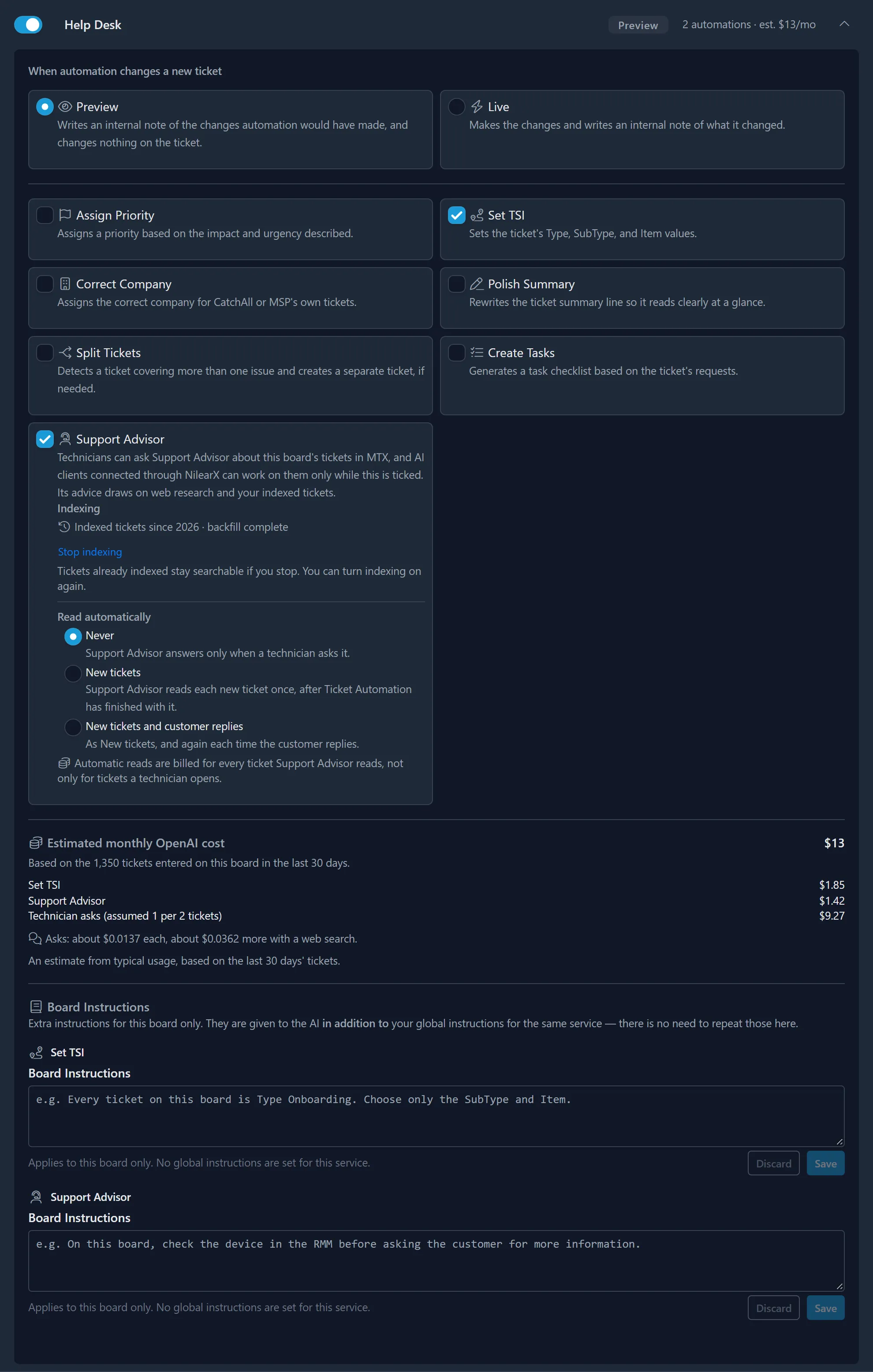
The change applies without a restart. A technician whose MTX was already open sees the tab on their next settings load, within about five minutes.
The board’s mode does not apply to Support Advisor
Section titled “The board’s mode does not apply to Support Advisor”Each board is set to Preview or Live, which decides whether Ticket Automation changes the ticket or only notes what it would change. Support Advisor ignores that choice: it never changes anything in ConnectWise in either mode.
Turning it off again
Section titled “Turning it off again”Untick Support Advisor to stop it on the board. Asks and automatic reads on the board’s tickets are refused from then on, and a backfill in progress pauses. The board keeps its indexing choice for when you tick it again. Tickets already indexed stay in the searchable history.
Switching the whole board off stops Support Advisor too, with every other automation on it.
A technician who sees “Support Advisor is not enabled for this board.” is on a board where one of these two steps is missing.